How to Run an Appraisal Status Report
This screen produces the Appraisal Status Report and is a list of employees whose Appraisal Status is ‘Not Started’ or ‘In Progress’ as well as appraisals whose Appraisal Status is ‘Completed’ and have an ‘Unsatisfactory’ result. The report is generated by Location with the option to send an Email Reminder to the school. This process ensures that Appraisals are performed on a timely basis. The flag to identify which school receives an Email Reminder is set at the school level on the K212 Portal
Use the following steps to Run an Appraisal Status Report:
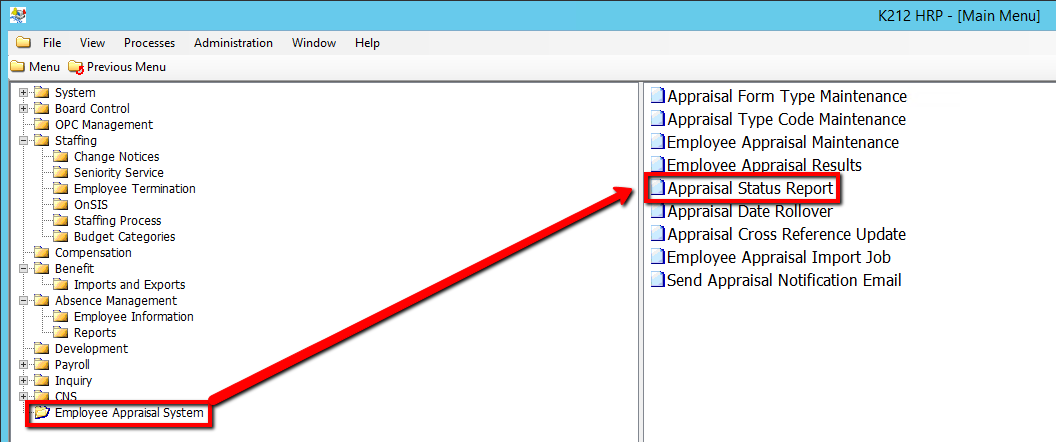
1. Click on Employee Appraisal System.
2. Click on Appraisal Status Report.
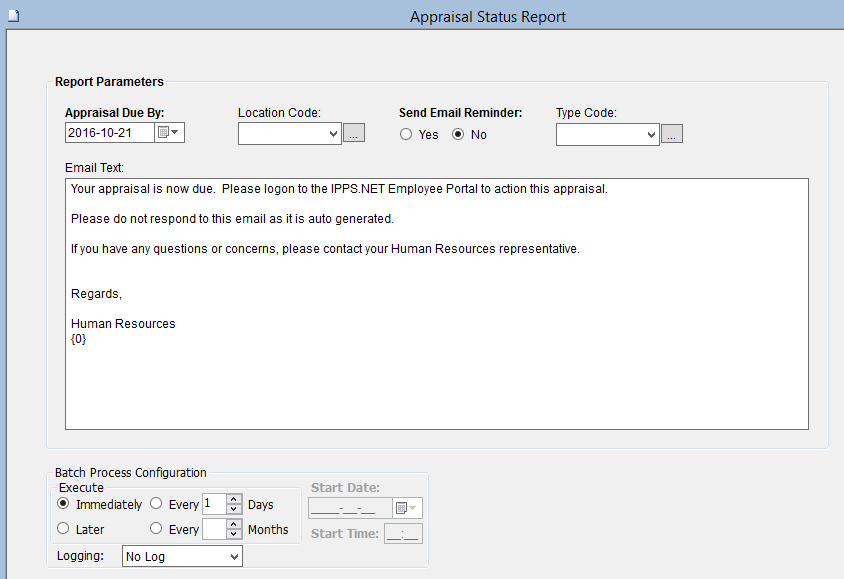
3. Click the Appraisal Due By drop-down menu to select an option. (i.e Date)
This field defaults to today’s date if left blank. The report will display ‘In Progress’ and ‘Not Started’ Appraisal records (i.e. those that require a follow up) that falls within today’s date and the date entered in the ‘Appraisal Due By Date’.
4. Click the Location Code drop-down menu to select an option.
The value entered in this field must already exist in the Locations table. The report can be generated by one Location or All (blank). The Default is All.
5. Select a Send Email Reminder value (i.e N)
Select ‘Yes’ and an email reminder will be sent to the school that Appraisals are due. The default is set to No. The flag to identify which schools will receive email reminders is set at the school level on the K212 Portal.
6. Click the Type Code drop-down menu to select an option.
The value entered in this field must already exist in the Appraisal Type Code table. The report can be generated by one Appraisal Type Code or All (blank). The Default is All.
7. Enter a unique Email Text that will be sent to all specified employees
Emails should not contain sensitive information; they are a reminder from the board to ensure appraisals are performed on a timely basis.
8. Click the Submit button at the top of the menu bar to send the report emails
