How to Add/Modify WHMIS Employee Records
This screen is used to add/modify Employee WHMIS records which determine what year that employee passed training, if they passed training and when.
Use the following steps to Add/Modify WHMIS Employee Records:
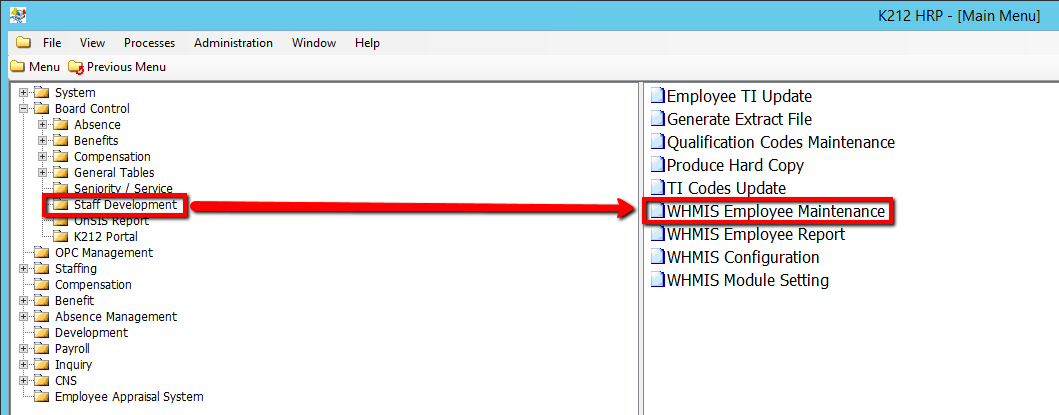
1. Click on Board Control
2. Click on Staff Development
3. Click on WHMIS Employee Maintenance
.png)
4. Click the Find button at top of the menu bar to see all current records in the database. OR Enter in a Specific parameter such as Employee ID or Employee Group to narrow your search.

5. If K212 HRP dialog box displays, click Yes to continue.
.png)
6. Select the Employee record you wish to modify in the left hand column.
7. Right click the grey grid under the Year column and select a New Record
.png)
8. Enter the Year for the record
9. Click the Pass? drop-down menu to select an option. (i.e Y)
10. Enter the Number of Modules Read value. (i.e 4)
11. Click the Save button to save the edits.
