How To Add Tags to Profiles
This tab is used to Add/Modify & displays a list of Tags that can be used for the profile selected. Tags can be used to personalize the email body content by placing the tag name between the less than and greater than symbols: <TagName>.
Use the following steps to Add Tags to Profiles:
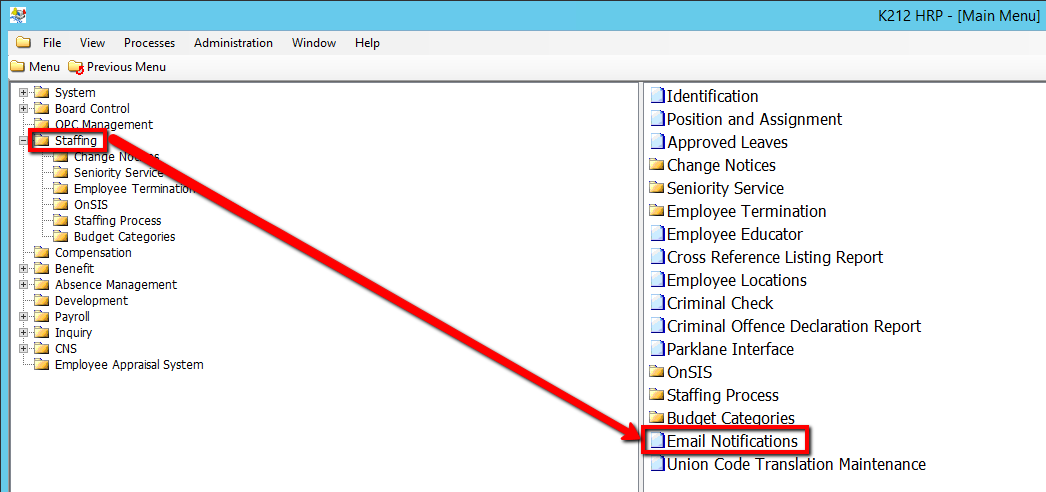
1. Click on Staffing.
2. Click on Email Notifications
.png)
3. Click the Find button at top of the menu bar to see all current Records in the database.

4. If K212 HRP dialog box displays, click Yes to continue.
.png)
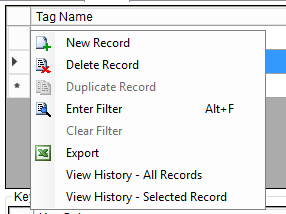
5. Select the Record that needs to be edited or right-click the grid below Tag Name and select New Record to add a new record
6. Enter a valid Tag Name (i.e First Name).
7. Enter a valid Table Name value select a value from the drop-down (i.e EC_EMPLOYEE)
8. Enter a valid Column Name value (i.e First_Name)
9. Click the Save button.
