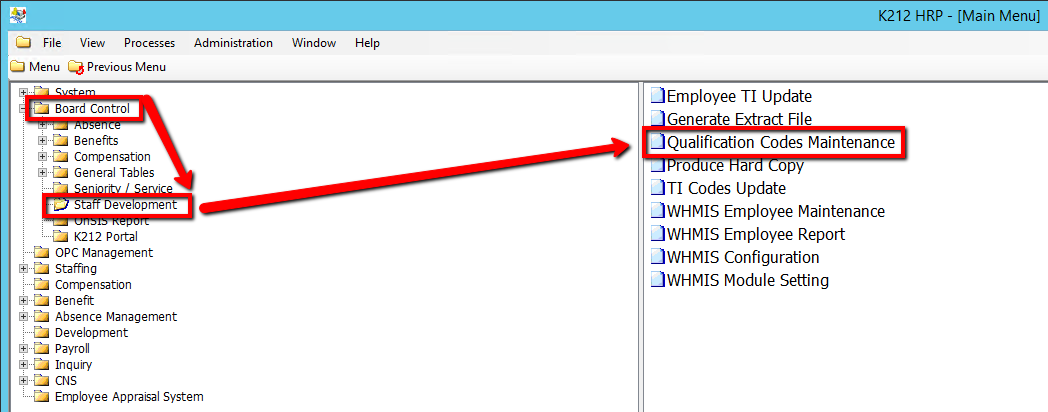
How to Add/Modify Board Qualification Codes
This screen is used to add, modify or delete Board owned qualification Code Types (B) and the codes associated with each Qualification Code Type. However, qualifications owned by the Ontario College of Teachers (M) cannot be added, modified or deleted on this screen as this occurs in the background processing screen, TI Codes Update in the Staff Development menu.
Qualification Code Types are identified by a unique two character abbreviation at the Board level. These code types are hard coded as DG for degrees and QU for Certificates & Qualifications. Qualification codes must have an Owner assigned to them. The Owner is either the Board (where the owner is B) who track non-teaching Employee qualifications or the Ontario College of Teachers (where the owner is M) who track teaching qualifications.
Use the following steps to Add/Modify Board Qualification Codes:
1. Click on Development
2. Click on Employee Qualification Maintenance
.png)
3. Enter a Search parameter, such as Code Type (If applicable)
To View ALL Employee's, Simply click the Find button, with no parameters entered.
4. Click the Find button at top of the menu bar to see all records in the database.

5. Select the record to Modify
6. Right-click the grey grid below the Code column and Select New Record
.png)
7. Enter the relevant information within the grid. Double-click on a grid-column to modify the value (Consult the user guides for more information about each field)
8. Click the Save button to save your changes
.png)