How to Add/Modify Budget Categories
This screen is used to set up budget categories. This module enables the board to compare actual FTE’s to budget FTE’s and assign approved budgets by location. These approved budget values can be used in the Staffing Module and as a validation check when entering new positions.
**Organizational Position Control (OPC) must be set up to use this module.**
Use the following steps to Add/Modify Budget Categories:
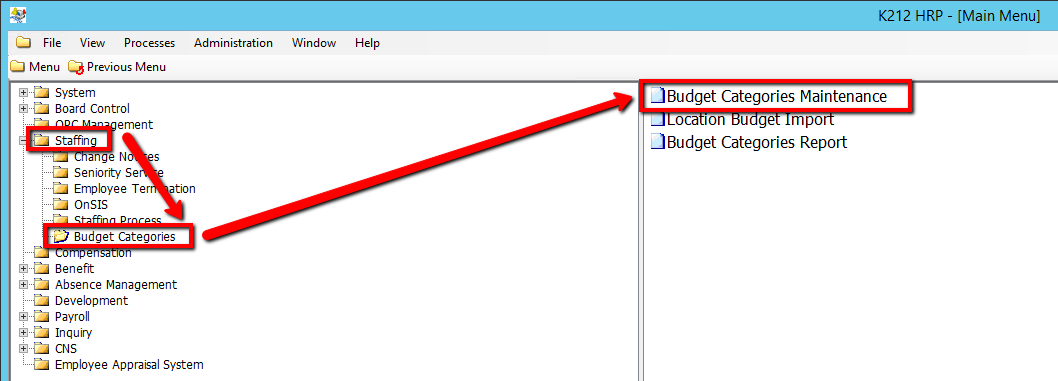
1. Click on Staffing
2. Click on Budget Categories
3. Click on Budget Category Maintenance
.png)
4. Click the Find button at top of the menu bar to see all records in the database.

5. If K212 HRP dialog box displays, click Yes to continue.
.png)
6. Select a current Category Code to modify or Select New at the top of the menu screen to add a new code
.png)
7. Enter a unique Description value
8. Enter a unique Abbreviation value
9. Select a Start Date value (i.e ACTIVE)
10. Enter an Original Max FTE value
11. Enter a Max FTE value
12. Select an As of Date value
13. Right-click the grey grid below the Location Code column and Select New Record.
.png)
14. Enter in any other relevant information on the grid.(All fields are Mandatory) (Consult the user guides for more information about each field)
15. Click the Save button to save your changes
.png)