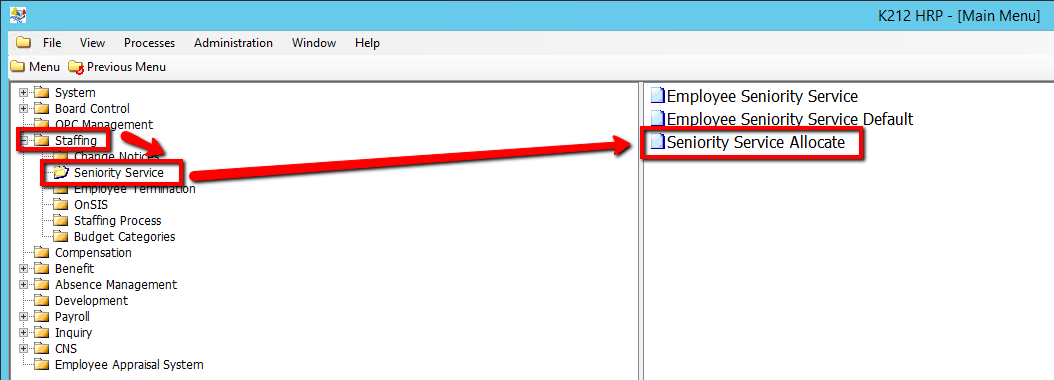
How to Allocate Seniority/Service Credits for Current Employees
This screen is used to submit a background process which updates each active Employee’s Seniority Service balances (adding to the previous update). This process can be run in either Update or Trial mode. The Seniority Service report is produced as a result of this procedure. When Seniority/Service credits are allocated, the start date and end date from the Employee Position are included at the time the service amount is calculated.
Use the following steps to Allocate Seniority/Service Credits for Current Employees:
1. Click on Staffing
2. Click on Seniority Service
3. Click on Seniority Service Allocate
.png)
4. Select an Employee Group that requires credit allocation
5. Select a Calculation Up To Date value (if applicable) (Consult the user guides for more information about each field)
6. Select a Include Approved Leaves value (if applicable) (Consult the user guides for more information about each field)
7. Select a Submit Update or Submit Trial value
Selecting 'Trial' mode will generate a test document of all updated records when submitted, but will not actually update the records within the database until submitted in 'Update' Mode.
8. Select an Audit? value (if applicable) (Consult the user guides for more information about each field)
9. Click on the Submit button to allocate credits
.png)