How to Set Default Information for Seniority/Service Credits for New Employees
This screen is used to submit a background process that sets default values for Employee Seniority/Service records that do not already have the applicable records. The process automatically retrieves all Group Seniority/Service records. To specify a particular Group and Seniority/Service Code, enter the Seniority/Service Eligibility Start Date for this entry.
The following will occur when this background process is submitted:
•Create seniority/service default records (in update mode)
•Create audit records (an option within update mode)
•Create seniority/service default records report
Use the following steps to Set Default Information Seniority/Service Credits for New Employees:
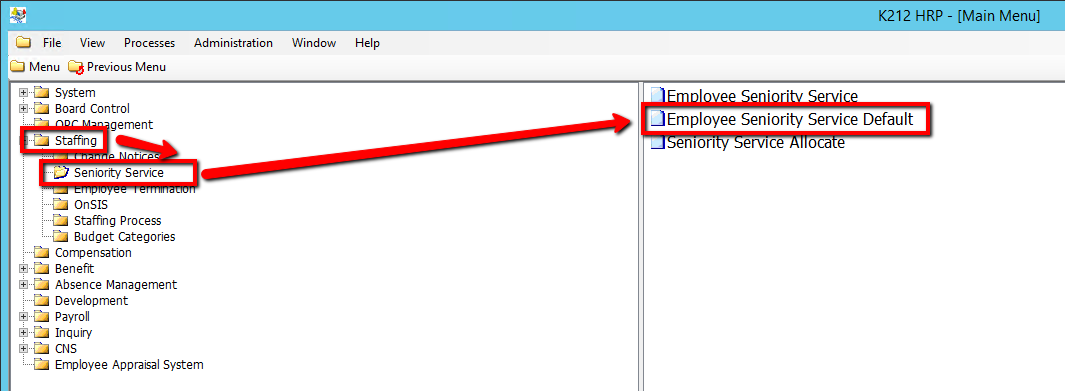
1. Click on Staffing
2. Click on Seniority Service
3. Click on Employee Seniority Service Default
.png)
4. Select an Employee Group that requires credit allocation
5. Select a Seniority/Service Eligible Start Date value (if applicable) (Consult the user guides for more information about each field)
6. Select a Submit Update or Submit Trial value
Selecting 'Trial' mode will generate a test document of all updated records when submitted, but will not actually update the records within the database until submitted in 'Update' Mode.
7. Select an Audit? value (if applicable) (Consult the user guides for more information about each field)
8. Click on the Submit button to allocate credits
.png)