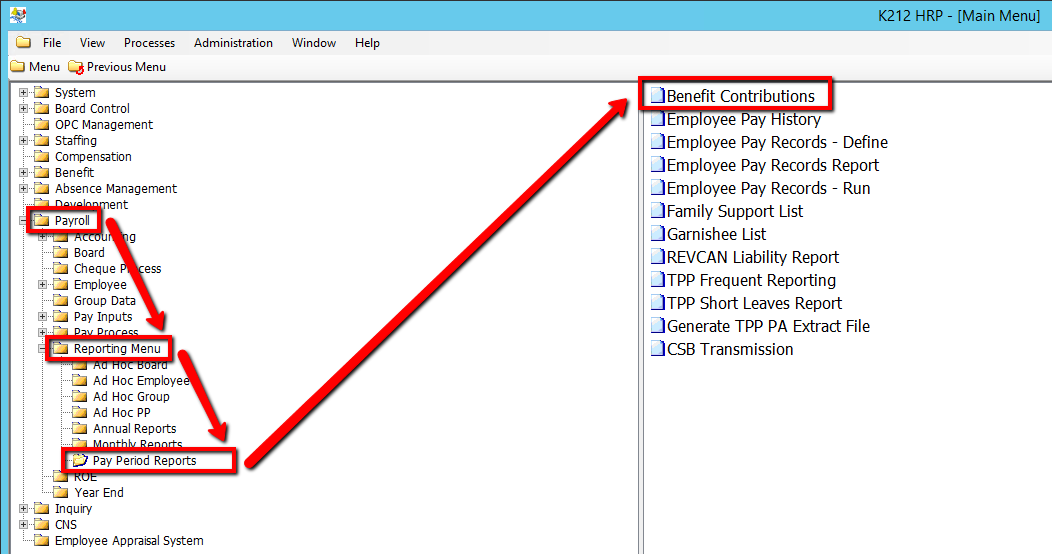
How to Run a Benefit Contributions Report
This screen produces a report for Benefit Contributions. You have the option to generate benefit contribution data for all groups by selecting ‘ALL’ in the Employee Group Code field, or all benefits within a specified Employee Group by selecting ‘ALL’ in the Benefit Type field in the Run Parameter Set Up screen. You must specify a particular Employee Group and the Benefit name to generate the report through the Run Parameter Entry screen.
Use the following steps to Run a Benefit Contributions Report:
1. Click on Payroll
2. Click on Reporting Menu
3. Click on Pay Period Reports
4. Click on Benefit Contributions
.png)
5. Select an Employee Group value
6. Select a Benefit Type value
7. Select a Time Range value
8. Select a Pay Number value
9. Select a Year and Month value (If applicable)
10. Select a Report SIN value
11. Click on the Submit button to generate the report
.png)