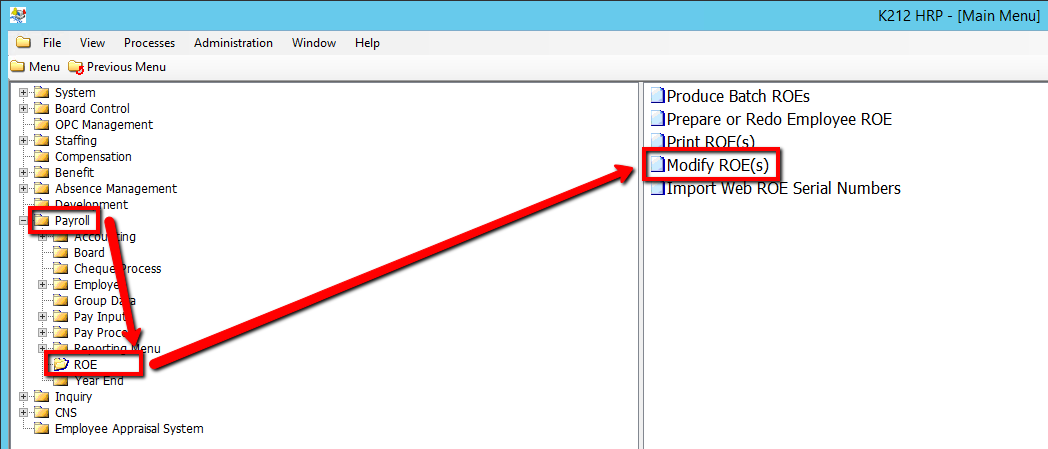
How to Modify ROE(s)
This screen allows administrators to pull up ROEs based on the search criteria entered in Screen Element 2. ROEs can be modified by employee, batch number, etc. All ROE records from the EC_EMPLOYEE_ROE table that match the search criteria will be displayed. This process can be run after creating Batch ROEs and before running the Print ROE(s) process if necessary.
Use the following steps to Modify ROE(s)
1. Click on Payroll
2. Click on ROE
3. Click on Modify ROE(s)
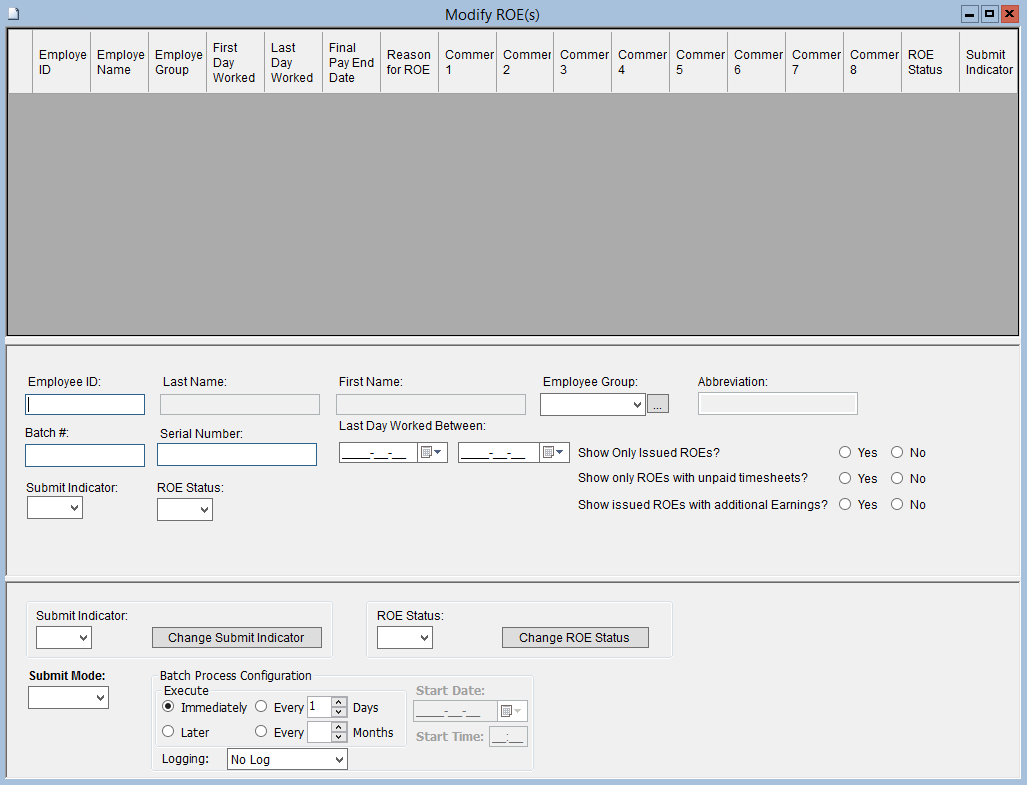
4. Enter a Search parameter, such as Employee ID
To View ALL Employee's, Simply click the Find button, with no parameters entered.
5. Click the Find button at top of the menu bar to see all records in the database.

6. Select a Submit Indicator value (If applicable)
7. Select a ROE Status value (If applicable
8. Click the Save button to save your changes
.png)
9. Select a Submit Mode value (i.e Trial)
Selecting 'Trial' mode will generate a test document of all updated records when submitted, but will not actually update the records within the database until submitted in 'Update' Mode.
10. Click on the Submit button to Modify the ROE(s)
.png)