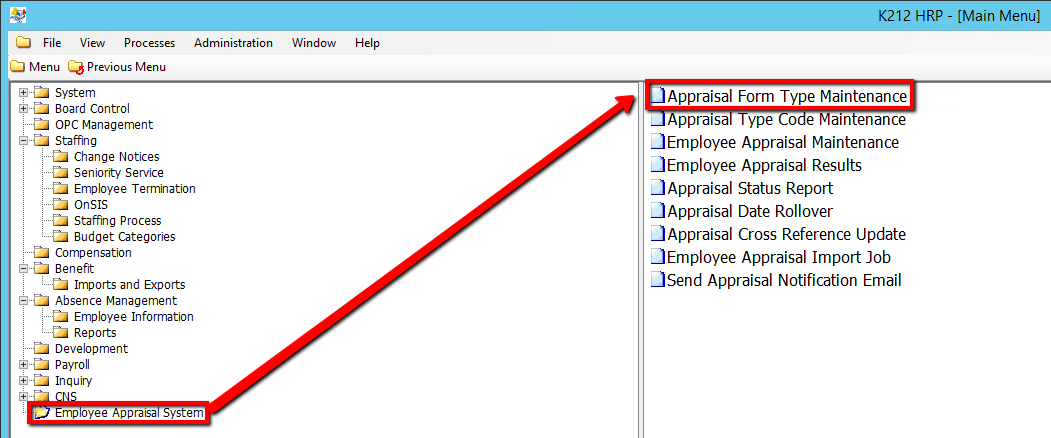
How to Add an Appraisal Form Type
Before adding Employee Appraisals to the system, HR must first define the Appraisal Form Types and Appraisal Type Codes in the Employee Appraisal sub system. This screen is used to add or modify Appraisal Forms. Each form is identified by a unique Appraisal Form Type Code. Custom Forms need to be saved on your server and the location entered.
Use the following steps to Add an Appraisal Form Type:
1. Click on Employee Appraisal System.
2. Click on Appraisal Form Type Maintenance.

3. Click the Find button at top of the menu bar to see all current Appraisal Form Type Codes in the database.

4. If K212 HRP dialog box displays, click Yes to continue.
.png)
5. Click the New button at the top of the menu bar to clear fields and add a new Appraisal Form Type Code.

6. Enter a valid Appraisal Form Type Code (i.e ALP).
Note: The value entered in this field must be unique when adding a new record. The Appraisal Form Type Code cannot be changed once the record has been saved.
7. Enter a unique Description for the Appraisal Form Type Code (i.e Annual learning plan).
8. Click the Status drop-down menu to select an option.
When adding a new record the Status field will default to Active. When the Appraisal Form Type Code Status is changed to Inactive, it can no longer be attached to an Employee record. Changing an Appraisal Code to Inactive does not affect employees whose Appraisal is still in progress.
9. Enter the HTML Form Location where the Appraisal Type Code is saved on your server.
10. Click the Save button.
