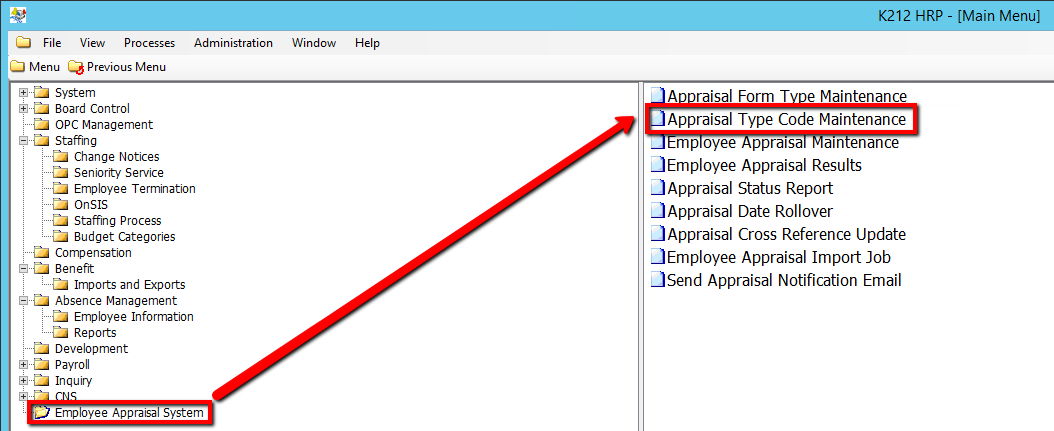
How to Setup Appraisal Frequency, Appraisal Initiation, Number of forms & Signatures Required for Completion
Use the following steps to setup Appraisal Frequency, Appraisal Initiation, Number of Forms & Signatures required for completion:
1. Click on Employee Appraisal System.
2. Click on Appraisal Type Code Maintenance.
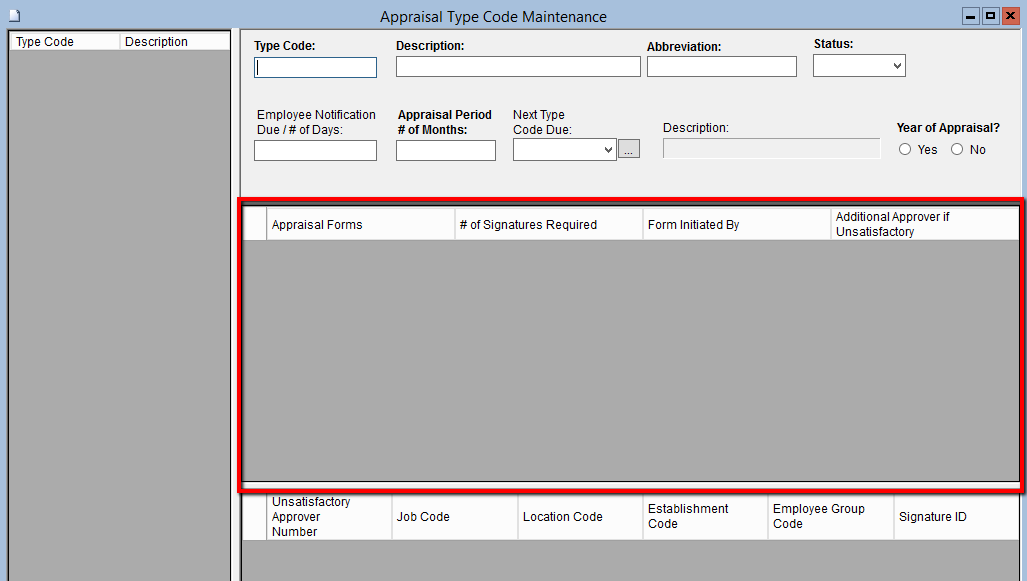
3. Right click the grey grid under the Appraisal Form column and select a New Record
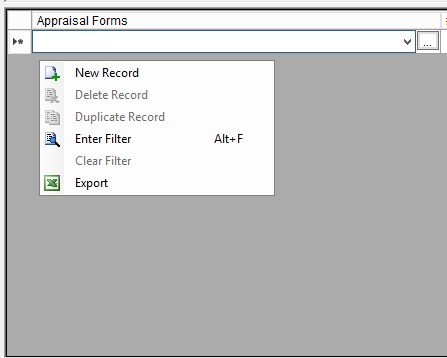
4. Select an Appraisal Form Type Code from the drop down using the downward arrow or the '...' button located beside it.
This field identifies the Appraisal Form required to complete the Appraisal. Only forms with an Active status will be displayed in the Drop Down list. When the Appraisal Form Type Status is ‘Inactive’ it can no longer be attached to an Appraisal Type Code. At least 1 but no more than 3 forms can be attached to an Appraisal. When a form type code is selected from the drop down list the Sequence Id will be automatically generated but will not be displayed on the screen. The generated sequence id must be unique and cannot exceed 3.
5.. To enter the next value, press TAB on your keyboard or double click the grid selection for # of Signatures Required.
This field identifies the #of Signatures required per form to complete the Appraisal. Enter a value in the range of 1 to 4. Negative (-) is not allowed. Total # of Signatures per Form cannot exceed 4.
6. Enter a Form Initiated By value (i.e Manager)
This field identifies who can initiate the Appraisal on the K212 Portal.
7. Enter a Additional Approver if Unsatisfactory value.
This field identifies if an additional Signature is required when the results are Unsatisfactory; to complete the Appraisal. Enter a value of 1, if additional signature is required. Negative (-) is not allowed. Total # of Signatures per Form cannot exceed 4.
8. Click the Save button to save the edits.

Note: In the event that an Appraisal cannot be completed HR has the option to sign on behalf of the Employee or Manager as well as Signature 3 and Signature 4. This is done via the Employee Appraisal Results option.