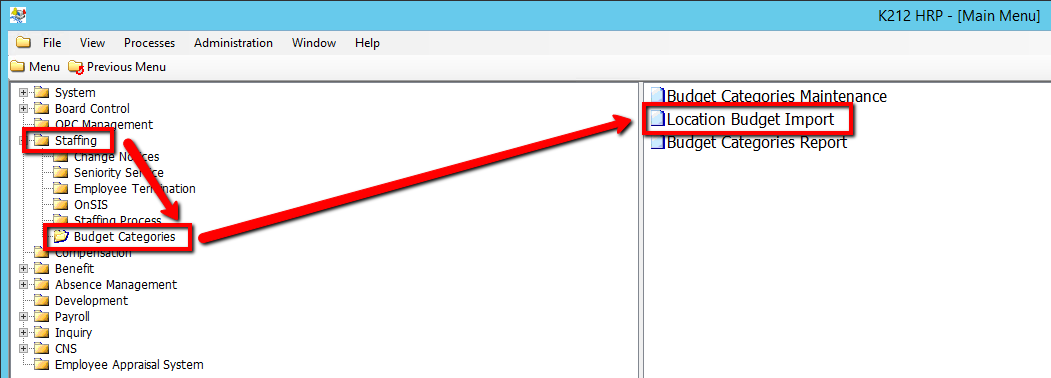
How to Import Budgets for Multiple Locations
This screen is used to add location records to the database via the Budget Category Maintenance Screen.
Use the following steps to Import Budgets for Multiple Locations:
1. Click on Staffing
2. Click on Budget Categories
3. Click on Location Budget Import
.png)
4. Select a Use Default File? value (i.e Yes)
IF Selected Yes, Select an Import Job File Name location
5. Select a Existing Records value (If applicable) (Consult the user guides for more information about each field)
6. Select a Submit Mode value (i.e Trial)
Selecting 'Trial' mode will generate a test document of all updated records when submitted, but will not actually update the records within the database until submitted in 'Update' Mode.
7. Click on the Submit button to Import the file. (The file will be imported from the default logfile location)
.png)