How to Produce Multiple Employees ROE(s)
In order to generate an ROE for an employee or group of employees, the various parameters of the ROE must first be defined. Once the appropriate Employee ROE Records have been created, the actual ROEs can be generated through the “Print ROE(s)” background process (refer: Payroll > ROE).
Use the following steps to Produce Multiple Employees ROE(s):
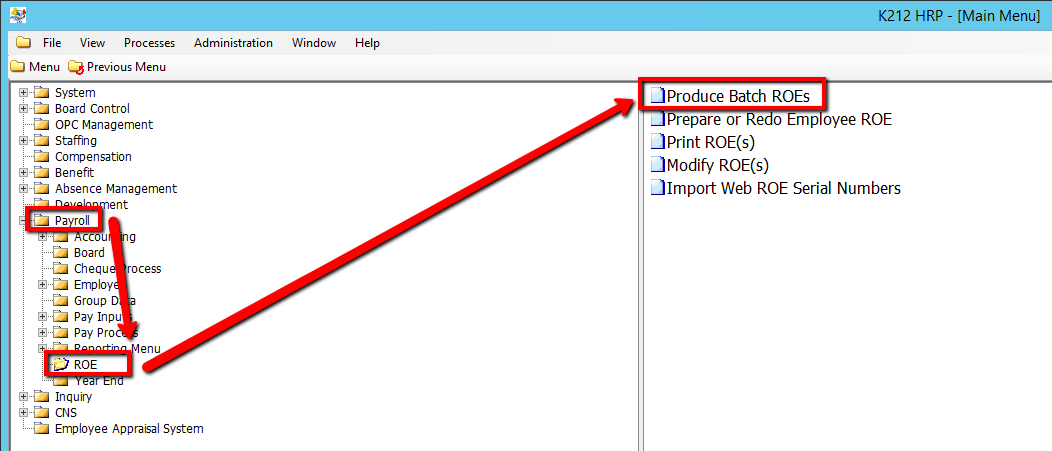
1. Click on Payroll
2. Click on ROE
3. Click on Produce Batch ROE(s)
.png)
4. Enter a Search parameter, such as Batch # (If applicable)
To View ALL Employee's, Simply click the Find button, with no parameters entered.
5. Click the Find button at top of the menu bar to see all records in the database.

6. Select a Batch # to Modify or Click the New button at the top of the menu bar to add a new record

7. Select an Employee Group value
8. Select a Last Day Paid value
9. Select a Reason for this ROE value
10. Enter a Contact Name value
11. Enter a Telephone Number value
12. Enter a Name of Issuer value
13. Select Add to Box 15 values for the Statutory Holiday Dates columns
14. Select an Employee Returning? value
15. Select an Expected Recall Date value (If applicable)
16. Enter in any other relevant information on the screen (If applicable) (Consult the user guides for more information about each field)
17. Click the Save button to save your changes
.png)
18. Select a Submit Mode value (i.e Trial)
Selecting 'Trial' mode will generate a test document of all updated records when submitted, but will not actually update the records within the database until submitted in 'Update' Mode.
19. Click on the Submit button to Produce the ROE(s)
.png)