.png)
Background Processes
What is a Background Process?
A Background Process (also known as “batch jobs” or “background tasks”) are processes that run on the server without tying up the resources of your PC. Background Processes are used to perform computer intensive tasks that do not require any user input once they begin.
All reports are generated by background processes. Other examples of background processing include:
•Allocating absence credits
•Updating compensation records for all employees in an employee group, based on a new salary grid.
•Producing pay stubs for a group of employees.
Submitting a Background Process
To submit a report or background process, open the screen (from the main menu), fill in the parameters, Save (if Save is enabled) and press “Submit”.
Note: The Save button is enabled on some background processing screens. If you enter parameters into a Save enabled background processing screen and press “Save”, you will be able to return to the screen later and the parameters that you entered will be retained. Pressing “Submit” on these screens will also prompt you to Save before the background process is submitted.
A message indicates that a background process has been submitted successfully.
Viewing Queued and Executing Processes
Display the Queued Processes window by clicking on the Processes Menu in the Menu Bar.
All processes currently queued (ie. have not yet started running) or executing (ie. are currently running) are displayed in this window, regardless of who submitted them. This allows you to see other processes that may effect the work you are performing.
Background processes will remain ‘queued’ (ie. not begin executing) for any of the following reasons:
•The process is scheduled to run at a future date & time. The process will remain queued until the scheduled date & time elapses.
•The number of jobs currently running has already reached the limit set by your system administrator. The process will remain queued until one or more other processes complete.
•A user or another process is locking a table that this process needs to update. The process will remain ‘Queued’ until all required tables are available.
To cancel a Queued process, select the process in the list and then click the delete button in the toolbar.
•The process will not be cancelled until you press save
•You can only cancel processes that you have submitted
•Cancelled processes will appear in the Completed Process screen
•Processes cannot be cancelled once they have started executing.
Viewing Completed Processes
A message will be displayed on the screen to inform you whenever a process you have submitted completes. When you see this message (or at any other time) you can view details of your completed processes via the Completed Processes screen.
To view the Completed Processes screen, select Processes > Completed from the Menu Bar. Only Processes that you submit are displayed in the Completed Processes list. Processes submitted by other users are not visible to you, once they have completed executing.
Errors in a Background Process
If an error occurs while a background process is running the following will occur:
•All database changes made by the background process are automatically reversed (rolled back) from the database. Nb. The Pay Run is an exception to this rule. Pay Run changes are not automatically reversed from the database. This must be performed manually using the Abort and Rollback process.
•The “Successful?” field is set to false (displayed as a check box) to indicate that there was an error
•An error message is displayed in the Error box, in the bottom right corner of the screen.
Deleting a Background Process
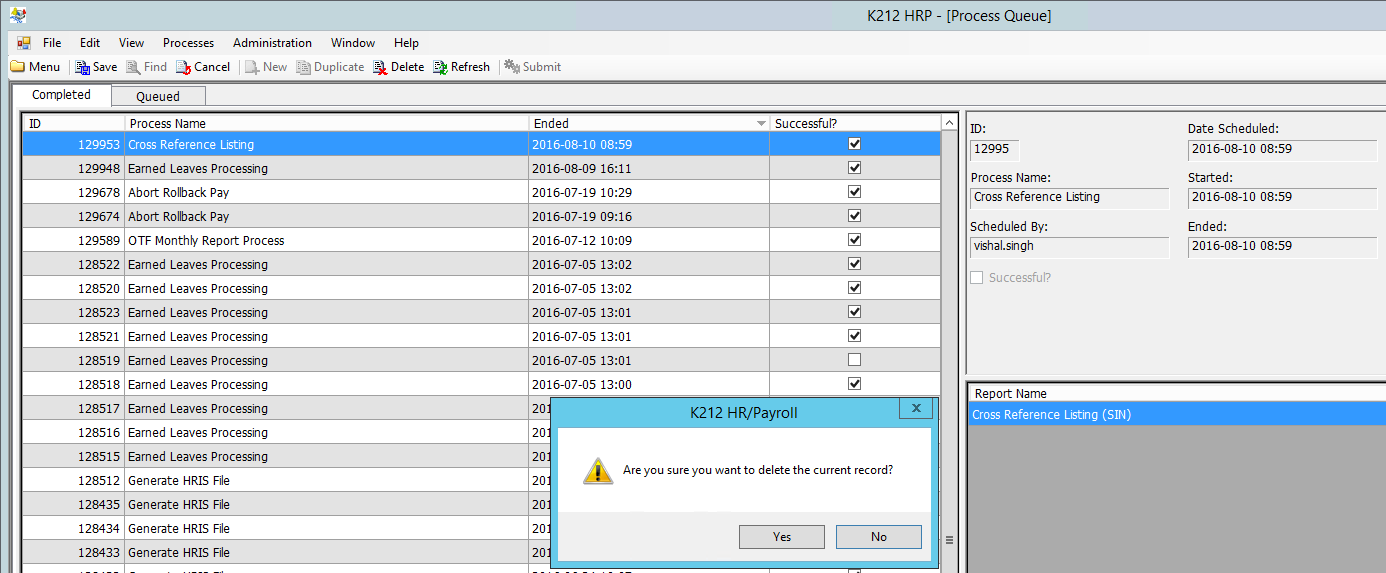
To delete a background process or report, go to Processes > Completed or Queued, select the background process or report you wish to delete and press Delete (Ctrl + D). If you delete a background process from the “Queued” tab page, the deleted background process is then moved to the Completed screen and a notification of its deletion appears in the Errors window of the screen. Any reports attached to a background process are also deleted.
Note: Only one background process can be deleted at a time.
Example: