How to Add Multiple Positions in Multiple Locations
This screen is used to create multiple positions in EC_POSITIONS at multiple locations. All details entered on the screen will be applied to each new position being created, for each location specified. If the Employee Group Code has default values defined, they will be defaulted when the EC_POSIITONS record is created by running this process in update mode.
Use the following steps to Add Multiple Positions in Multiple Locations:
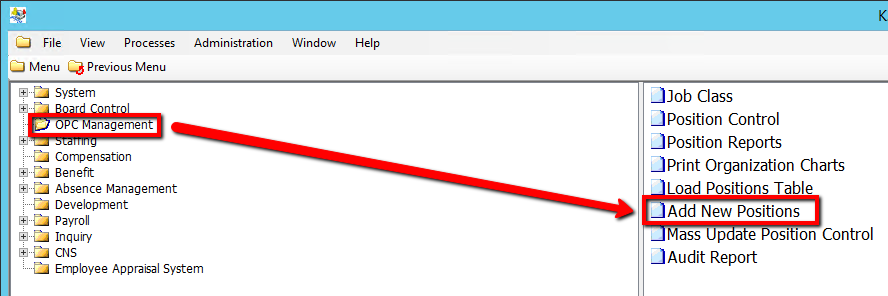
1. Click on OPC Management
2. Click on Add New Positions
.png)
3. Select a Location Code value
4. Select a Job Code value
5. Select an Establishment Code value
6. Select an Employee Group value
7. Enter a unique Position Name value
8. Enter a Effective Date value
9. Select a Head of Location value
10. Select an EASy Delegate value
11. Select a GL Account & GL % value
12. Select a Submit Mode value (i.e Trial)
Selecting 'Trial' mode will generate a test document of all updated records when submitted, but will not actually update the records within the database until submitted in 'Update' Mode.
13. Enter in any other relevant details on the screen (If applicable) (Consult the user guides for more information about each field)
14. Click the Submit button to Add the new position
.png)