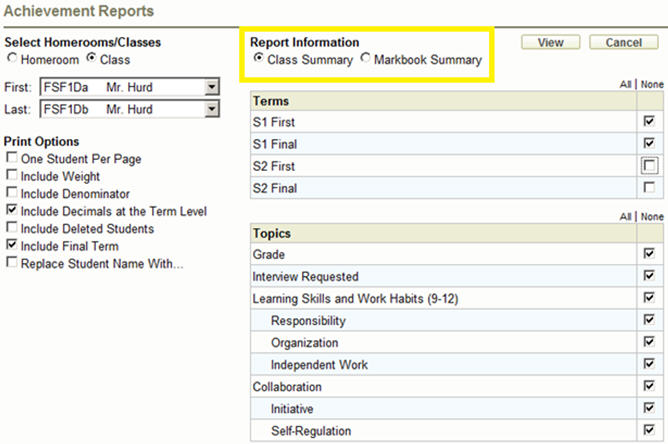
Class Summary Print Options - allows you to customize how little or much information will appear on the report.
From the Achievement menu, choose Achievement Reports. There are several options to choose from to get the desired report. The function will remember the settings from the last time it was accessed by the user. Please note, a PDF viewer must be installed on the local machine in order to view these reports. Select Homerooms/Class. Select a range of classes or an individual class/homeroom (select same class in both the First and Last boxes). Then select Report Information (highlighted in yellow below):
Class Summary: generates a report that shows the report card marks for the selected terms and topics.
Markbook Summary: generates a report that will show the markbook template and marks in a specific terms and topic.
One Student Per Page – allows individual reports for all of the selected students to be generated.
Include Class Average and Include Comments become available when this option is selected
Include Weight – includes all term and topic weights on the report.
Include Denominator – includes all term and topic denominators on the report.
Include Decimals at the Term Level – when the accumulated mark calculates or has been entered with decimals, they will appear on the report.
Include Deleted Students – will include deleted students on the report.
Include Final Term – includes a Final Term column on the report.
Replace Student Name With… - select either the students’ Maplewood Number or Ministry Number. The report will print the selected number on the report instead of the students’ names.
Note, the options “One Student Per Page” and “Replace Student Name With …” are exclusive of one another.
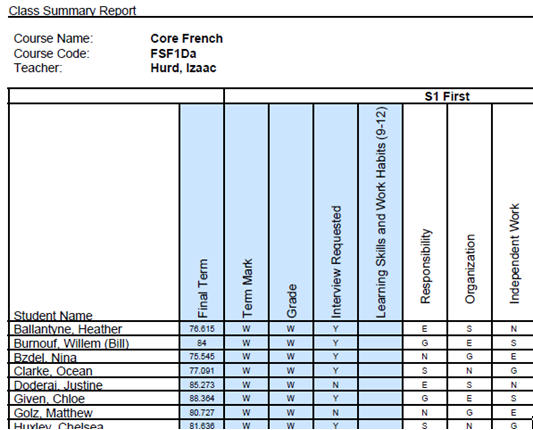
The blue columns indicate a top-level (master) topic, meaning a topic that
is not a subtopic (either a topic like Grade that is by itself or a topic
like Learning Skills that has subtopics of its own). The subtopic columns
are white.
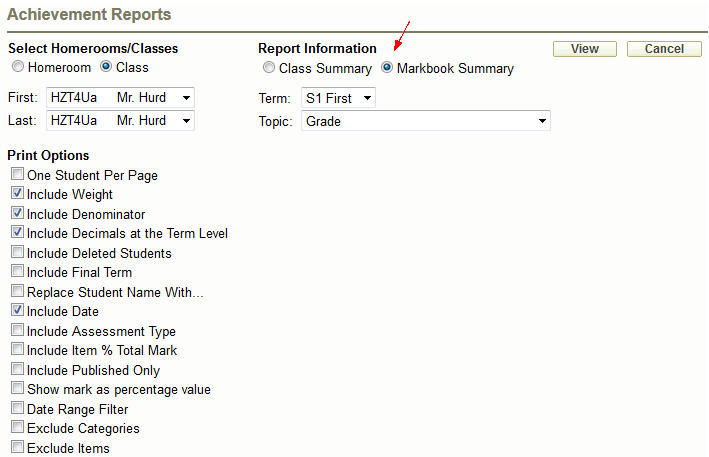
One Student Per Page lets you generate individual reports for selected
students.
Include Class Average, Include Comments and Include Parent Signature Cut-Off are only available when One Student Per Page is selected.
Include Weight – includes all category and item weights on the report.
Include Denominator – includes all category and item denominators on the report.
Include Decimals at the Term Level – when the term mark calculates or has been entered with decimals, they will appear on the report.
Include Deleted Students – includes deleted students on the report.
Include Final Term – includes a Final Term column on the report.
Replace Student Name With… - select either the students’ Maplewood Number or Ministry Number. The report will print the selected number on the report instead of the students’ names.
Include Date – includes category and item dates on the report.
Include Assessment Type – includes item assessment types on the report.
Include Item % Total Mark – includes the percentage each item is worth, towards the final mark. This only applies to items, not categories. The value is calculated to two decimal places.
Include Published Only – excludes unpublished categories and items on the report.
Show Mark as percentage value – converts all item marks to a percentage on the report.
Date Range Filter – enter the From and To date to filter your items/categories
Exclude Categories – will only print items on the report
Exclude Items – will only print categories on the report
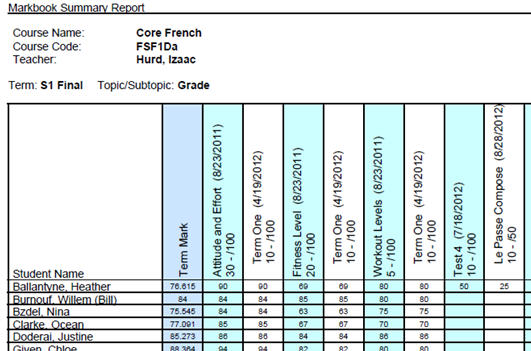
The blue column indicates the selected topic. The turquoise columns are the categories and the white columns are the items.
Teachers can now choose to include Private and/or Public category and item comments on achievement reports.
Sample of an item with a Public (Published) and a Private (Unpublished) comment.
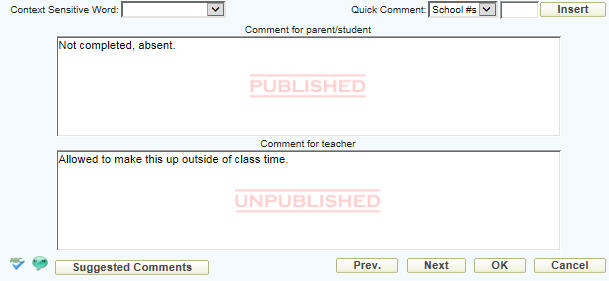
You can choose to include either of these comments or both on achievement reports.
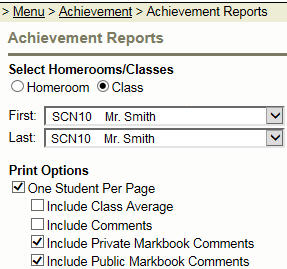
Comments that are private appear with gray shaded background.
