Before the office can set up Maplewood to create report cards, the school must first know what the resulting report cards will look like. Often, students in different grades will have different report cards.
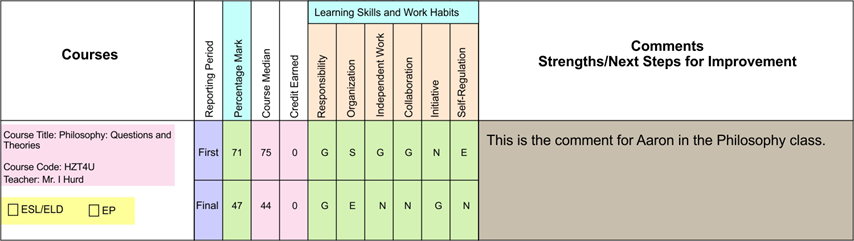
Here is an example of a report card illustrating terms, topics, subtopics, comments, and topic program codes.
 Terms: First and Final are the terms used in this report card. The term names may be modified to better clarify their use in the mark/comment entry screens. For example, it may appear as First on the report card, but the office has set it up as S1 First to distinguish it from S2 First used in the second semester. Terms typically correspond to the time periods when report cards are issued to students.
 Topics: Percentage Mark and Learning Skills and Work Habits. The topic names may be shortened to make it easier to read in the mark/comment entry screens. For example, it may appear as Percentage Mark on the report card, but be simply given the topic name “Grade”.
 Subtopics: Responsibility and Organization are 2 of the 6 subtopics defined for the Learning Skills and Work Habits topic. When a topic has subtopics, no marks are recorded for the topic.
The office assigns every class the appropriate terms and topics/subtopics for that class, using the tools that Maplewood provides them. If a teacher gets a message that no terms and topics have been assigned, it means that the office has not done this step.
At each intersection of a term and topic or subtopic, the office can decide the following attributes:
Is a  mark required? If yes, then what kinds of marks are allowed: numbers, letters or both. If letters are allowed, what letters are allowed (A to Z with plus and minuses, or a letter grade group that has a school defined list of possibilities such as INC, NM, R). These letters can even show titles to help teacher remember what they represent (e.g. INC is Incomplete).
In this example, the Grade (percentage mark)/First intersection is setup to accept only numeric marks, while the Responsibility/First intersection is set up to accept only the letter grades G, S, E, or N.
Is a  comment required? If yes, what is the size of the comment area (if a limit is needed), based on the comment’s font type and size. It is based on dimensions (height and width in either inches or centimetres), not number of characters.
In this example, only one comment is required per term report card, and therefore, a comment is only required for the Grade (percentage mark)/First (or Final as shown here) intersection.
The office can also control whether or not a teacher may enter marks or comments into a term. Typically, the office will lock terms so that only the term for the current report card is unlocked. When a term is locked, the mark cells will be disabled.
 Topic Program Codes: ESL/ELD, IEP in this example. These are typically check boxes that the teacher may check if they apply to the student for each report card term. These can either be referred to as Report Card Details, or simply Programs.
 Other fields typically appear on report cards that do not necessarily require any additional input into the achievement area of Maplewood connectEd. Examples of these fields include student and school information, class information, course/class averages or medians, and attendance information.
With Maplewood’s guidance, the office set up should be done in such a manner that the teacher can simply focus on entering the marks and comments without any possibility for entry in the wrong spot.