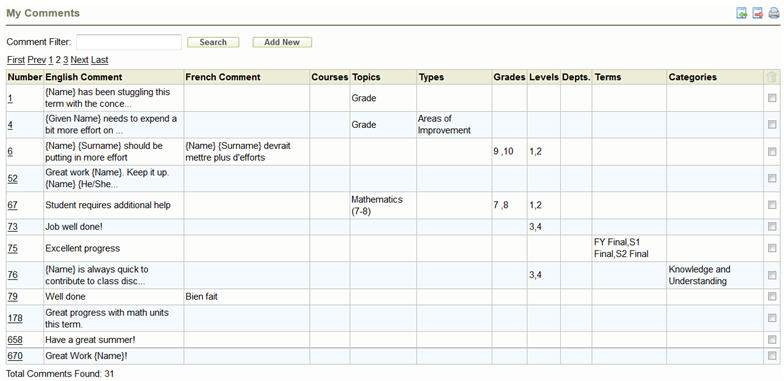
You can create and manage a bank of comments that are only available to you. To access your comment bank, click on My Comments from the Achievement menu. You will see a screen similar to the one below.
Search: To search for a specific comment or group of comments, enter a key word in the Comment Filter box and then click the Search button.
Navigating the list of Comments: Ten comments are displayed on the screen at one time. Use the First, Prev, Next and Last links as well as the page number links to move through the pages of comments.
Exporting, Importing and Printing: Comments can be exported, imported or printed using the icons in the top right-hand corner of the My Comments screen (just below the Session Timeout). See below sections for more details.
Adding a New Comment
To add a new comment, click the Add New button.
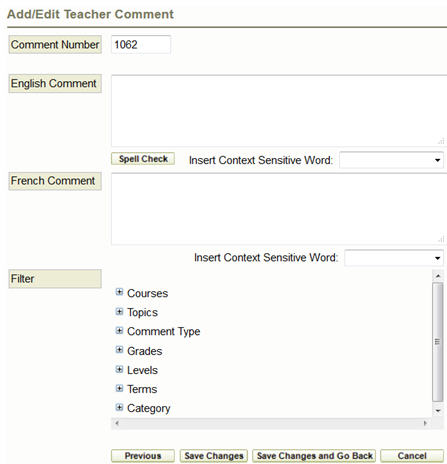
The Comment Number defaults to the next available number in your bank. You may change the number if you wish but only to a number that is not currently in use. Enter the new comment in the English Comment/French Comment box.
Use Context Sensitive words like {Name} or {Given Name} to insert the student's name and {male word/female word} to insert words based on student's gender (e.g. {his/her}). Please note, these words are case sensitive.
Spell Check: To check the spelling of a comment, click the Spell Check button. You can Ignore, Replace or Add a word to the dictionary. Spell checker is case sensitive. If you add a word to the dictionary with a capital letter, the same word is entered in all lowercase will appear to be misspelled. The word will have to be added to the dictionary in lowercase.
You can add one or more filters to your comments to help narrow down the desired selection of the comments when using Suggested Comments.
If you wish to add filters to the comment, you may select from Courses, Topics, Comment Type, Grades, Levels, Terms or Categories. For example, you can create a comment that indicates a strength in the student’s performance. When searching for a suggested comment, you can use the filters to display only the comments that are of the Comment Type “Strengths”. Any number of filters can be assigned to a comment.
Filters can also be used in the printing of the comment bank.
To save a comment and continue editing, click Save Changes. If you are done editing comments click Save & Go Back. You can also use the Previous and Next buttons to see or edit other comments. Cancel will return you to your list of comments without saving any changes.
Click on the Comment Number link to open the comment for editing.
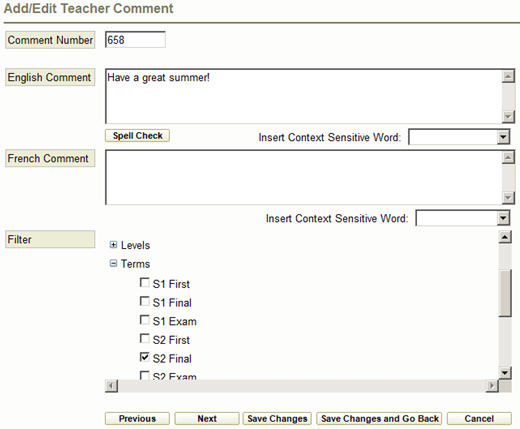
Make your changes and click either Previous, Next, Save Changes or Save Changes & Go Back. Cancel will return you to your list of comments without saving any changes.
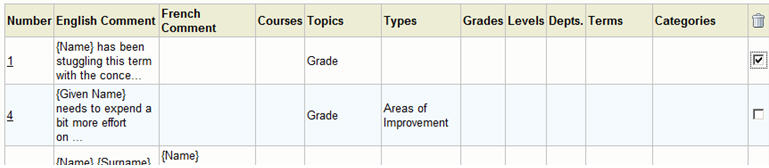
To delete a comment, check the box in the last column on the list of comments screen. Then click on the trash can image at the top of the column.
 You can print a list of all of the comments in your bank, or the school’s comment bank, by clicking on the printer icon on the top right hand corner of the My Comments screen.
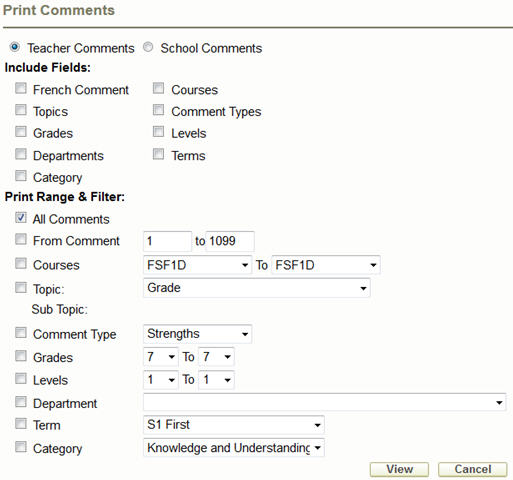
Choose any fields to include from the Include Fields list, and set your Print Range & Filter and click the View button.
Please note, a PDF viewer must be installed on the local machine in order to view the comment printout.
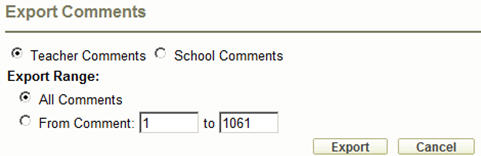
The teacher’s comments or the school’s comments can be exported into a text file. This file can then be imported into your school by another teacher, or into another Maplewood school by any teacher.
 To export your file click on the red arrow button in the top right hand corner of the My Comments screen. Select Teacher Comments or School Comments. You can export either all of the comments or a range of comments from the selected bank. Click the Export button to create a text file based on the selected parameters. Click Cancel if you do not want to export your comments at this time and return to the My Comments screen.
Once you click the Export button, your browser will provide you with options to save or open the file similar to the screenshot below. The file name will follow this format: MW_CommentsM_dd_yyyy.txt

If you choose to Save the file, you be asked to choose a location to place the export file. If you choose to Open the file, the file is not saved until you save it within your default text editor. If you choose Cancel, no export file will be created.
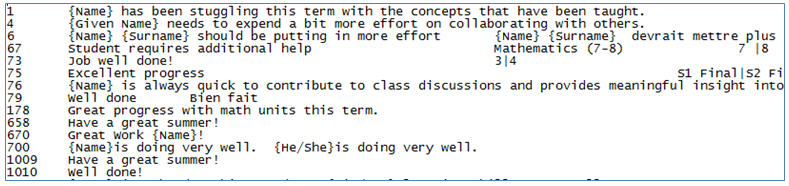
The comments export will look similar to the screen below and will include the comment number and all of the assigned filters.
Comment banks that are in specific formats can be imported into My Comments. Comments can be imported from E-Teacher, MediaX or Maplewood.
 To Import a comment bank, click on the green arrow button in the top right hand corner of the My Comments screen.
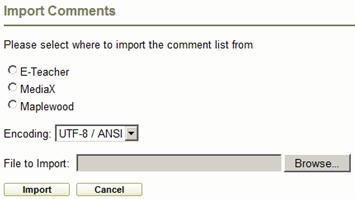
Select the type of file that you want to import. In most cases you can leave Encoding on UTF-8/ANSI. If you are importing a comment back that uses Unicode characters, please select Unicode form the Encoding drop-down menu.
Click on the Browse button to select the comment bank file that you want to import. Click the Import button to import the file. A message will pop up to let you know that the import was successful.
If Comment numbers are the same in the file being imported the existing comments will be overwritten.
Click Cancel to return to the My Comments screen, no comments will be imported.