Several options are available for how and when the students’ achievement information is shared with students and parents through Maplewood connectEd.
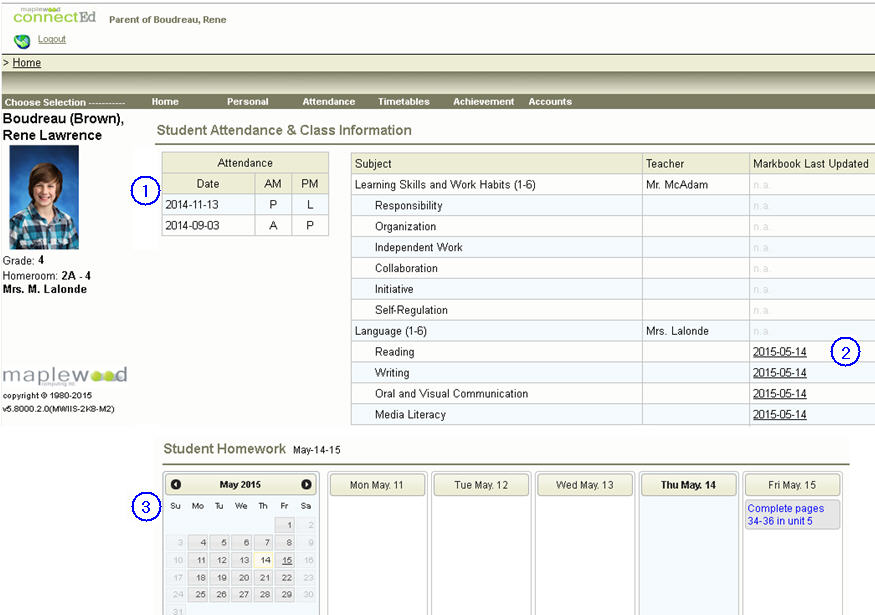
Upon logging in, parents/students can see the most relevant attendance and achievement information from the Home screen, and more detailed information under the Attendance and Achievement menus.
Depending on what permissions the parent/student user has, they can see a variety of information on the Home Screen.
This parent user (of an elementary student) has rights to markbooks, attendance history and homework.
Through the Home Screen, the parent can see the following information at a glance:
A secondary student’s Home screen is arranged differently from an elementary student’s, since the information is more class-centred, but the elements all work the same way.
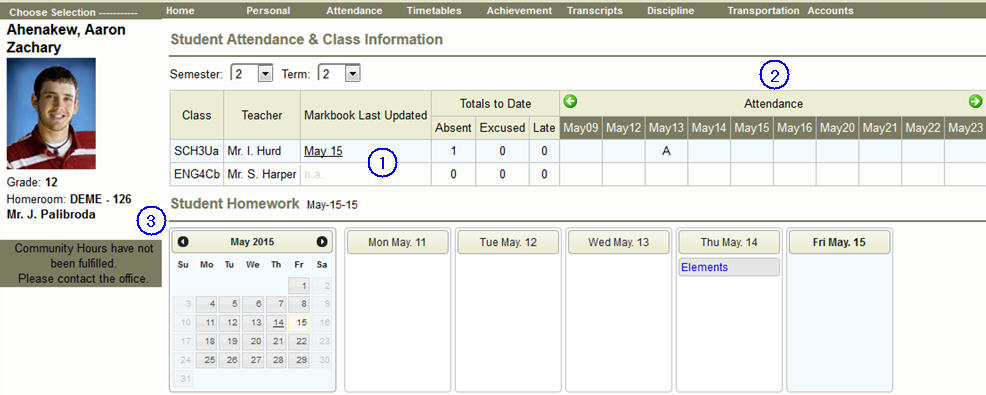
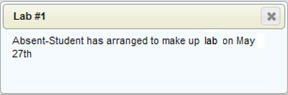
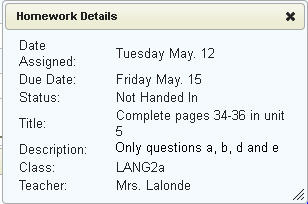
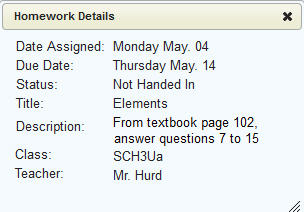
The student/parent can see relevant information at a glance in regards to attendance, achievement and homework. Classes are listed at the top with the markbook date and attendance beside each class. The user can click on the markbook date to see the details of that markbook, and on the homework title to see the details of that homework.
Through the Home Screen, the parent can see the following information at a glance:
In addition to the information on the Home screen, parents/students can also see detailed information about the student’s marks. In the menu system, choose Achievement – Marks and Comments:
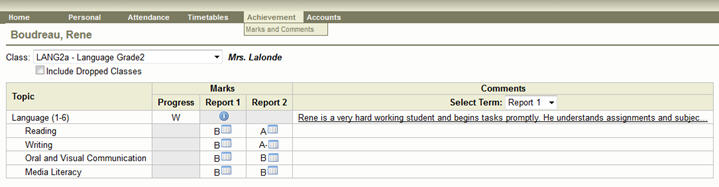
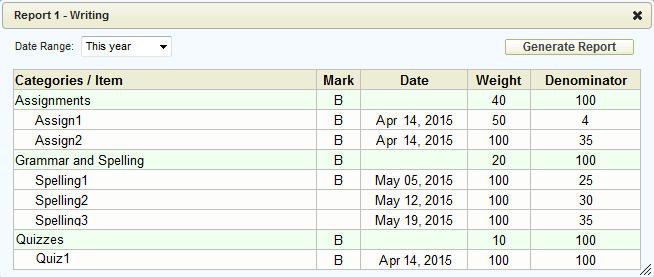
In this screen, the user can click the grid icon beside each mark to see the markbook details. The information icon in the above image indicates a topic program code for that particular subject (e.g., IEP).
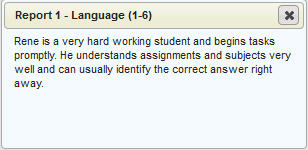
They may also click on the comment text to see the full comment:
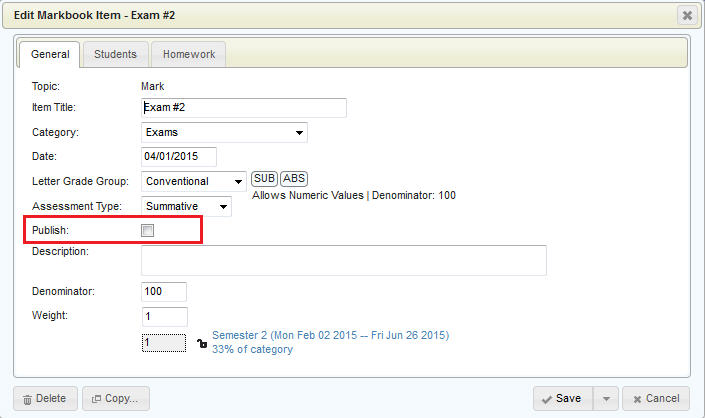
Individual markbook items can be marked as non-published by the teacher, and these items will not show at all to the parents/students. An entire markbook category can also be marked as non-published, and this will cause all items underneath that category to be hidden from parents/students.
To mark an item (or category) as not published, uncheck the box beside Publish:
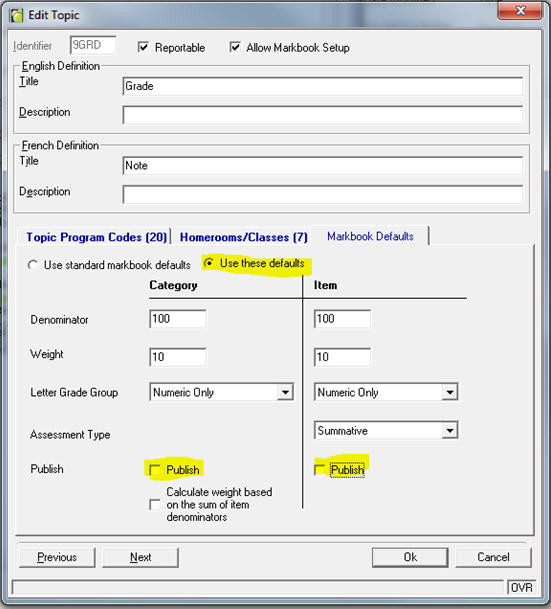
The school has the ability to set markbook defaults for any topic. This can affect the default letter grade group, denominator and weight, but it can also affect the default published/unpublished setting for items and categories.
This may be useful if teachers wish to have all markbook items unpublished by default, until they are ready to publish them.
To set this up, the office should go to Marks – Topic Based Marks – Define Topics. The below screen shot shows the Define Topics screen, with defaults being set of Non-Published for both categories and items (first choose Use these defaults to enable the rest of the form).
Please note, this does not affect existing items or categories, only newly-created ones.
The office has the ability to leave term marks (report card marks), as well as the comments, unpublished to parents/students until a specified date. Doing this will still allow parents/students to see the markbooks and the markbook marks, provided those items/categories are themselves published, but will leave the official report card mark hidden until this date.
To set this up, the office should go to Marks – Topic Based Marks – Define Terms. The below screen shot shows a midterm term with an end date of April 17th. The ‘publish to parents/students’ date has been set to April 24th, so teachers have an additional week to finalize mark entry before parents/students will see the report card mark and the comment.
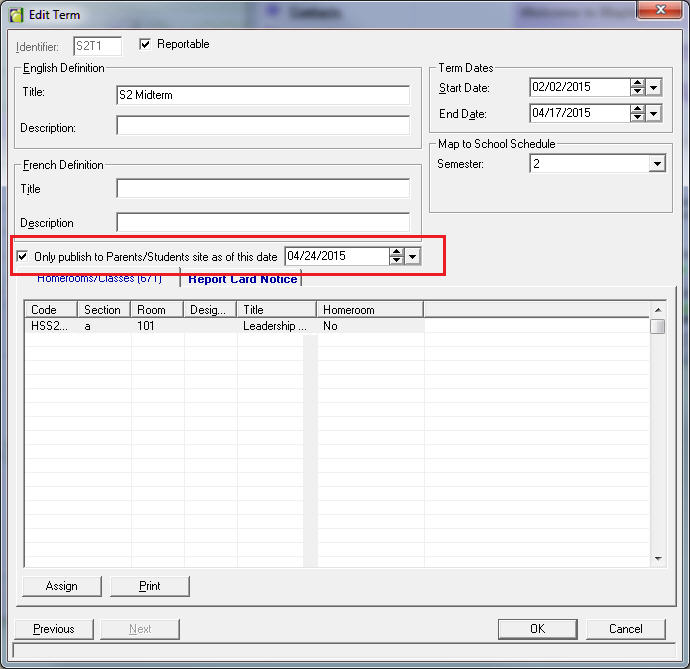
Please note, if this date is set on the last chronological term for a class (e.g., Semester 2 final), this date will also govern when the parents/students see the final, accumulated mark (if applicable to the school’s setup).
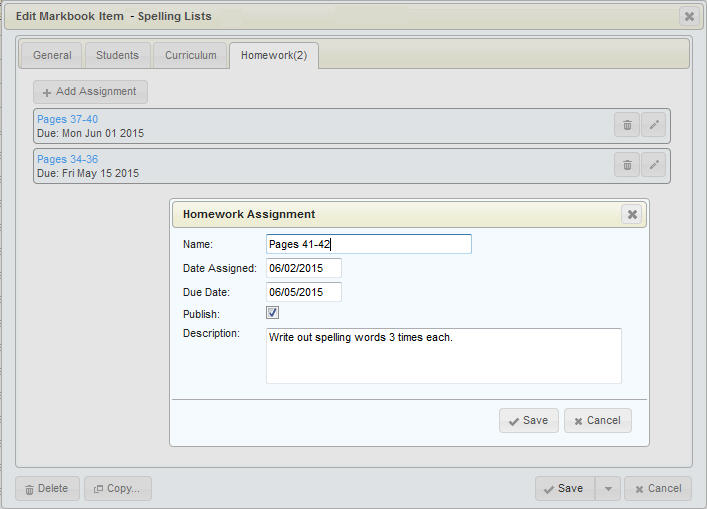
When setting up a markbook item, the teacher can define any number of homework items. These homework items will then display on their due date, to the parents/students on the home screen.
In the example below, the item called Spelling Lists has two homework items assigned to it, and is having one more added, called Pages 41-42. This homework is published, so the parents/students will see it.
For more details on managing homework, please see this section of the manual.
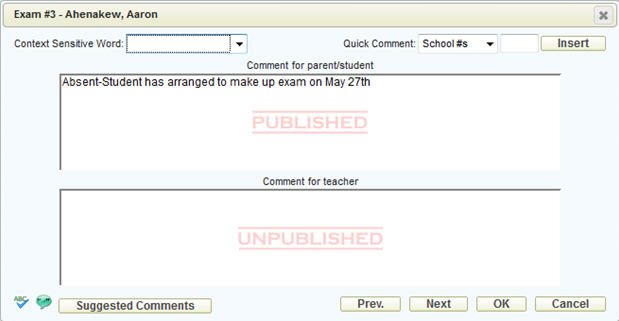
The teacher can make comments on a markbook item or category for each student. They can enter information into the unpublished area, for their own use, or they can enter information that will be visible to parents. The below screen shot shows a published (for parent/student) comment that has been entered for this student:
On the parent/student site, when viewing the detailed markbook, a small text bubble will appear when a published comment has been entered:
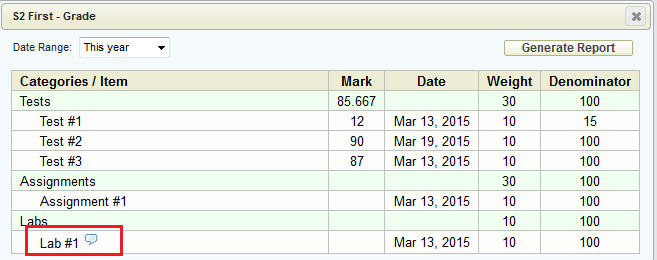
The user can click the bubble to see the comment: