
If you have permissions to delete, select the incident you wish to remove by checking the box in the column in the far-right and click the Delete button.
The Incident Tracking area of Maplewood connectEd allows the user to enter incidents as they happen.
Viewing Incidents
To see the incidents that apply to you, choose Incident Tracking from the main menu. Enter the desired ‘from’ and ‘to’ dates and click Search. Enter a single Incident Number (a 12-digit sequential number) to narrow down to just that one incident between those two dates.
If you have permissions to delete, select the incident you wish to remove by checking the box in the column in the far-right and click the Delete button.
To edit, choose the incident you wish to edit by clicking on the Incident Number in the main list. To add, click the Add button.
The New Incident screen has some defaults filled in: today’s date and the time, and the first alphabetical Location in the list. Change these fields as necessary.
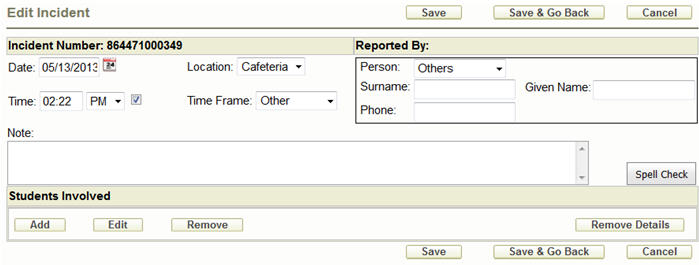
Reported By: The list of Person Types is defined by the school. Each person type is associated to a role, which is also defined by the school (typically teachers have a role of T, Principals P, etc).
“Others” (as shown above) will allow you to free-hand type the name and phone number of the person into the Reported By area.
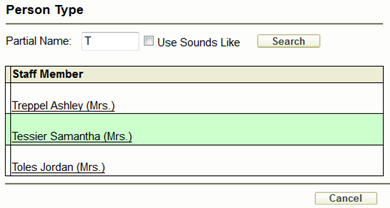
Staff and Student person types will provide you with a Search button to select the student or staff name. In the Person Type search screen, type the first few characters into the Partial Name box and click Search.
To add students to the incident, select the Add button from the Students Involved area. The same search options exist here as in the Student Records area: Partial Name, Classes, Ministry Number, Advisor Group.
Multiple students can be associated to an incident but you must select them one-by-one.
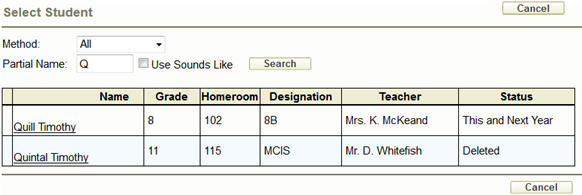
Select the name of the student to add.
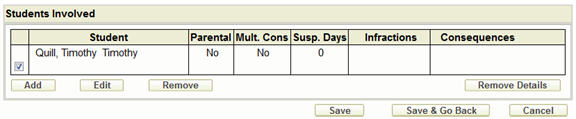
From the main Edit Incident screen, check the box beside this student and click the Edit button.
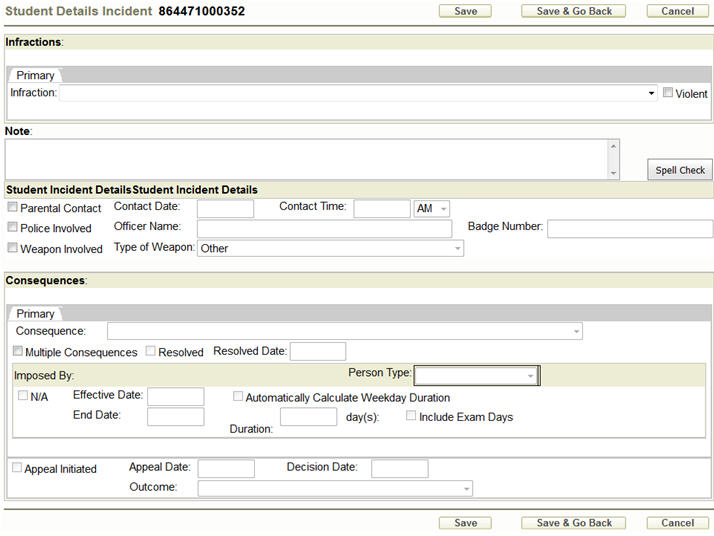
You must select an Infraction. Once an infraction has been selected, you will be able to select a primary consequence.
All drop-down lists are defined by the school: Infraction (includes default Consequence), Type of Weapon, Consequence, Person Type, and Outcome.
Fill in any other information that applies and click Save to remain on the same screen, or Save & Go Back to go back to the Edit Incident screen.
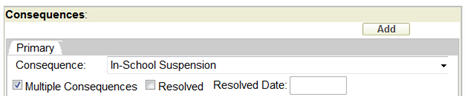
Once a primary consequence has been added, you can add an Additional Consequence by selecting the Add button that appears in the Consequences tab.
Details can be removed from the Incidents by editing the incident in the main screen.
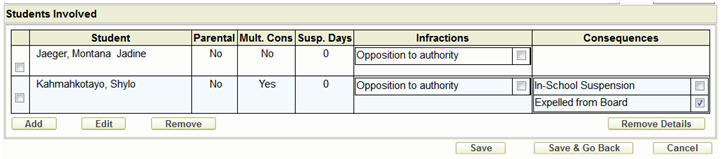
To leave a student associated to the incident, but remove the infraction or consequences, edit the incident and check the box beside the Infraction or Consequence you wish to remove. Click the Remove Details button.
To remove a student from an incident, check the box beside the student’s name and click the Remove button below the Student area of the grid.
Access to incidents is governed by a combination of the “All Students” option under Incidents and the “View My Students Only” option under Student Records. This chart explains how the two permissions work together:
|
Incident Tracking - All Students selected |
Student Records – View My Students Only selected |
The user can: |
|
Yes |
No |
View and edit all incidents in the school and add incidents for all students in the school. |
|
Yes |
Yes |
View and edit all incidents for all students in the school. Enter new incidents for only his/her students. |
|
No |
Yes |
Enter new incidents for his/her students. View and edit all incidents involving his/her students (regardless of who entered the incident). View and edit all incidents previously entered by him/her (in the case where permissions have been changed or a student has moved to another class). |
|
No |
No |
View incidents involving his/her students. Enter new incidents for all students in the school. Please note, unselecting “View My Students Only” under student records will allow the teacher to see all student records in the school. |
