The following additional information regarding comments is explained here:
Comment Size: Fixed-Length Comments or Flexible-Length Comments
Please also see My Comments for further information on your own bank of comments.
Context-sensitive words can be chosen from the dropdown list or typed in manually. They are case-sensitive and must be typed exactly as they are listed: {Name} (if you want student's Usual Name), {Surname}, {Given Name}, {Student Name}, {Grade}, {He/She}, {Him/Her}, {His/Her}, {he/she}, {him/her}, {his/her}, {himself/herself}.
The context-sensitive words can be used directly in comments, or can be saved as part of a comment in your bank.
The school will have defined comment parameters that determine the size of the comment box provided to you. Depending on the style of report card being used, the comments may be flexible or fixed in length.
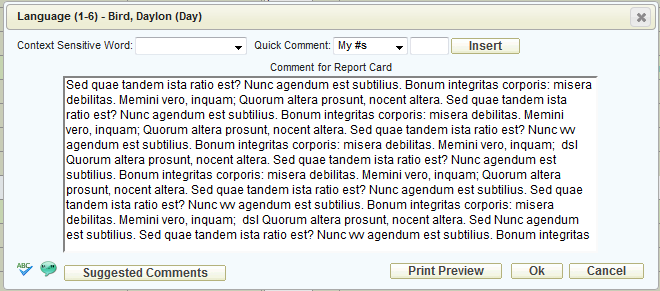
If your comments are fixed in length, the comment-entry box will not have a scroll bar. This is so that the size of the box does not get altered by the sudden appearance of a scroll bar while you are entering your comment. The general rule of thumb should be that if you get to the end of your comment box, your comment is going to be too long.
Example of a fixed-length comment box:
 If too much text has been
entered and saved into the comment, the icon will have a red outline:
If too much text has been
entered and saved into the comment, the icon will have a red outline:
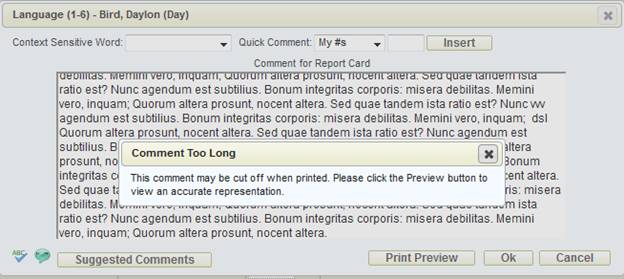
When you open the comment that is too long, you will also see a message indicating that you should use the Preview option:
Click the Print Preview button to see exactly how your comment is going to print on the report card. A PDF document will be generated:
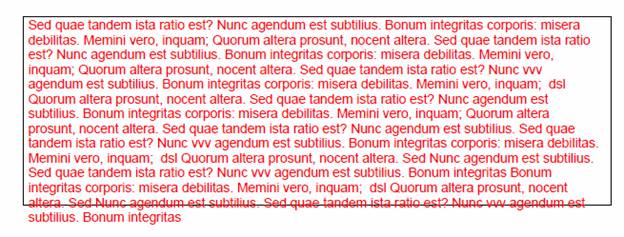
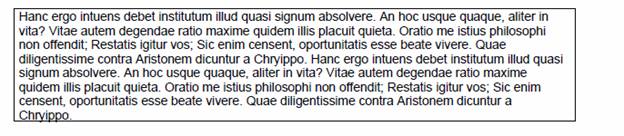
The red text indicates that it is too long, and the box remains the exact size and shows that the last two lines of the comment will not come through to the report card. Anything that even touches the bottom line will not print on the report card.
If your school has been set up to use flexible-length comments, it likely means that you have a report card where the comment boxes grow with the amount of text that you enter. In the comment-entry window, the comment-entry box will have a scroll bar, and the icon for the comment will never have a red outline.
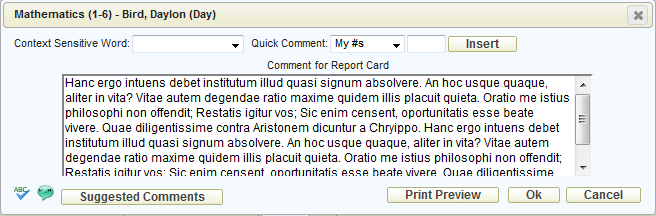
You should still use the Print Preview button just as a precaution to see how your comment will print. The box on the preview grows with the comment:
There are three possible comment banks: board, school, and teacher. You have complete control over the teacher comment bank. For more information on maintaining your comment bank, see My Comments.
When composing a comment (single or group) click the Suggested Comments button to see the available comments.
Choose My Comments, School Comments or Board Comments, and click Find Comments.
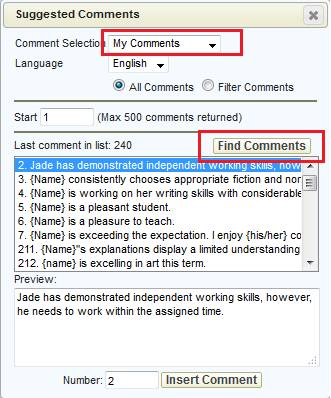
Double-click on comments in the list, or enter the number at the bottom and click Insert Comment. That text should automatically appear in the comment-entry box behind. Close the suggested comments window when finished.
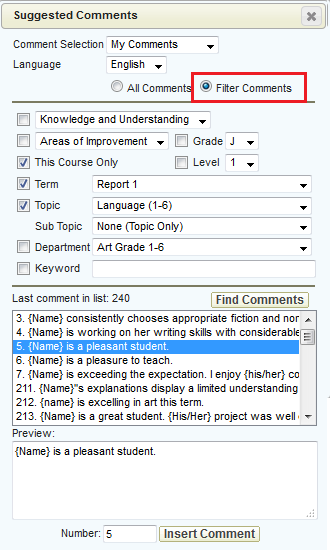
To narrow down the list of suggested comments, choose Filter Comments and check off any filters that you wish to use. These filters must be defined in the comment bank first!

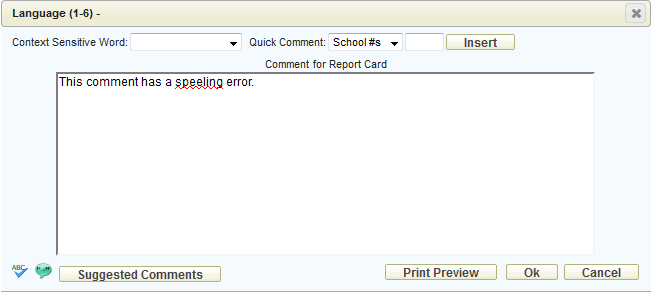
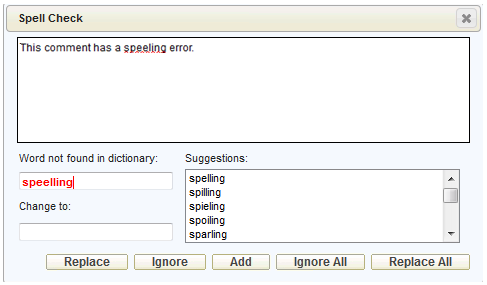
Click the Spell Check icon on any comment-entry screen to check the spelling. The misspelled words will be underlined in red.
To replace the word, choose a suggested word or type a new word into the Change To box and click Replace.
You may also click Add to add the word to the dictionary, or click Ignore to skip that one word.
Ignore All and Replace All refer to all instances of that word.

Too create a new comment in your bank, based on the text in a current comment, click the Add to Bank button.
This will bring up a new screen to Add/Edit Teacher Comment:
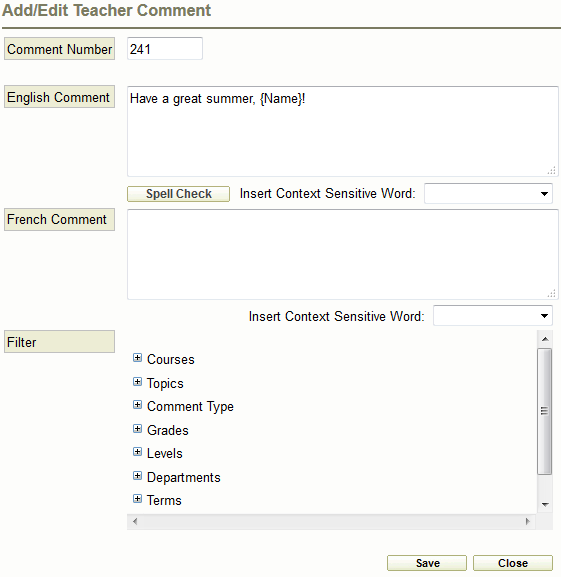
Make any changes to the comment text, add any desired filters, and click Save.
Tip: Please make sure to save the comment using context-sensitive word (e.g., save the comment as {Name} is attentive in class rather than "John is attentive in class").
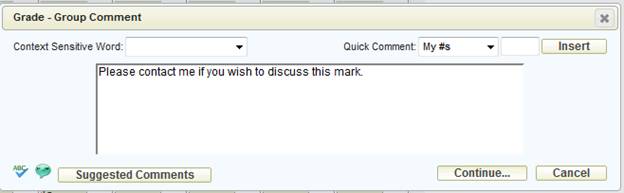
Quick comment entry is not necessarily quick, but rather, it is a quick entry method for those teachers who plan their comments on paper using a printed comment list with the corresponding comment numbers. Once the comment # or #s have been noted on a printed class list (or the teacher just knows the comment numbers to be given to the students), the entry of comments can be done by entering comment numbers rather than typing comments or selecting them from lists. Once the comment numbers are entered and the comment is saved, the actual text of the corresponding comment number will be saved in the student's comment.
In this example comment interface, the Quick Comment entry can be used by first selecting the bank of comments to be used (My #s is shown in this example to indicate that it is using the teacher's own comment bank) and then entering the comment numbers in the box to the left of the Insert button. Once the # or #s (e.g. 10,13) are entered in the box, click the Insert button to insert the corresponding comment into the comment area.
In this example comment entry interface, the comment bank is first selected (Teacher comment #'s in this example, aka My Comments), then each student's comment numbers are entered into the last column. Once the # or #s are entered for each student, click the Apply button.
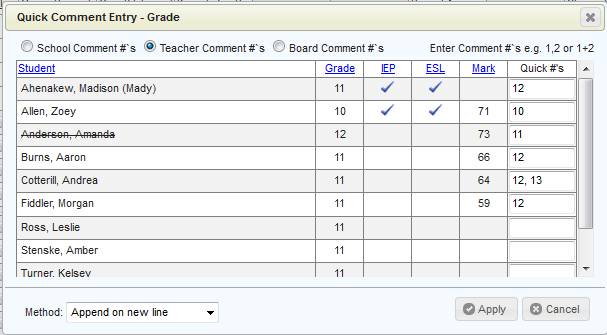
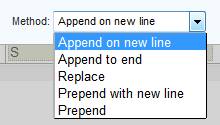
Append on new line: The new comment will be added on the next line after the existing comment.
Append to end: The new comment will be added after the existing comment. A space will be inserted between the existing and the new comment.
Replace: The new comment will replace the existing comment.
Prepend with new line: The new comment will be added before the existing comment. The existing comment will start on the next line after the new comment.
Prepend: The new comment will be added before the existing comment .A space will be inserted between the new and the existing comment.
Once the information is correct on the interface, click the Apply button. The text of the corresponding comment # or #s will be applied to the selected students.