When you know that students are going to be away later in the day, it saves work for teachers and office staff if the information is entered into the computer before the homeroom attendance is entered.
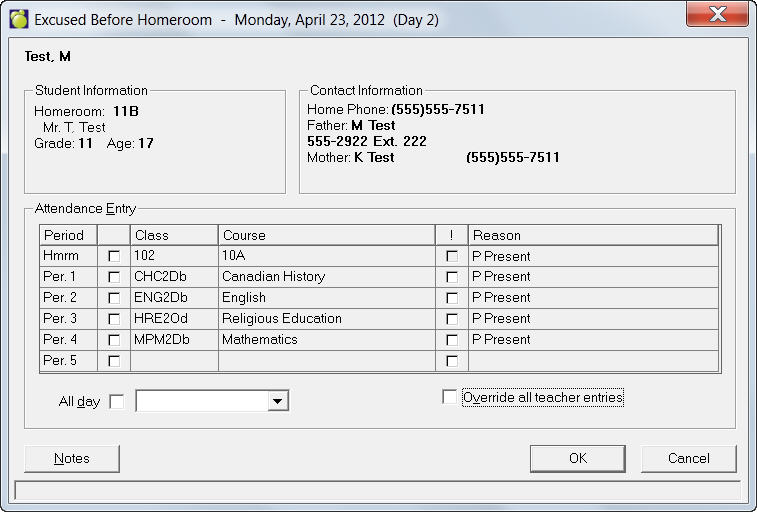
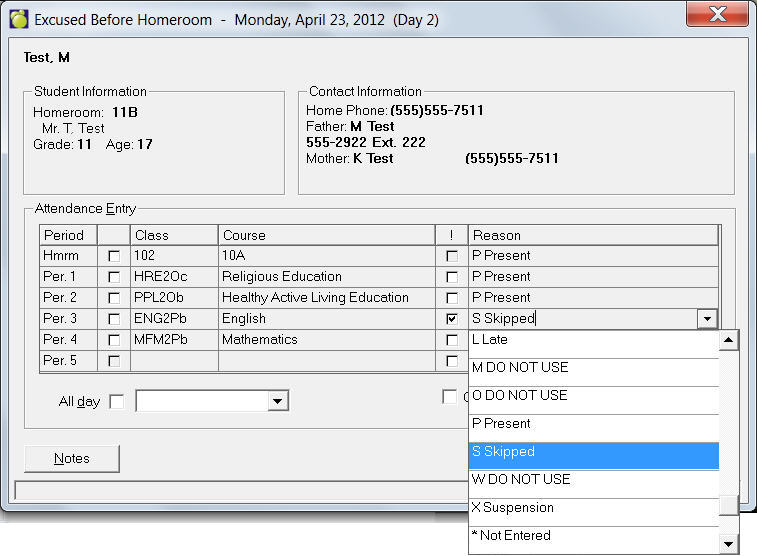
Choose Attendance, Enter Attendance, Excused Before Homeroom and select the student from the list to see an entry box like this:
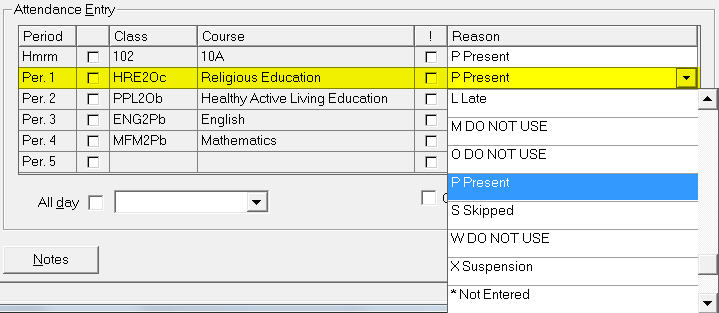
After choosing a student, click the row corresponding to the period(s) for which you want to enter attendance. Use the drop down menu to select an Attendance code.
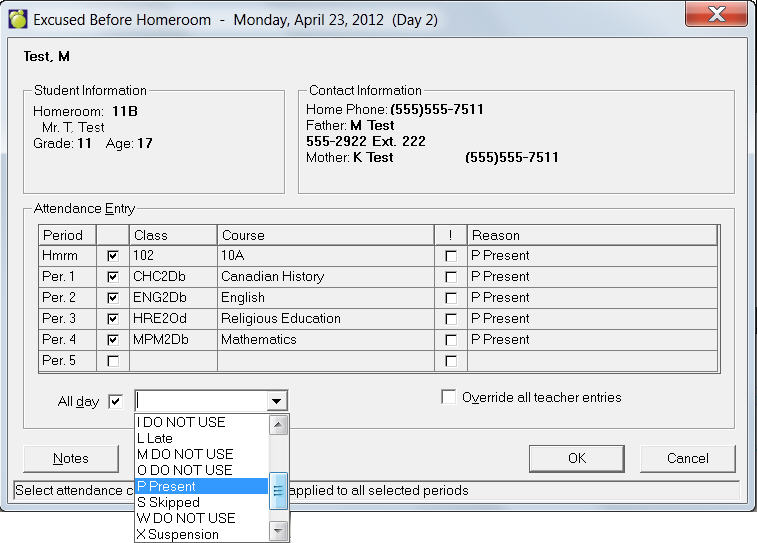
All Day Feature - To save time if the same attendance code applies to the student for the entire day. To enable the All Day feature, click as many checkboxes beside the Period column as applicable, then click the drop down arrow beside All Day, select from the list. Only those periods with checkboxes will have the Attendance Code applied. If you want to apply a code to every period, click the All day checkbox, and select from the drop down menu.
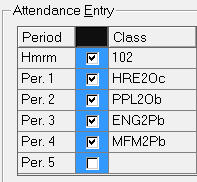
Hint: Clicking in the column heading above the checkboxes will populate or remove all checkboxes at once:
Override Teacher Feature - Maplewood provides the ability to override attendance provided the user has security access. Any checkbox under the "!" column indicates an overridden attendance entry. Overrides may be required for example, if a parent calls to take a child out of school during the day, and attendance has already been entered for that period. The office can override that entry later on in the day.
You can apply an attendance note at this time by clicking the Notes button (e.g. "John's mother called in to inform that John will be ill all day").
Click OK to save the attendance changes or cancel to close without saving.