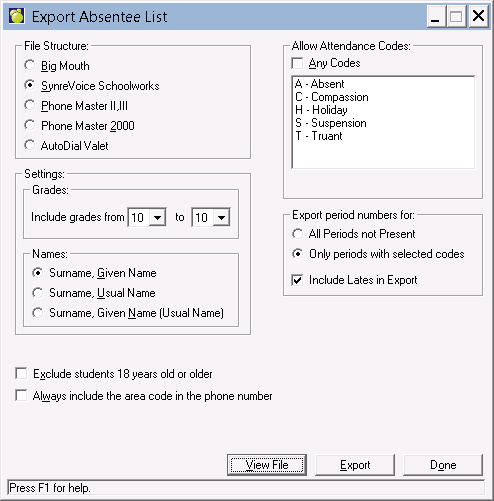
Generally, schools use phone dialers at the end of each day to report the students with unexplained absences. Schools use specific attendance codes to provide a brief description of the reason for the absence (e.g. M for Medical). To find the students with unexplained absences, schools select only the Absent code from the list of codes and they don't check "These Codes Only" (so the student can have other codes such as Present --- this means they must have at least one period with an Absent).
To export an absentee list, choose Attendance, Export to Telephone Dialer. This box will appear. This is useful for schools that have phone dialer programs on their system. Schools set up the export file and then run the phone dialer program. This program will automatically place a call to the absent child's house.
Export to Telephone Dialer also has a grade filter. By default, students in all grades will be included, but the new setting "Include grades from ___ to __" allows a schools to include only certain grades in the file (e.g. senior grade students only).
Note: You must have additional software to execute this function.
1. Specify the File Structure (type of phone dialer), Names
Select the type of phone dialer that your school uses: Big Mouth, *SynreVoice Schoolworks, Phone Master II, III, AutoValet, or Phone Master 2000.
For SynreVoice Schoolworks users.
The SynreVoice file is the only file that provides as message indicating which periods the student was Absent. Previously, the message indicated all the periods the student was missing school, including the periods that had explained absences. At the request of schools, an option now exists to exclude the periods with explained reasons. Export to Synrevoice telephone dialler sends the periods using 2 digits/period. For example, period 1 is sent as 01 rather than 1. This will allow the phone dialler to announce a period such as 11 as 'eleven' rather than 'one and one'.
When the SynreVoice file format is selected, the following new option is enabled:
Export period numbers for:
All periods not Present
Only periods with selected codes
Using the example where just the Absent code is selected in the list of attendance codes:
"All periods not Present" will include the periods with AND without explained absences.
"Only periods with selected codes" will include only the periods with unexplained absences.
If "Only periods with selected codes" is selected, then the user must un-select "Any Codes", and choose the codes for exporting. If "All periods not present" is selected, then all periods that contain a code defined as absent will be exported.
Next select Name information that you want included.
For AutoValet users
All active and inactive students will be included in the export.
The export will contain one "student line" per student, where the fields are specified as in the file specification, below.
Following the student demographic info, there will be one field (let's call it the "autodial code" field) which will contain the code for the needs of our software:
Either of the above codes will ensure that the student is included on our Absence Report.
Any other code in this field (we discussed a "P") will cause the student to be ignored for autodialing purposes.
All "student lines" will be counted for the statistical summary box on our Absence Report, which uses the count of active students to calculate various totals and percentages.
Following the "autodial code" field are the period attendance fields.
Normally, AutoDial Valet would analyze the period attendance fields, but, as we discussed, your product is able to make a better decision regarding the case where a student has some excused attendance during a day and also some unexcused. (AutoDial Valet would not dial the student's home in this case, because we can never be absolutely sure for all student information systems where the "lunch" period is, since some schools use a staggered lunch due to small cafeteria. Therefore, since the lunch divider could potentially be different for each student, we cannot successfully divide morning and afternoon.)
How users will set up AutoDial Valet to use your export file:
Users will set up AutoDial Valet to watch for an unexcused code (e.g."U") and an excused code (e.g. "E") in the "Daily field" (which we are calling our "autodial code" field).
Also, users will set up AutoDial Valet to watch all period fields for an (unexcused) dummy code (e.g."X", or any letter that will never actually appear in the export file's period fields). Since there will never be a code in the period fields that it recognizes, it will effectively ignore period attendance, which is what we want since your system will do the logic to produce a valid value in the "autodial code" field. However, since AutoDial Valet will be told to examine period attendance, the period codes will appear on the Absence Report. This will be useful at least for testing, and will make the report valid if any schools wish to use it. A sample report can be viewed at
File specification
The file format is tab-delimited, and of course line-delimited with CR/LF.
The general file contents are:
1. A unique first "Attendance Date" line, followed by
2. One "Student Information" line for each student enrolled in the current school year, including both inactive and active students.
Each and every line in the extract file begins with the "SIS Identifier". We need this to differentiate various SIS files.
A current SIS Identifier, which will be supported by all future versions of AutoDial Valet, is "COQ25".
The "Attendance Date" line of the extracted information specifies the attendance date being processed, which implies that the attendance information in each "Student Information" line corresponds to this date.
The format of the date is: YYYY-MM-DD.
Based on the above, a sample "Attendance Date" line would look like this (Of course, "<tab>" represents the invisible tab character):
COQ25<tab>2004-07-19
Every "Student Information" line that follows contains demographic and attendance information for one student.
Contents of a "Student Information" line: The "SIS Identifier", 8 demographic fields, and (up to) 33 date-related attendance fields (one "Daily Attendance Code" field, followed by up to 32 "Period Attendance Code" fields).
Here, then, is a list of the "Field Items" for each "Student Information" line of the extract file:
1. SIS Identifier (5-digits e.g. "COQ25")
2. Student Number (alphanumeric)
3. Student Last Name
4. Student First Name
5. Student Status, expressed as A or I
6. Telephone Number for AutoDialing (optional formats: 7-digit-"9376718", 10-digit-"6049376718", or 1+10 digit-"16049376718")
7. Dialing permission, expressed as Y or N
8. Student Grade Level (alphanumeric)
9. Student Homeroom Number (alphanumeric)
10. Daily Attendance Code (for the single attendance date in the "Attendance Date" line)
11-42. Up to 32 Period Attendance Codes (for the single attendance date in the "Attendance Date" line)
Note for field 7: "Y" means "Dial this student".
Notes for all attendance code fields 10-42:
Asterisk (*) is the only code not permitted, and "Present" may be represented by a code such as "P", a space character or no character at all, with the following exception.
Note for "Daily Attendance Code" field 10: It is a required field, but if data is not available, a space (ascii 32) must substitute.
Notes for fields 11-42: These are optional, i.e. data is not required to be present if it is not available.
Here are the first three lines of an example file (Note- for this email, the tabs have been replaced with spaces for clarity):
COQ25 2006-08-17
COQ25 000060262 DUCKWORTH CATRINA A 6045551212 Y 12 58 E F F F F F F E
COQ25 000060299 LEE CONSTANCE A 6045551313 Y 12 63 E T E
2. Allow Attendance Codes Area
Usually, for the telephone dialer you just want to include the students with the Attendance code A (since any other attendance code was intentionally entered therefore suggesting that you already know the reason for the student's absence). You would uncheck the Any Codes box and then highlight the attendance code A.
The option "These codes only" should not be checked. If it is checked, the student can only have the attendance code(s) for every period (e.g. Absent in all periods). If it is unchecked, the student must have at least one period with one of the selected attendance codes (e.g. Absent in at least one period).
The last thing that you should watch for when creating the telephone dialer file is the "Today's attendance entered yet?" box. It must be checked if you want the program to consider the attendance reported by the teacher. If it is not checked, it will only consider the "office" attendance entries.
3. Settings - Grades and Names
Select the grade range to include by entering or choosing from the drop down list. Below that frame, decide on a name format by selecting the appropriate name format option.
4. View/Export File