1. Change Date
Use File, Change Date to select today’s date.
2. Initialize Today’s Attendance
Before making any entries for the day, it is necessary to clear the Temporary Attendance Register used the previous day and initialize the attendance for today’s date.
Today’s attendance is initialized by choosing Attendance, Enter Attendance, Initialize Today’s Attendance.
3. Enter Students Excused Before Homeroom
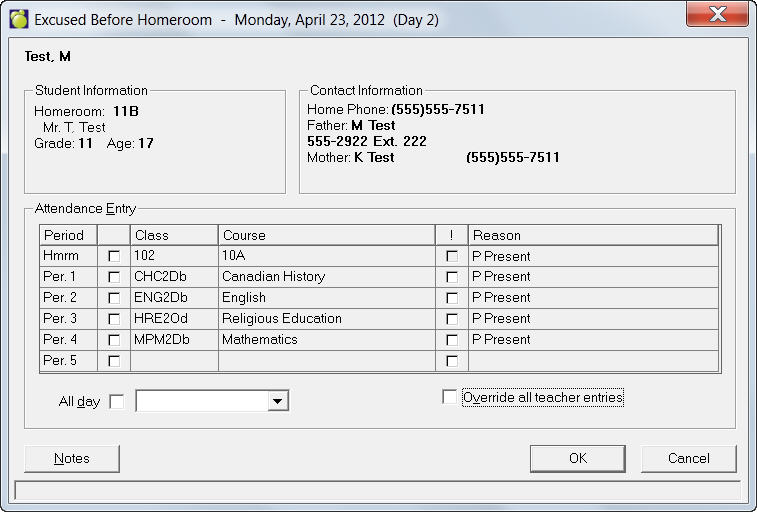
Choose Attendance, Enter Attendance, Excused Before Homeroom and enter students who are going to be away for the whole day or for part of the day (if known at this point).
There are 2 ways to use this program:
a. Changing multiple periods: Click on the check boxes for the corresponding periods and then select the attendance code from the drop-down menu as shown below:
b. Changing single periods: With the periods' check boxes unchecked, click the attendance code to be changed and a drop-down menu arrow will appear. By clicking the drop-down menu arrow, you can then change the attendance code as shown below:
4. Enter Student Excursion Lists
Use Attendance, Enter Attendance, Excursions to enter groups of students who are going to be away for the whole day or for part of the day (if known at this point). This could be an excursion group, the entire school, students in a specific grade or homeroom, students with a specific defined character, students in a specific class, or any other group definable through an Inquiry list.
If you click the Apply attendance note to excursion check box, the screen will expand to include the note entry area.
To specify confirmation options, select one of these four options:
5. Enter Homeroom Attendance
The homeroom attendance is entered into the computer using Attendance, Enter Attendance, Homeroom Attendance.
- All entries: will ask confirmation for every student to whom you attempt to apply the attendance entry
- Previous: will ask confirmation for only those student's who already have an attendance entry
6. Print Teachers’ Absentees
The Teachers’ Absentees Sheets provide the teachers with information about student attendance in the specific classes they will teach today, and it provides a convenient form for reporting deviations from the expected attendance. Choose Attendance, Print Teachers’ Absentees to print Teachers’ Absentees.
7. Print Today’s Absentees List
The Print Today’s Absentees feature lets you customize the attendance codes and printing order for a printed absentee list. Choose Attendance, Print Today's Absentees.
Click View to see a preview; click Print to print immediately.
8. Teachers Record Discrepancies on the Teacher Sheets
The Teachers’ Absentees Sheets are intended to be delivered by volunteer students during the class following homeroom.
The Teachers’ Absentees sheets will indicate the students expected to be absent in each of the teacher’s classes. Students who are to leave throughout the day for individual appointments, field trips, team competitions, etc. and students who called in sick in the morning will be marked with an asterisk (*) and an indication of the type of attendance. The asterisk indicates to the teacher that a student who is seen at the school but is not in class has made an explanation ahead of time to the office (i.e., an Excused Before Homeroom or Excursions entry).
For one reason or another, the list of students expected in class may not always agree with the facts of their attendance. Only the deviations from the list are to be written at the bottom of the sheet along with the type of attendance (A, P, or L), the period, the student’s Student Letters (optional), and the student’s name.
Any deviation from the Teachers’ Absentees Sheets should be reported even though the teacher may know the reason for the absence. Each discrepancy between the attendance which the office entries predict and the attendance recorded on the Teachers’ Sheets may produce a Deviation Report when the Reports of Classes Missed are printed. At the end of the day, the teachers must remember to pass their sheets in to the office so that the information they recorded may be entered into the computer.
9. Enter Students Who Signed In or Out
The students may be signed in or out at any time during the school day after the homeroom attendance has been entered. A few entries may be made at a time or more conveniently, all entries may be made at once at the end of the day.
Students who sign in or out during the day are entered through Attendance, Enter Attendance, Office (Sign In/Out).
10. Teacher's Deviations
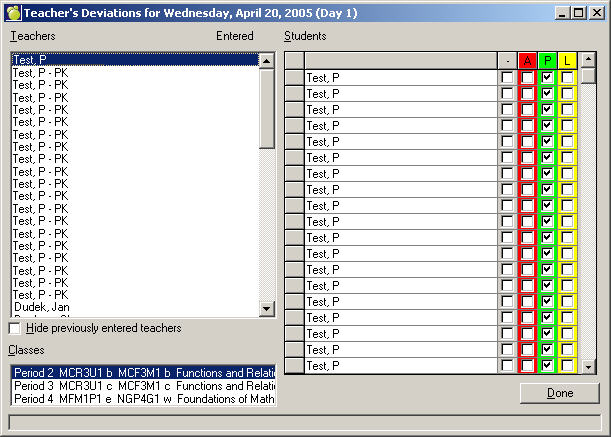
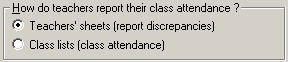
You can enter information on the Teachers’ Absentees Sheets at any time during the school day after entering homeroom attendance by choosing Attendance, Enter Attendance, Teacher Deviations. In order to activate Teacher Deviations option, choose Attendance, Attendance Parameters and check the Teacher's sheets (report discrepancies) option.
11. Cancel Class
On those occasions when a class is not conducted, the class should be cancelled to prevent deviations from the expected attendance. You can also cancel all classes taught in a specific period. Choose Attendance, Enter Attendance, Cancel Class.
Note: The entry of cancelled classes must be made just before printing the Reports of Classes Missed. Any subsequent attendance entries will write on top of the information of the cancelled class. If you have to enter added information after cancelling classes, the situation can be easily corrected by cancelling the classes again.
12. Print the Reports of Classes Missed
Using Attendance, Print Reports of Classes Missed, print the desired "end of the day" reports. Once the reports have been printed, the attendance is automatically stored in the Permanent Register.
13. Examine Deviation Reports
Examine the Deviation Reports (printed in step 12) and arrange student interviews to resolve the unexplained attendance.