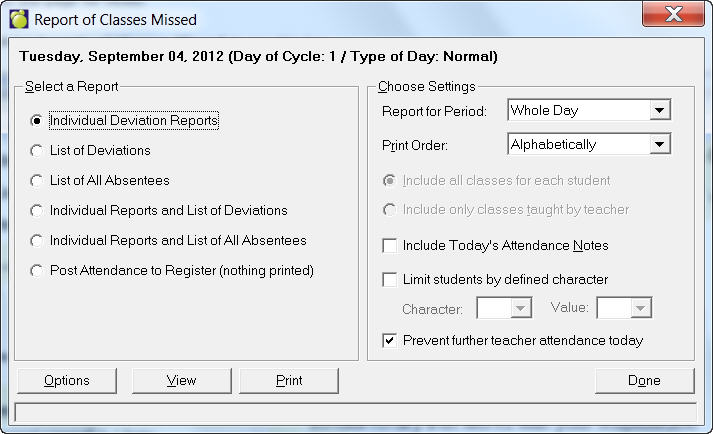
The printing program analyzes each student's attendance for the day, transfers the day's attendance to the Permanent Attendance Register, and then prints the Reports of Classes Missed. Therefore, this program should be run after you complete the day's attendance.
To prevent teachers from entering attendance once the office has started posting attendance to the register, use the setting in the bottom right corner of the Report of Classes Missed screen. It is only available if the office is posting attendance or printing any of the reports with Whole Day selected.
To change the setting back so that teachers are able to enter attendance again, uncheck the box then print one of the Reports of Classes Missed, or post attendance for one individual student.
This setting is read by both the online attendance entry program and Classroom Manager attendance. In both applications, teachers will receive a message stating "The office has completed the current day's attendance. If you need to make corrections, please see the office". The office can make the appropriate changes, likely entering them directly into the student's attendance register since the current day is already posted.
If students are absent again the following day after an unexplained absence, individual reports are more useful in separating these students who have not been interviewed from those who have. Individual reports may be photocopied and sent home or given to teachers for their information or to find out further information.
Choose Attendance, Print Reports of Classes Missed to see this box.
Select a Report type:
Individual Deviation Reports
List of Deviations
List of All Absentees
Individual Deviation Reports and List of Deviations
Individual Deviation Reports and List of All Absentees
Post Attendance to Register (nothing printed)
Choose your Settings: Report for Period - select Whole Day or specify the period. Print Order - Alphabetically, By Homeroom List, By Grade. Select either to include all classes for each student or to include only classes taught by teacher.
A setting has been added to the Report of Classes Missed to prevent teachers from being able to enter attendance once the office has started posting attendance to the register. This setting, in the bottom right corner of the Report of Classes Missed screen, is only available if the office is posting attendance, or printing any of the reports with Whole Day selected.
To change the setting back so that teachers are able to enter attendance again, if for example the setting was changed accidentally, please uncheck the box then print one of the Reports of Classes Missed, or post attendance for one individual student.
This setting is read by both the online attendance entry program and Classroom Manager attendance. In both applications, users will receive a message stating "The office has completed the current day's attendance. If you need to make corrections, please see the office", as you will not be allowed to enter attendance.
Notes:
Users will also see this notice if the Maplewood Administration Date and the computer date on the web server are different.
Online attendance users who are already in the attendance entry screen when this setting is changed will see the message when they attempt to save their entries.
Choose printing font options by clicking the Options button.
For students Absent from class, set range variables and how you want them printed by clicking the check boxes and entering range numeric values. If you don't want ranges, click the Do not indicate ranges checkbox.
If you click on the "Do not indicate ranges" all Student Class text lines/Attendance Totals will appear in the same Type style (Plain). Unchecking this box lets you to print any totals greater than a given number in Bold or Italics.
For example, if we want to identify any student that has 20 or more (i.e. equal to or greater than) 20 absences for any given class. We would then Uncheck "Do not indicate ranges" and check the "Bold..." checkbox, and set the equal to value for Bold to "20". Now when we print (or view) our report, any student that has 20 or more absences in a given class will print in Bold type. Everyone else will print in normal type. This is the same for Italics.
Do the same for students Excused from class.
Select an option for how you want students with attendance deviations printed.
If you want Student Information printed in uppercase, indicate by clicking the check box.
This Prints one individual report for each student with an inconsistency in his or her day’s attendance.
Space is provided for the student to make a written explanation of the discrepancy and to sign his or her report.
There is additional space at the bottom of the page for notes.
For all students with an inconsistency in their day’s attendance, reports are printed successively to form a list instead of individual sheets. There is no space provided at the bottom of the page for notes by the student and the interviewer.
Each Deviation Report in the list contains the same information as the individual reports except there is no area provided for interviewer notes, student explanations, and signatures.
The day’s attendance statistics are printed at the bottom of the list. For each grade and the whole school, the school’s enrolment, the number of students absent all day, and the number of students absent for one or more periods are printed.
Prints, in list form, all students with any type of an attendance entry during the day. This program is also used to transfer the attendance information to the Permanent Register.
A description of the day’s attendance is printed for any students with any kind of attendance entry, i.e., not just students with inconsistencies in their day’s attendance.
Each report in the list contains the same information as the individual reports except there is no area provided for interviewer notes, student explanations, and signatures.
Individual reports and list of deviations
Prints both a list of deviations and the individual reports.
Individual reports and list of all absentees
Prints both a list of all absentees and individual reports of all absentees.
Post attendance to register - nothing printed
Sends attendance information to the register without printing.