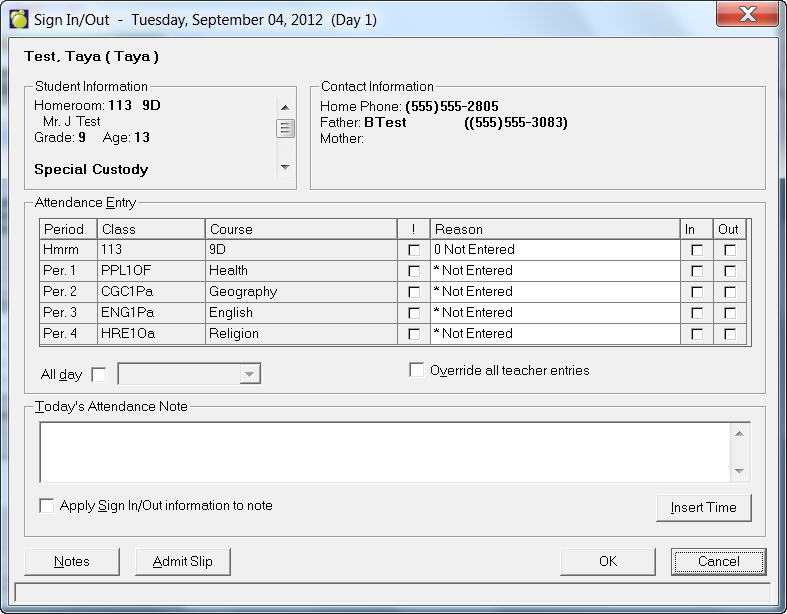
Throughout the school day, you may have to make attendance changes for students. Some will arrive after homeroom attendance; some will have to leave early without having made arrangements before homeroom attendance. These entries are part of the information required to keep accurate records, to keep the number of Reports of Classes Missed to a minimum and to keep the number of attendance interviews down. You can use the sign in/out program at any time after you have taken homeroom attendance.
To access the Office Sign In/Out feature, choose Attendance, Enter Attendance, Office (Sign In/Out).
When students leave before the end of the school day, enter them under sign out. Only the period that they will first miss should be checked as a sign out. If he/she has no class in the period that you entered, the computer will enter the period of the first class that he/she does have scheduled after the period that you entered.
Students may not be signed out for more than one period in a row. The student must sign out before signing in again. If a student signs out, he/she is expected to be absent from that class and all classes that follow or until signing in again. Any deviations from this will show up a Deviation when running a Report of Classes Missed at the end of the day.
When a student arrives late to school, enter the period during when he/she will first attend class under sign in. If the period is one in which he/she doesn't have a class, the computer will use the first period when he/she should attend class.
Students may not be signed in for two periods in a row. The student must sign out before signing in again. If a student signs in, they are expected to be present in that class and all classes which follow. or until they sign out again. Any deviations from this will show up as a Deviation when running a Report of Classes Missed at the end of the day.
On the Print Admit Slip you have the option to include/exclude the teachers' names (on a receipt printer) as well as to include/exclude today's (attendance) note(s). When using a Receipt Printer, please ensure to use the correct paper settings to eliminate wasted paper. To set up the paper size, access your printer settings and select the default Receipt Printer. Select the properties, then paper (tab) and select Custom where you can define the desired length required. This depends on the periods per day as well as the option to include today's notes. You can make a few entries at a time or all entries at once at the end of the day.