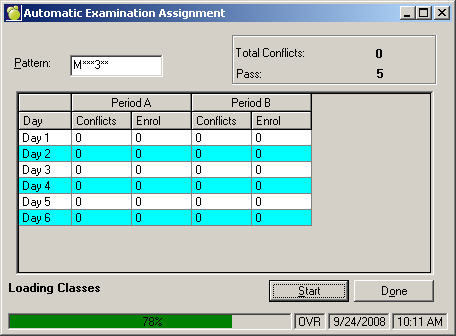
Once all the examination restrictions have been entered, choose Exams, Automatic Assignment.
Here are some examples of pattern matching:
M indicates all courses which start with 'M'
***3 indicates all courses with 3 in the 4th position of the course code
This process will normally place each examination as early in the examination schedule as possible while keeping conflicts to a minimum. If this produces examination periods with too many students you can make changes. To specify a maximum number of students who can be scheduled into an examination period, choose Exams, Change Examination Parameters.
As an option, you can print the students' examination timetables by choosing Exams, Print Students' Examination Timetables.
Note: You can view students' examination timetables at any time through the students' records.
Choose from the 4 printing options under the Exams menu:
Print Exam Timetable
Each examination day and period is listed with the courses scheduled to write examinations in the period. The number of students expected to write an examination in each course is listed along with the total number of students expected in each examination period. If the students are not going to get individual examination timetables, the examination schedule may be posted throughout the school so that the students may determine their own examination timetables.
Print Students Exam Conflicts
You can print the examination timetables of the students who are scheduled to write more than one examination in a single exam period by choosing Exams, Printing Students' Exam Conflicts. The computer will look through the list of students and find any conflicts. A conflict occurs when the student is scheduled to write more than one examination in the same examination period. In this example, the first student has a conflict between BKI1G and FSF2G because both of these courses are scheduled for an examination on Day 2, Period A. Special arrangements are required for these students so that they may write one of the conflicting examinations at an alternative time.
You may have instances where students have examination conflicts. A conflict occurs when the student is scheduled to write more than 1 examination in the same examination period. The conflicts will need to be resolved for these students.
Note: Conflict resolutions are not recorded in the Maplewood system. Print the examination schedules for students who have conflicts by choosing Exams, Print Students' Exam Conflicts.
Print Students' Exam Timetables
To print student examination timetables, choose Exams, Print Students' Exam Timetables. The computer will look through the list of students and then ask if you want to print one student per page, or continuously. This feature prints the examination timetables for all students or selected groups of students. The timetables can be printed with only one student per page or with as many students as possible on each page. They can be printed alphabetically, for students in a specific grade, for students in a specific homeroom, for students with a specific Defined Character, for students in an Inquiry list, for students in a specific excursion list, or for individual students. Examination timetables are printed for all the students in the selected group, even those students with conflicts in their examination timetables.
Each examination timetable indicates the examination periods assigned to each course in which the student is expected to write an examination.
Print Marking Loads
Print Teachers' marking loads using the Exams, Print Teachers' Marking Load. The examination supervision may be arranged to the advantage of those teachers who have the greatest number of examinations to mark. Teachers are printed in order from most to least examination papers to mark. In addition to the total number of exams to mark, it provides a breakdown of the number of papers for each examination period (A to E) for each day of exams (1 to 9).You can always move any examinations which have been placed in an undesirable location and then to run the automatic placement again. The assignment feature ensures that you can schedule exams with the fewest conflicts for the number of days and periods allocated for exams.
Print the teachers' marking loads by choosing Exams, Print Teachers' Marking Loads. The examination supervision may be arranged to the advantage of those teachers who have the greatest number of examinations to mark.
Examinations that have been placed in an undesirable location may be changed at any time. Then run the automatic placement again.