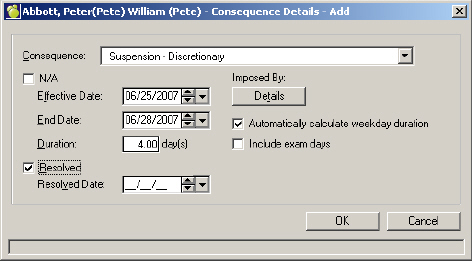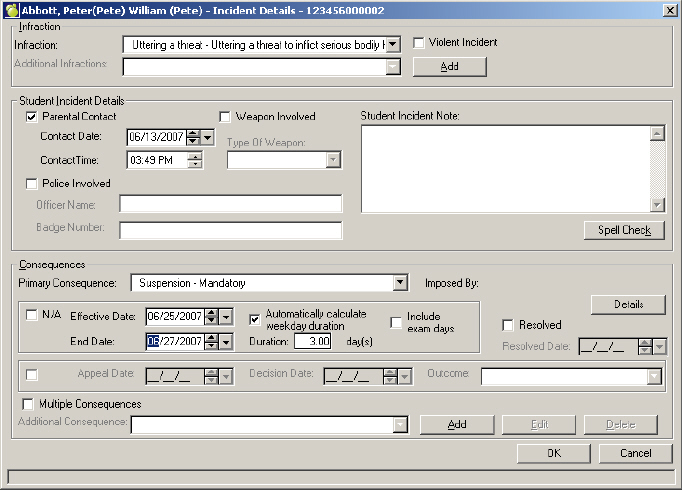
To add or edit the details of the Incident, first select the student involved and click Edit. This is an example of an editing box. The adding box will look the same but will have no information entered. The interface includes a checkbox for Appeal, date fields for Appeal Date and Decision Date with drop-down box to calendar for date selection, and a drop down box for Outcome (appeal outcome).
Include Exam days
Use this checkbox , 'Include exam days', to take into consideration exam days when determining the End Date of suspension.
Note: You can automatically calculate the number of weekdays in a suspension. If the "automatically calculate weekday duration" option is selected, then the number of weekdays between the start and end date will be calculated for you. If the option is selected, and the user chooses to enter only the start date, and the duration, the "last day" will automatically be populated.
Infractions
From the drop-down menu, select the infraction and then indicate in the check box if it is of a violent nature.
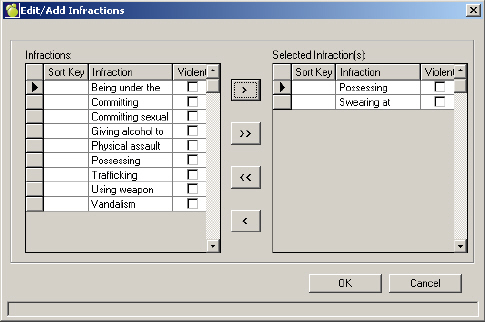
To add additional infractions click Edit.
To select the Infraction(s) from the left, highlight the entire line by clicking the grey box to the left of the infraction, and then click the appropriate arrow to move to the right hand side. After you have copied the infraction to the right you can edit whether or not the Infraction was violent.
Student Incident Details
Specify the details of Parental Contact in this area. If a weapon was used in the incident, check the box and then select the weapon from the drop-down down list. Indicate police involvement and add any additional notes to the incident in the Notes area.
Consequences
Within the Consequences area, if a consequence is to be applied, select the Primary Consequence from the drop-down list, and enter the effective date and end date (or duration of days). If the issue has been resolved, click the Resolved checkbox.
The Multiple Consequences checkbox is available on the Incident Details interface. This checkbox becomes checked and inactive the moment the student has multiple consequences. The checkbox can also be checked by the user when only one consequence listed.
Imposed By
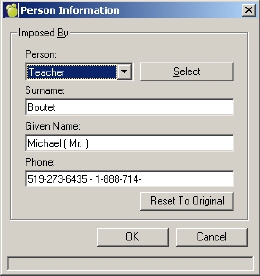
The Imposed By information will be populated by clicking the Details button. Use the drop-down list to select the type of staff member. Next click Select and choose the staff member from the list.
Please note, at this time, suspension dates will not automatically enter attendance information. This must still be entered in the attendance area.
Additional Consequences
To add additional infractions click Add.
Include Exam days
Use this checkbox , 'Include exam days', to take into consideration exam days when determining the End Date of suspension.