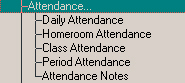
Inquiry - Attendance Fields
Under Attendance you will find the following criteria:
Wildcards
Daily Attendance - Enter Daily Attendance information to be used in your Inquiry search.
Time of Day: select the time of attendance, Morning, Afternoon, Either morning or afternoon or Full day for the search.
Day of Week: select the day of the week for the search.
Entry Type: select the type of attendance to search for or enter a specific line of attendance that was recorded.
Number of days entry type appears: enter the number of days that you want to find in the Inquiry search. Then choose of you want to find the exact number of days specified; if you want to find the number specified and less or the number specified and more.
Date Range: enter a first and last date for the Inquiry search. Use the small arrows to move backward and forward by one number. Click the large down arrow to select a date from the drop-down calendar.
Homeroom Attendance (secondary only) - Enter Homeroom Attendance information to be used in your Inquiry search.
Entry Type: select the type of attendance to search for or enter a specific line of attendance that was recorded.
Number of days entry type appears: enter the number of days that you want to find in the Inquiry search. Then choose of you want to find the exact number of days specified; if you want to find the number specified and less or the number specified and more.
Date Range: enter a first and last date for the Inquiry search. Use the small arrows to move backward and forward by one number. Click the large down arrow to select a date from the drop-down calendar.
Day of Week: select the day of the week for the search.
Class Attendance (secondary only) - Enter Class Attendance information to be used in your Inquiry search.
Course: select the course from the list.
Section: select the section from the drop-down list.
Day of Week: select the day of the week for the search.
Entry Type: select the type of attendance to search for or enter a specific line of attendance that was recorded.
Number of days entry type appears: enter the number of days that you want to find in the Inquiry search. Then choose of you want to find the exact number of days specified; if you want to find the number specified and less or the number specified and more.
Date Range: enter a first and last date for the Inquiry search. Use the small arrows to move backward and forward by one number. Click the large down arrow to select a date from the drop-down calendar.
Period Attendance (secondary only) - Enter Period Attendance information to be used in your Inquiry search.
Period: select the period from the drop-down list.
Day of Week: select the day of the week for the search.
Entry Type: select the type of attendance to search for or enter a specific line of attendance that was recorded.
Number of days entry type appears: enter the number of days that you want to find in the Inquiry search. Then choose of you want to find the exact number of days specified; if you want to find the number specified and less or the number specified and more.
Date Range: enter a first and last date for the Inquiry search. Use the small arrows to move backward and forward by one number. Click the large down arrow to select a date from the drop-down calendar.
Attendance Notes - Include Students: click the option that you want for the search. With attendance notes: will produce a list of students who have attendance notes. Without attendance notes: produces a list of students without attendance notes. With specific attendance notes: enables the additional option in the Specifics and Include students frames.
Specifics: if you want to search for a specific date, click the Selected Date option and enter the date in the Note Date box. Enter the date according to your Windows system date settings.
If you want to search for a specific date or earlier, click the Selected date or earlier option and enter the date in the Note Date box. Enter the date according to your Windows system date settings.
If you want to search for a specific date or later, click the Selected date or later option and enter the date in the Note Date box. Enter the date according to your Windows system date settings.
Include Students: in this frame, you can enter a string to search in the String box. Then select if you want to or don't want to include students who have this string in their attendance notes.
Total Number Of Periods With Specified Attendance
Inquiry on Period Attendance will only locate students who have X number of specified attendance code (i.e. absences) in a specific period within the specified timeframe. The Any option will locate students that follow this criteria in Any period.
i.e. students who have three or more absences in Period 1 (or 2, or 3, etc) will be located.
The new inquiry option, Total Number Of Periods With Specified Attendance, will locate students who have X number of specified Attendance code (i.e. absences) in a any period within the specified timeframe. The selection of the number of codes (i.e. absences) is entered in the framebox, Number Of Periods Entry Type Appears.
i.e. students who have three or more absences (1 in period 1, 1 in period 2, and 1 in period 3) will be located.