Inquiry - Enrolment Fields
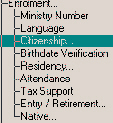
Under Enrolment, the fields are specific to each jurisdiction. Use the links below to see your jurisdiction's fields.
Ministry Number - This is the identification number assigned by the Ministry to the student when he/she first registered on the ministry system. Enter the Ministry number. It must be 9 digit number with three sets of three numbers.
Include students with: you can search for students with a specific number that you enter or you can search for students with any number except the one that you entered. Click the corresponding option button.
Language - In this form you can specify the language for your Inquiry search. Click the option for either French or English. Only one option can be selected at a time.
Citizenship - Under Citizenship you will find the following criteria:
Citizenship - Citizenship shows the student's status in Canada. Citizenship: select the type of citizenship from the list. Included Students: you can search for students who have or don't have the citizenship status that you chose.
Entry Date - This is the date that the student entered Canada (if not born in Canada). Entry Date to Canada: enter the date that you want to search. Use the format that your Windows system date setting uses. Included Students: if you want to search for a specific date, click the Specified Date option. To search for the specified date or earlier, click Specified Date or Earlier option. To search for the specified date or Later, click Specified Date or Later.
First Language - This is the first language that is spoken by the student. First Language: select the first language from the list. Included Students: you can search for students who have or don't have the first language that you specified for the search. Click the corresponding button.
Birthdate Verification - Enter Birthdate Verification information to be used in your Inquiry search. Birth Date Verification: select a verification type from the list provided. Include Students: choose to include students with the specified verification type or without the specified verification type. Click the appropriate option button.
Residency - Under Residency you will find the following criteria:
Residency - Residency means that the student is a resident student of the board. The residency source receives the gross fees for the student's education. Enter the Residency status to be used in the Inquiry search. Residency: click on the residency name and it will appear in the box. Include Students: you can choose to search for students who are or are not included in the residency name that you selected. Click the corresponding option button.
Source of Fees - Select a Source of Fees from the list. Then select to include students who have this source of fees or exclude students with this source of fees.
Source Board - Select a Source Board from the list. Then select either to search for the Source Board or Search Boards other than the selected one.
Attendance - Enter the Attendance status to be used in the Inquiry search. Attendance: click on the attendance type and it will appear in the box. Include Students: you can choose to search for students who are or are not included in the attendance type that you selected. Click the corresponding option button.
Entry Retirement - Under Entry/Retirement you will find the following criteria:
Entry Date Elementary School - Enter an Elementary date to be used in the Inquiry search. Entry Date to Elementary School: enter the date that the student first entered elementary school to be used in the Inquiry search. Include Students entering on: specify to include students with the specific entry date; specify if you want to use this date and earlier dates; or specify if you want to use this date and later dates. Click the corresponding option button.
Entry Date Secondary School - Enter a Secondary date to be used in the Inquiry search. Entry Date to Secondary School: enter the date that the student first entered elementary school to be used in the Inquiry search. Include Students entering on: specify to include students with the specific entry date; specify if you want to use this date and earlier dates; or specify if you want to use this date and later dates. Click the corresponding option button.
Entry Date This School - Enter an Entry date to be used in the Inquiry search. Entry Date to This School: enter the date that the student first entered this school to be used in the Inquiry search. Include Students entering on: specify to include students with the specific entry date; specify if you want to use this date and earlier dates; or specify if you want to use this date and later dates. Click the corresponding option button.
Registration Entry Status - Enter a Registration Entry Status to be used in the Inquiry search. Registration Entry Status: enter the status to be used in the Inquiry search. Include Students: specify to include or exclude students with the specified Registration Entry Status. Click the corresponding option button.
Origin School - An Origin Type is a school from which the student was transferred. Enter an Origin Type to be used in the Inquiry search. Origin Type: enter the Origin Type from which the student was transferred to be used in the Inquiry search. Include Students: specify to include or exclude students with the specified Origin Type. Click the corresponding option button.
Retirement Transfer Date - This is the date that the student retired or transferred (the first date of non-attendance). This field is only available to Deleted and Current Only students. Retirement/Transfer Date: enter the date that you want to search. Use the format that your Windows system date setting uses. Include Students Who Left School On: if you want to search for a specific date, click the Specified Date option. To search for the specified date or earlier, click Specified Date or Earlier option. To search for the specified date or Later, click Specified Date or Later.
Exit Description - This specifies where the student went after withdrawing from this school. Exit Description: select the Exit Description from the list. It will appear in the Exit Description box. Include Students: specify to include students whose Exit Description matches or does not match the selected Exit Description. Click the corresponding option button.
Destination School - This option is only available to Deleted and Current Only students, and specifies what school the student went to after withdrawing from this school. Destination School: select the Destination School from the list. It will appear in the Destination School box. Include Students: specify to include students whose Destination School matches or does not match the selected Destination School. Click the corresponding option button.
Native Status Code - Enter a Native Status Code to be used in the Inquiry search. Native Status Code: select the code from the list. Specify to include or exclude this code in the search.
Treaty Number - Enter a the Treaty Number to be used in the Inquiry search. Specify to include or exclude this Treaty Number in the search.
Band Of Residence - Enter a Band Of Residence to be used in the Inquiry search. Band Of Residence: select the Band from the list. Specify to include or exclude this Band in the search.
Reserve Of Residence - Enter a Reserve Of Residence to be used in the Inquiry search. Reserve Of Residence: select the Residence from the list. Specify to include or exclude this Residence in the search.
Accommodation - Enter an Accommodation to be used in the Inquiry search. Accommodation: select the Accommodation from the list. Specify to include or exclude this Accommodation in the search.
District Of Financial Responsibility - Enter a District Of Financial Responsibility to be used in the Inquiry search. District Of Financial Responsibility: select the District from the list. Specify to include or exclude this District in the search.
Band Of Financial Responsibility - Enter a Band Of Financial Responsibility to be used in the Inquiry search. Band Of Financial Responsibility: select the Band from the list. Specify to include or exclude this Band in the search.
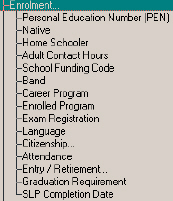
Personal Education Number (PEN) - Enter a PEN to be used in the Inquiry search. Specify to include or exclude this number in the search.
Native - Select either Is a Native or Is Not a Native.
Home Schooler - Select either Is a Home Schooler or Is Not a Home Schooler.
Adult Contact Hours - Enter the number of Contact Hours, then choose to include students with the specific hour(s), fewer or more hours.
School Funding Code - Select a Code from the list to be used in the Inquiry search. Specify to include or exclude students with this code in the search.
Band - Select a Band from the list to be used in the Inquiry search. Specify to include or exclude students with this Band in the search.
Career Program - Select a Career Program from the list to be used in the Inquiry search. Specify to include or exclude students with this Career Program in the search.
Enrolled Program - Select a Enrolled Program from the list to be used in the Inquiry search. Specify to include or exclude students with this Enrolled Program in the search.
Exam Registration - Enter an Exam Registration Number. Specify to include or exclude students with this Number in the search.
Language - Select English or French.
Citizenship - Under Citizenship you will find the following criteria:
Citizenship - Citizenship shows the student's status in Canada. Citizenship: select the type of citizenship from the list. Included Students: you can search for students who have or don't have the citizenship status that you chose.
Entry Date - This is the date that the student entered Canada (if not born in Canada). Entry Date to Canada: enter the date that you want to search. Use the format that your Windows system date setting uses. Included Students: if you want to search for a specific date, click the Specified Date option. To search for the specified date or earlier, click Specified Date or Earlier option. To search for the specified date or Later, click Specified Date or Later.
First Language - This is the first language that is spoken by the student. First Language: select the first language from the list. Included Students: you can search for students who have or don't have the first language that you specified for the search. Click the corresponding button.
Birthplace - Select a Birthplace. Choose to search for students with or without that birthplace.
Attendance - Select an Attendance type from the list to be used in the Inquiry search. Specify to include or exclude students with this Attendance type in the search.
Entry/Retirement - Under Entry/Retirement you will find the following criteria:
Entry Date (Elementary School) - Enter a Year, Month and Day or click No Date. Then choose one of, Students entering on the Specified Date, Earlier or Later.
Entry Date (Secondary School) - Enter a Year, Month and Day or click No Date. Then choose one of, Students entering on the Specified Date, Earlier or Later.
Entry Date (This School) - Enter a Year, Month and Day or click No Date. Then choose one of, Students entering on the Specified Date, Earlier or Later.
Origin Type - Select an Origin Type. Choose to search for students with or without that Origin Type.
Origin School - Select an Origin School. Choose to search for students with or without that Origin School.
Retirement/ Transfer Date - Enter a Year, Month and Day or click No Date. Then choose one of, Students who retired/ transferred on the Specified Date, Earlier or Later.
Destination Type - Select a Destination Type. Choose to search for students with or without that Destination Type.
Destination School - Select a Destination School. Choose to search for students with or without that Destination School.
Graduation Requirement - Select a Graduation Requirement from the list. Choose to search for students with or without that Graduation Requirement.
SLP Completion Date - Select a SLP Completion Date from the list. Choose to search for students with or without that SLP Completion Date.
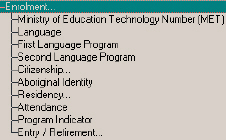
Residency - Select Resident or Non-Resident.
Enrolment Type - Select an Enrolment Type from the list. Choose to search for students with or without that Enrolment Type.
Resident Division - Select a Resident Division from the list. Choose to search for students with or without that Resident Division.
Entry Date (Elementary School) - Enter a Year, Month and Day or click No Date. Then choose one of, Students entering on the Specified Date, Earlier or Later.
Entry Date (Secondary School) - Enter a Year, Month and Day or click No Date. Then choose one of, Students entering on the Specified Date, Earlier or Later.
Entry Date (This School) - Enter a Year, Month and Day or click No Date. Then choose one of, Students entering on the Specified Date, Earlier or Later.
Origin Type - Select an Origin Type. Choose to search for students with or without that Origin Type.
Origin School - Select an Origin School. Choose to search for students with or without that Origin School.
Retirement/ Transfer Date - Enter a Year, Month and Day or click No Date. Then choose one of, Students who retired/ transferred on the Specified Date, Earlier or Later.
Destination Type - Select a Destination Type. Choose to search for students with or without that Destination Type.
Destination School - Select a Destination School. Choose to search for students with or without that Destination School.
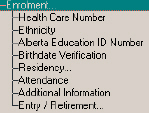
Health Care Number - Enter a MET Number to be used in the Inquiry search. Specify to include or exclude this number in the search.
Ethnicity - Select an Ethnicity type. Choose to search for students with or without that Ethnicity type.
Alberta Education ID Number - Enter an Alberta Education ID Number to be used in the Inquiry search. Specify to include or exclude this number in the search.
Birthdate Verification - Select an Birthdate Verification type. Choose to search for students with or without that Birthdate Verification type.
Residence - Select Resident or Non-Resident.
Home Community - Select a Home Community from the list. Choose to search for students with or without that Home Community.
Source Board - Select a Source Board from the list. Choose to search for students with or without that Source Board.
Attendance - Select an Attendance type from the list. Choose to search for students with or without that Attendance type.
Additional Information - Select an Additional Information type from the list. Choose to search for students with or without that Additional Information type.
Entry Date (Elementary School) - Enter a Year, Month and Day or click No Date. Then choose one of, Students entering on the Specified Date, Earlier or Later.
Entry Date (Secondary School) - Enter a Year, Month and Day or click No Date. Then choose one of, Students entering on the Specified Date, Earlier or Later.
Entry Date (This School) - Enter a Year, Month and Day or click No Date. Then choose one of, Students entering on the Specified Date, Earlier or Later.
Origin Type - Select an Origin Type. Choose to search for students with or without that Origin Type.
Origin School - Select an Origin School. Choose to search for students with or without that Origin School.
Retirement/ Transfer Date - Enter a Year, Month and Day or click No Date. Then choose one of, Students who retired/ transferred on the Specified Date, Earlier or Later.
Destination Type - Select a Destination Type. Choose to search for students with or without that Destination Type.
Destination School - Select a Destination School. Choose to search for students with or without that Destination School.
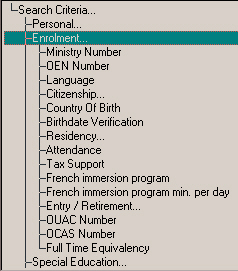
Ministry Number - This is the identification number assigned by the Ministry to the student when he/she first registered on the ministry system. Enter the Ministry number. It must be 9 digit number with three sets of three numbers.
Include students with: you can search for students with a specific number that you enter or you can search for students with any number except the one that you entered. Click the corresponding option button.
OEN - Enter the Ontario Education Number. Below, select to perform an Inquiry on that specific number or any number except the OEN specified.
Language - Specify the language for your Inquiry search. Click the option for either French or English. Only one option can be selected at a time.
Citizenship - Under Citizenship you will find the following criteria:
Citizenship - Citizenship shows the student's status in Canada. Citizenship: select the type of citizenship from the list. Included Students: you can search for students who have or don't have the citizenship status that you chose.
Entry Date - This is the date that the student entered Canada (if not born in Canada). Entry Date to Canada: enter the date that you want to search. Use the format that your Windows system date setting uses. Included Students: if you want to search for a specific date, click the Specified Date option. To search for the specified date or earlier, click Specified Date or Earlier option. To search for the specified date or Later, click Specified Date or Later.
First Language - This is the first language that is spoken by the student. First Language: select the first language from the list. Included Students: you can search for students who have or don't have the first language that you specified for the search. Click the corresponding button.
Country of Birth - Enter a Country of Birth to be used in your Inquiry search. Select a country from the list provided. Include Students: choose to include students with the specified country or without the specified country. Click the appropriate option button.
Birthdate Verification - Enter Birthdate Verification information to be used in your Inquiry search. Birth Date Verification: select a verification type from the list provided. Include Students: choose to include students with the specified verification type or without the specified verification type. Click the appropriate option button.
Residency - Under Residency you will find the following criteria:
Residency - Residency means that the student is a resident student of the board. The residency source receives the gross fees for the student's education. Enter the Residency status to be used in the Inquiry search. Residency: click on the residency name and it will appear in the box. Include Students: you can choose to search for students who are or are not included in the residency name that you selected. Click the corresponding option button.
Source of Fees - Select a Source of Fees from the list. Then select to include students who have this source of fees or exclude students with this source of fees.
Source Board - Select a Source Board from the list. Then select either to search for the Source Board or Search Boards other than the selected one.
Attendance - Enter the Attendance status to be used in the Inquiry search. Attendance: click on the attendance type and it will appear in the box. Include Students: you can choose to search for students who are or are not included in the attendance type that you selected. Click the corresponding option button.
French Immersion Program - Select a French Immersion Program type from the list and then select either students who are in that program or are not in that program.
French Immersion Program Min Per Day - Enter the number of minutes per day. Below, select if you want to perform an Inquiry search for the exact number, fewer or less minutes.
Tax Support - Tax Support is the school system that the student's parents support. Enter the Tax Support status to be used in the Inquiry search. Tax Support: click on the tax support type and it will appear in the box. Include Students: you can choose to search for students who are or are not included in the tax support type that you selected. Click the corresponding option button.
Entry Retirement - Under Entry/Retirement you will find the following criteria:
Entry Date Elementary School - Enter an Elementary date to be used in the Inquiry search. Entry Date to Elementary School: enter the date that the student first entered elementary school to be used in the Inquiry search. Include Students entering on: specify to include students with the specific entry date; specify if you want to use this date and earlier dates; or specify if you want to use this date and later dates. Click the corresponding option button.
Entry Date Secondary School - Enter a Secondary date to be used in the Inquiry search. Entry Date to Secondary School: enter the date that the student first entered elementary school to be used in the Inquiry search. Include Students entering on: specify to include students with the specific entry date; specify if you want to use this date and earlier dates; or specify if you want to use this date and later dates. Click the corresponding option button.
Entry Date This School - Enter an Entry date to be used in the Inquiry search. Entry Date to This School: enter the date that the student first entered this school to be used in the Inquiry search. Include Students entering on: specify to include students with the specific entry date; specify if you want to use this date and earlier dates; or specify if you want to use this date and later dates. Click the corresponding option button.
Origin Type - An Origin Type is a school from which the student was transferred. Enter an Origin Type to be used in the Inquiry search. Origin Type: enter the Origin Type from which the student was transferred to be used in the Inquiry search. Include Students: specify to include or exclude students with the specified Origin Type. Click the corresponding option button.
Origin School - An Origin Type is a school from which the student was transferred. Enter an Origin Type to be used in the Inquiry search. Origin Type: enter the Origin Type from which the student was transferred to be used in the Inquiry search. Include Students: specify to include or exclude students with the specified Origin Type. Click the corresponding option button.
Retirement Transfer Date - This is the date that the student retired or transferred (the first date of non-attendance). This field is only available to Deleted and Current Only students. Retirement/Transfer Date: enter the date that you want to search. Use the format that your Windows system date setting uses. Include Students Who Left School On: if you want to search for a specific date, click the Specified Date option. To search for the specified date or earlier, click Specified Date or Earlier option. To search for the specified date or Later, click Specified Date or Later.
Destination Type - This option is only available to Deleted and Current Only students, and specifies where the student went after withdrawing from this school. Destination: select the Destination from the list. It will appear in the Destination box. Include Students: specify to include students whose Destination Type matches or does not match the selected Destination Type. Click the corresponding option button.
Destination School - This option is only available to Deleted and Current Only students, and specifies what school the student went to after withdrawing from this school. Destination School: select the Destination School from the list. It will appear in the Destination School box. Include Students: specify to include students whose Destination School matches or does not match the selected Destination School. Click the corresponding option button.
OUAC Number - The OUAC number is the student's Ontario Universities Application Centre number. OUAC Number: enter the student's OUAC number that you wish to use in the Inquiry search. Include Students: specify to include students whose OUAC number matches or does not match the selected OUAC number. Click the corresponding option button.
OCAS Number - The OCAS number is the student's Ontario College Application Service number. OCAS Number: enter the student's OCAS number that you wish to use in the Inquiry search. Include Students: specify to include students whose OCAS number matches or does not match the selected OCAS number. Click the corresponding option button.
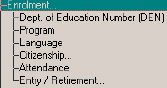
Department of Education Number (DEN) - Enter the Department of Education Number. Below, select to perform an Inquiry on that specific number or any number except the DEN specified.
Program - Select a Program Type. Choose to search for students with or without that Program Type.
Language - Specify the language for your Inquiry search. Click the option for either French or English.
Citizenship - Under Citizenship you will find the following criteria:
Citizenship - Citizenship shows the student's status in Canada. Select the type of citizenship from the list. Then choose to search for students who have or don't have the citizenship status that you chose.
Aboriginal Status - This is the date that the student entered Canada (if not born in Canada). Enter the date that you want to search. Use the format that your Windows system date setting uses. If you want to search for a specific date, click the Specified Date option. To search for the specified date or earlier, click Specified Date or Earlier option. To search for the specified date or Later, click Specified Date or Later.
First Language - This is the first language that is spoken by the student. Select the first language from the list. Choose to search for students who have or don't have the second language that you specified for the search.
Second Language - Select the first language from the list. Search for students who have or don't have the second language that you specified for the search.
Place of Birth - Select a Place of Birth. Choose to search for students with or without that Place of Birth.
Place of Origin - Select a Place of Origin. Choose to search for students with or without that Place of Origin.
Attendance - Select an Attendance type from the list. Choose to search for students with or without that Attendance type.
Entry Date (Elementary School) - Enter a Year, Month and Day or click No Date. Then choose one of, Students entering on the Specified Date, Earlier or Later.
Entry Date (Secondary School) - Enter a Year, Month and Day or click No Date. Then choose one of, Students entering on the Specified Date, Earlier or Later.
Entry Date (This School) - Enter a Year, Month and Day or click No Date. Then choose one of, Students entering on the Specified Date, Earlier or Later.
Enrolment Reason - Select an Enrolment Reason. Choose to search for students with or without that Enrolment Reason.
Origin Type - Select an Origin Type. Choose to search for students with or without that Origin Type.
Origin School - Select an Origin School. Choose to search for students with or without that Origin School.
Retirement/ Transfer Date - Enter a Year, Month and Day or click No Date. Then choose one of, Students who retired/ transferred on the Specified Date, Earlier or Later.
Enrolment Result - Select an Enrolment Result. Choose to search for students with or without that Enrolment Result.
Destination School - Select a Destination School. Choose to search for students with or without that Destination School.
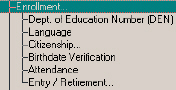
Department of Education Number (DEN) - Enter the Department of Education Number. Below, select to perform an Inquiry on that specific number or any number except the DEN specified.
Program - Select a Program Type. Choose to search for students with or without that Program Type.
Language - Specify the language for your Inquiry search. Click the option for either French or English.
Citizenship - Under Citizenship you will find the following criteria:
Citizenship - Citizenship shows the student's status in Canada. Select the type of citizenship from the list. Then choose to search for students who have or don't have the citizenship status that you chose.
Aboriginal Status - This is the date that the student entered Canada (if not born in Canada). Enter the date that you want to search. Use the format that your Windows system date setting uses. If you want to search for a specific date, click the Specified Date option. To search for the specified date or earlier, click Specified Date or Earlier option. To search for the specified date or Later, click Specified Date or Later.
First Language - This is the first language that is spoken by the student. Select the first language from the list. Choose to search for students who have or don't have the second language that you specified for the search.
Second Language - Select the first language from the list. Search for students who have or don't have the second language that you specified for the search.
Place of Birth - Select a Place of Birth. Choose to search for students with or without that Place of Birth.
Place of Origin - Select a Place of Origin. Choose to search for students with or without that Place of Origin.
Attendance - Select an Attendance type from the list. Choose to search for students with or without that Attendance type.
Entry Date (Elementary School) - Enter a Year, Month and Day or click No Date. Then choose one of, Students entering on the Specified Date, Earlier or Later.
Entry Date (Secondary School) - Enter a Year, Month and Day or click No Date. Then choose one of, Students entering on the Specified Date, Earlier or Later.
Entry Date (This School) - Enter a Year, Month and Day or click No Date. Then choose one of, Students entering on the Specified Date, Earlier or Later.
Origin Type - Select an Origin Type. Choose to search for students with or without that Origin Type.
Origin School - Select an Origin School. Choose to search for students with or without that Origin School.
Retirement/ Transfer Date - Enter a Year, Month and Day or click No Date. Then choose one of, Students who retired/ transferred on the Specified Date, Earlier or Later.
Destination School - Select a Destination School. Choose to search for students with or without that Destination School.
Destination School - Select a Destination School. Choose to search for students with or without that Destination School.