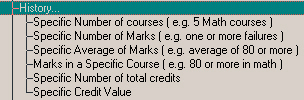
Inquiry - History Fields
Note: If you are working with a secondary version of Inquiry, the following History criteria will be available. History is unavailable in the elementary version.
History - You will see the following fields under History:
Wildcards
Specific Number of Courses - On this form you can search for how many times a specific course has occurred in timetables over a period of time. Course: select a course from the list.
Number of Course Units in Timetable: enter a Number of Course units in the Number of Course Units box to be used in your Inquiry search. You can then specify to search for the exact number, the specified number and less or the specified number and greater.
Course Units: choose if you want to search for Courses or Credits. Click the appropriate option button.
Date Range: enter the First and Last date to be considered in the search.
Include Students: choose to search for students who are or are not taking the selected course. Click the appropriate option button.
Specific Number of Marks - On this form you can specify to find 10 or fewer students who have a mark of exactly 75 in the first two marking columns.
Value of Mark: enter a Mark in the Mark box to be used in your Inquiry search. You can then specify to search for the exact mark, the specified mark and less or the specified mark and greater.
Number of Marks: enter a Number of Marks in the Number of Marks box to be used in your Inquiry search. You can then specify to search for the exact mark, the specified mark and less or the specified mark and greater.
Marking Columns: there are 6 columns where you can enter marks for students. Use the drop-down list to select the number of marking columns that you want to include.
Semester: if you are using a Secondary version, select from Semester 1, 2 or Either Semester.
Example - To create an Inquiry search to find 10 students or fewer with a mark of exactly 75 in the first two marking columns, enter 75 in the Mark box and click the Specified mark exactly option. Then enter 10 in the Number of Marks box and click the Specified Number of Marks or Fewer. Then select 2 from the drop-down list in the Marking Column box.
Specific Average of Marks - On this form you can specify to find the average of 10 English 2A marks that are 75 or more in the first two marking columns.
Course: select a course from the list offered and it will appear in the Course box.
Value of Mark: enter a Mark in the Mark box to be used in your Inquiry search. You can then specify to search for the exact mark, the specified mark and less or the specified mark and greater.
Courses/Credits: select if you want the average to be achieved by weighting marks on an equal basis, or if you want averages based on the credit value system. Below, enter a number for the maximum number of courses/credits to be considered in the Inquiry search.
Marking Columns: there are 6 columns where you can enter marks for students. Use the drop-down list to select the number of marking columns that you want to include.
Semester: if you are using a Secondary version, select from Semester 1, 2 or Either Semester.
Example - To create an Inquiry search to find 10 English 2A marks that are 75 or more in the first two marking columns and are based on the credit value system: Select English 2A from the list of courses. Select 2 from the Marking Column drop-down list. Enter 75 in the Mark box and click the Specified mark or more option. Click the Average weighted by credit value check box and then enter 10 in the Maximum number of courses/credits to consider.
Marks in a Specific Course - On this form you can specify to find how many marks of exactly 75 have been achieved in English 2A in the first two marking columns.
Course: select a course from the list offered and it will appear in the Course box.
Section: select a section of the course from the drop-down list.
Value of Mark: enter a Mark in the Mark box to be used in your Inquiry search. You can then specify to search for the exact mark, the specified mark and less or the specified mark and greater.
Marking Columns: there are 6 columns where you can enter marks for students. Use the drop-down list to select the number of marking columns that you want to include.
Semester: if you are using a Secondary version, select from Semester 1, 2 or Either Semester.
Example - To create an Inquiry search to find how many marks of exactly 75 have been achieved in English 2A in the first two marking columns: Select English 2 from the list of courses. Select A from the section. Select 2 from the Marking Column drop-down list. Enter 75 in the Mark box and click the Specified mark option.
Specific Number of Total Credits - On this form you can search, for example, a number of credit types that have been used.
Credit Type: select the Credit Type to search. You can choose from total Credits, Standard Credits or OAC Credits.
Number of Credits: enter a number of credits to search in the Number of Credits box. You can choose to have the exact number, the specified number and more or the specified number and fewer searched.
Specific Credit Value - Searches for a specific credit value in a course in a student's timetable. Select a course or enter a prefix followed by "*" , e.g. ENG* to include all classes. Select a section. Select a Semester and Term.
Credit Value - Select of of the options, Specified Number of Classes, Specified Number of classes or less and Specified Number of classes or more and enter a number in the text box. Then enter a Date Range.