Homeroom - On the Homeroom form you can specify the following information for your Inquiry search:
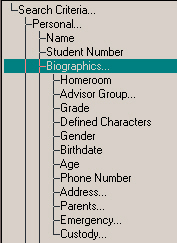
Inquiry - Personal - Biographics
Under Personal, Biographics you will find the following criteria:
Homeroom - On the Homeroom form you can specify the following information for your Inquiry search:
Homerooms: specify the homeroom for This Year (current) or Next Year (scheduling)
Homeroom order: specify if you want the search done by Designation (the grade and section assigned), the Room Number (the number on the room's door) or by Teacher assigned to the homeroom.
Include students: you can select a homeroom and designate specify orders for it. You can specify if you want students to be included or not included in a selected homeroom.
If you don't want to include or exclude particular homerooms for the search, select none from the list of homerooms.
Advisor Group - First select either This Year or Next Year. From the next window, select an Advisor Group and below specify to include or exclude students with this Advisor Group.
Grade - On the Grade form you can specify details about a grade that you will include in your Inquiry search.
Grade: click the grade and it will appear in the box, or enter the grade
Year: select either This Year (current) or Next Year (scheduling)
Include students in: if you want to include the students in the grade that you selected, click Selected Grade. If you want to include students in the grade that you selected and Under, click Selected Grade or Under. If you want to include students in the grade that you selected and Over, click Selected Grade or Over.
Defined Characters - User-defined fields provide an area to record information about students or employers that is not recorded elsewhere. Twenty user-defined fields are available for student information and another twenty user-defined fields are available for employer information.
Character: select the number of the defined character that you want to include in your Inquiry search
Include Students: you can include students with a specified character value or without a specified character value. Click in the Character Value box and enter the value.
Gender - Click the option button beside Female or Male to include a these students in your Inquiry search.
Birthdate - In this form enter Birthdate information to be used in the Inquiry search.
Birthdate: click on the birthdate entry box and enter dates according to your Windows system date settings.
Include students born on: the program will default to find students with the Selected Birthdate.
If you want students included with this birthdate or Earlier, or this birthdate or Later, click the appropriate option button.
Age - Enter Age information to be used in the Inquiry search.
Age: enter a specific age to be included in the Inquiry search
Include Students of: if you want only the specified age, click Specified Age; if you want specified Age or Younger or specified Age or Older, click the corresponding option button.
Phone Number - Enter Telephone number information to be used in the Inquiry search.
Phone Number: enter the seven digit phone number (excluding the area code).
Include Students: you can specify to include students with the specific phone number that you entered, or without the specific phone number.
Address - Address Lines - In this form enter Address Line string information to be used in the Inquiry search. A string is any series of letters and/or numbers that you can use to search for an address. String searches are usually case specific e.g., Main Street.
String: enter the address string to be used in the Inquiry search.
Include Students: specify to include students with or without the exact address string that you entered in the String box. Click the corresponding option button.
Parents - Parents' Lines - In this form enter Parent string information to be used in the Inquiry search. A string is any series of letters and/or numbers that you can use to search for a parent. String searches are usually case specific e.g., Mr. Smith.
String: enter the parents string to be used in the Inquiry search.
Include Students: specify to include students with or without this string included in his/her Parent string. Click the corresponding option button.
Emergency - Emergency Lines - In this form enter Emergency string information to be used in the Inquiry search. A string is any series of letters and/or numbers that you can use to search for an address. String searches are usually case specific e.g., Doctor
String: enter the address string to be used in the Inquiry search.
Include Students: specify to include students whose Emergency matches the entered Emergency string. Click the corresponding option button. e.g., Enter Doctor in the string and it will search for students whose Emergency Line contains Doctor.
Custody
Emergency Notes: First enter the String to search for in the Inquiry search. Check the Wildcards box if appropriate.
Below, select to include or exclude the String that you entered when performing the Inquiry search.
Custody
Special Custody - On this Custody form, select custody information for your Inquiry search. Click Special Custody if you want to search for students with special custody. Click Not Special Custody if you want to search for students who don't have special custody.
Custodian - In this form enter Custodian status information to be used in the Inquiry search. Custodian status: click on the marital status and it will appear in the box. Include Students: specify to include students whose Custodian matches or does not match the selected custodian status. Click the corresponding option button.
Lives With - In this form enter information about with whom the student lives for the Inquiry search. Lives With: click on the Lives with status and it will appear in the box. Include Students: specify to include students whose Lives With status matches or does not match the selected Lives With status. Click the corresponding option button.
Legal Guardian - In this form enter information about the student's Legal Guardian for the Inquiry search. Legal Guardian: click on the Legal Guardian status and it will appear in the box. Include Students: specify to include students whose Legal Guardian status matches or does not match the selected Legal Guardian status. Click the corresponding option button.