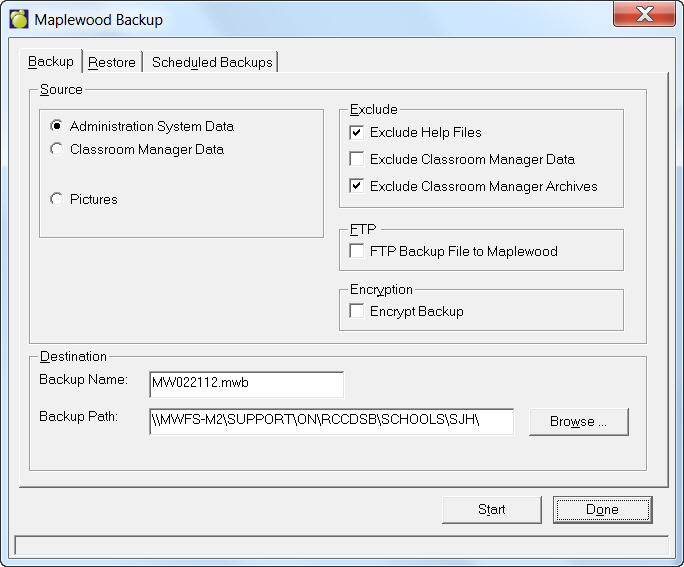
To make backups of your data and programs, choose File, Maintenance, Backup/Restore. Then click the Backup, Restore or Scheduled Backups tab.
The program reports the location of the backups. This is reported in the Logs file (Scheduled Backups (tab) Log command button.
Source and Naming convention of backup:
The name of the backup is also set by default depending on the source options you are selecting.
Code plus date is the backup’s filename. I.e. MW020302.mwb
MW Administration data including classroom manager
AD Administration data excluding classroom manager
CL Classroom manager data only
PI Picture file data only
LI Library data only
TR Transaction data only
INS Initialize Scheduling
TRN Transfer to Current
ATR Automatic Transcript Update
Destination: this is set by default to the backup.mw folder under your Maplewood admin directory.
FTP will have the backup sent to Maplewood
When you click the Backup tab you will see a screen similar to this one:
1. Select a destination drive and folder.
2. Select a backup option from the Source frame: Administration System Data, Classroom Manager or Pictures.
3. In the Exclude frame you can specify to omit Help Files, Classroom Manager Data and Classroom Manager Archives.
4. Check or leave blank the option to have the backup FTP to Maplewood.
5. Click Start.
Click the Restore tab to restore any saved backups made.
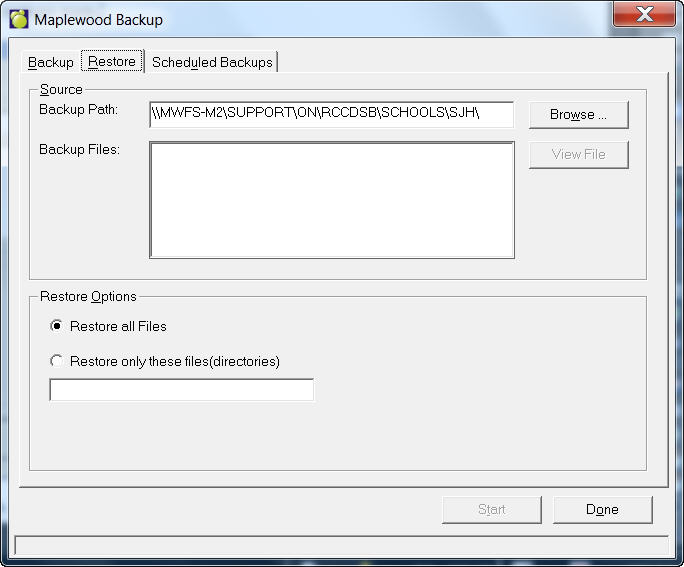
Select the source drive, folder and then file.
Restore Options
Restore All Files: click this option to restore all files in the backup.
Restore Only These Files (directories): click this option and specify in the space provided below.
Encrypt Backup Option
Feature added to encrypt a backup and/or scheduled backups. When a user selects to FTP Backup to Maplewood, it will automatically encrypt and the user will not be able to send without it being encrypted. Once a user selects the Encrypted option, the settings will save and this will become the default.
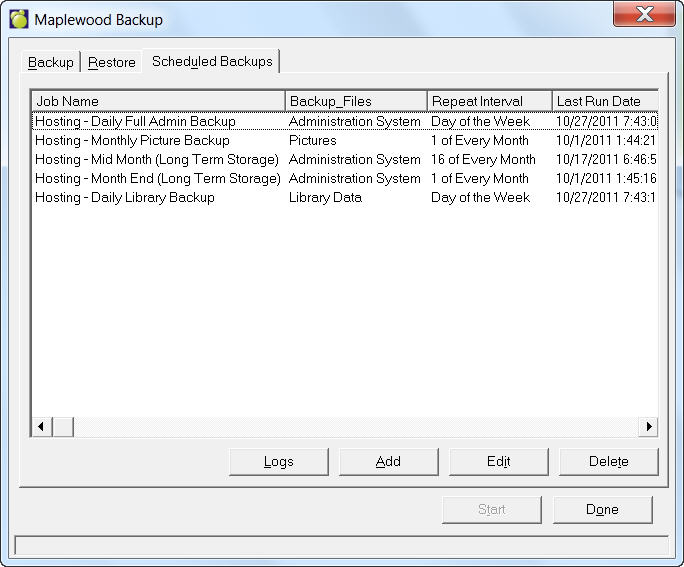
The Backup Scheduler is a Tab in Backup/Restore program under File, Maintenance Backup/Restore. On this tab you can Add Edit and Delete backups.
The program is set to run any scheduled backups for that day on the first opening of Maplewood for the day. Backups that are triggered by the scheduler will be stored in the backup.mw folder by default. (This folder must also have a bcksched.mdb file)
Each scheduled backup job is given a Job Name. The program will check the jobs’ schedule and backup file folder to ensure that the required backup jobs have been met and will run any jobs that have not yet been run. If more than one type of backup is scheduled to run on the same day, each backup type will run in order. I.e. you may get the Daily, the Weekly and the End of the Month backups if they fall on the same day.
Once the backup has run, you can check into the Logs (button on the Scheduled Backups Tab) (screen1). The Backup Logs form records the start and successful completion of each scheduled run backup. Backups that were not completed successful will show as started, not completed, and have a message in the Error Tab. For more information see Logs Folder (below).
Logs Folder
History Tab
Backup Logs form records the start and successful completion of each scheduled run backup. Backups that were not completed will only show as started.
You may select the number of days you wish to save the recorded backup jobs.
The Clear button deletes all records.
Once Only jobs are not logged. Because these scheduled jobs are a one-time-only jobs, the scheduled job along with its history is deleted once the job (the backup) is completed successfully. Should the backup be unsuccessful, the Schedule will still show the One-time-job, the Log history will show the backup attempt started, and the Error Tab will show the problem of the backup attempt.
Error Tab
Backups that were not completed will report under the Error tab.
Adding A Scheduled Backup
To create a new Backup Job schedule click the Scheduled Backups tab
Click Add.
Click the Schedule tab on the next screen.
Specify information as appropriate. See the following sections for complete option descriptions.
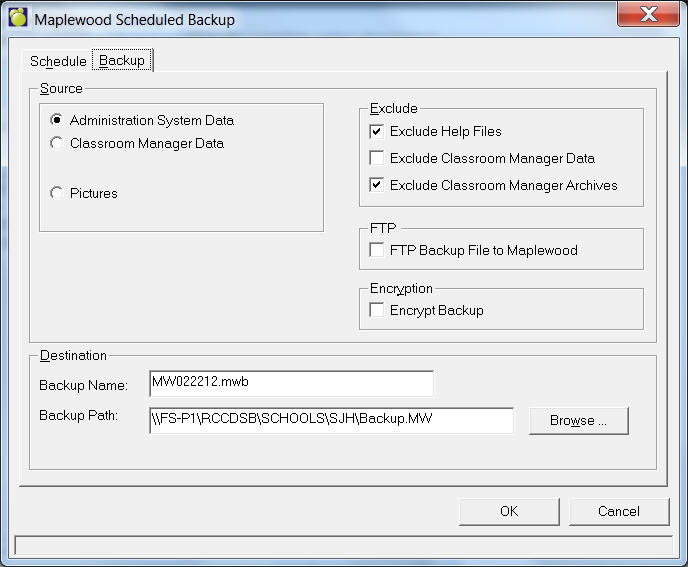
Schedule Tab
On the Schedule Tab you will see the following options:
Note: Currently only the date option is available is Start Date/Time. Each scheduled backup will run the moment Maplewood is opened. We recommend that the first person in the office should start Maplewood.
the name of the Backup Job
the date that you want this specific type of backup to start running
the Repeat Intervals
the number of that specific backups to want to save
the option if you want this specific type of backup to start or to put ‘On Hold’ until the you are ready.
Repeat Intervals
There are 4 Repeat Interval options: Only Once, Every, Day of the Week and Day.
Only Once
This option is a one-time backup
The date the backup is run can be today – considering Maplewood is closed and then re-opened or
The date can be a future date.
Because these scheduled jobs are a one-time-only jobs, the scheduled job along with its history is deleted once the job (the backup) is completed successfully. Should the backup be unsuccessful, the Schedule will still show the One-time-job, the Log history will show the backup attempt started, and the Error Tab will show the problem of the backup attempt.
Every
Days: This option can set to run a backup every day, every second, third, etc., day, depending on the number selected.
Weeks: This option can set to run a backup every week, every second, third, etc., week, depending on the number selected. With this option the program will check at the beginning of the week if there already exists a backup for the week for the particular backup job. I.e. If, due to holiday, Maplewood was not opened on Monday, the program will run it on Tuesday, the first opening of Maplewood for that week.
Months: Here you have the same selection and results as Weeks (above).
Years: Here you have the same selection and results as Weeks (above).
Day of the Week
If you have selected Monday and Wednesday, then the program will run the specified backup on Mondays and Wednesdays when Maplewood is opened. If Maplewood is not started on a Monday, then this specific backup will only run on Wednesday of that week.
Day of Every Month
If you leave the name of backup to the default - i.e. MW020302.mwb - each backup is saved with the new creation date and the oldest backup will be deleted so that only the specified number of backups are saved.
If you give the backup file a specific name, that name will be used each time that specific type of backup is created. However, to identify the most recent with the older backups, the most recent (newly created) backup will have an extension of .mwb, while the oldest saved backup will have an extension of .001. - i.e. MonthEnd.mwb, MonthEnd.001, MonthEnd.002 Instead of allowing the system to automatically delete these older backups, you may want to move them out of the backup.mw folder to another location
Number of Backups Kept
If you want zero backups kept, then each new specific backup job will replace the existing backup on file.
If you want one or more backups kept, then the most recent backup of that specific job will have show the extension of .mwb (i.e. AD020302.mwb). All other saved backups will have a numbered extension with .001 being the oldest (i.e. AD020302.001)
On Hold
This is an option to ‘Hold’ a backup from running. The specific backup jobs can be designed and put on ‘Hold’ until you need to run it.
Last Backup Run
This area informs you the date and the name of the last backup for this specific backup job was run.