Importing Student Pictures
- Copy the pictures named by student number into the pictures directory of Maplewood (i.e. F:\admin\pictures).
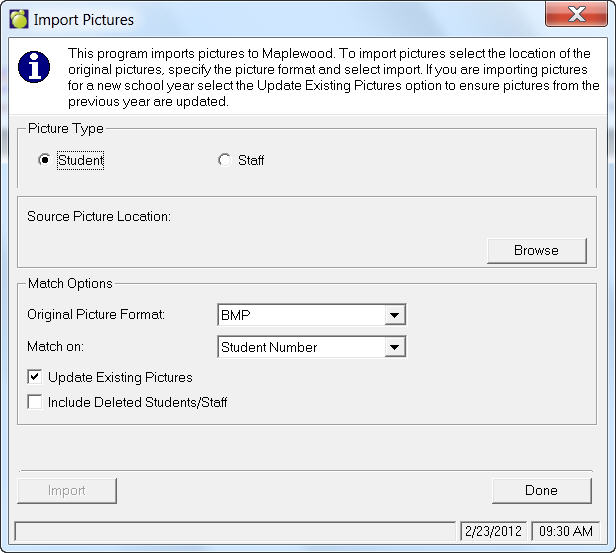
- In Maplewood for Windows go to File, Import, Student Pictures. Select Picture Type, Student or Staff.
- Browse to the location of the original pictures you wish to import.
- Under the Match Options heading select the Original Picture Format from the drop-down menu.
- Select from the options under the Match On drop-down list.
-Alberta: Student Number, Alberta Student Number, 3 Letter
-Manitoba: Student Number, MET, 3 Letter
-Saskatchewan: Student Number, Dept. of Edu Number, 3 Letter
-Nunavut: Student Number, GN#, 3 Letter
-Ontario: Student Number, OEN or 3 Letter.
- As an option you can check the box to Update Existing Pictures and chose to import. You also have the option to include Deleted Staff/Students.
- Click Done, and then click Import to begin the process. Student pictures will now display on the student records.
Importing Staff Pictures
To import Staff Pictures use the same procedure. In the Match Options frame you will see the following options under the Match On drop-down list:
- Alberta: Employee Number, Teacher Cert. #, 2 Letter
- Ontario: Employee Number, MEN#, 2 Letter
- Manitoba: Employee Number, PSP#, 2 Letter
- Saskatchewan: Ed Cert ID, Teacher Cert. #, 2 Letter