Pocket PC Synchronization
Send Maplewood data to the Pocket PC device:
- Open Maplewood and choose File, PDA Synchronization.
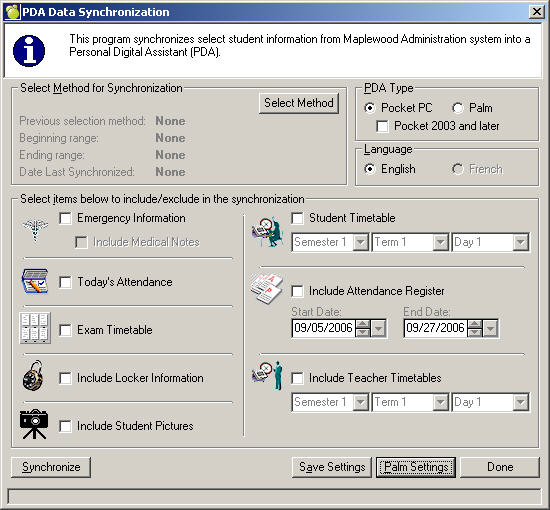
- Select the students to synchronize.
- Select the Pocket PC, or Pocket 2003 and later option.
- Select items to include in the synchronization. Selecting minimal attendance register and timetable ranges will reduce the amount of time it takes to synchronize.
- Also leaving Pictures unselected will reduce the synchronization time.
- If you have synchronized once with pictures then leave the option unselected in subsequent synchronizations, the pictures will remain on the Pocket. You don't have to send pictures every time.
- If you have pictures currently on the Pocket and you choose to synchronize pictures again, all the picture files get deleted from the device and copied over again.
- The Pocket PC must be inserted into the cradle while the synchronization is taking place.
- Click Synchronize to send the data to the device.