Printing
Print Preview

Use the First, Previous, Next and Last arrows to navigate through the pages of your print job.
Print

- Click the Print icon to send your document to the printer.
- Click the drop-down arrow to see Print, Current Page and Save to PDF.
- Print lets you change settings.
- Current Page prints the page you are currently viewing in the preview.
- Save to PDF will export the whole print job to a PDF. Specify the directory and file name then click Save.
Search
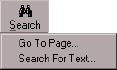
Click the Search icon and enter the text that you would like to locate, or click the drop-down menu to use the pre-sets.
Zoom
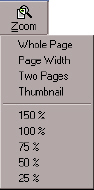
Click the Zoom button or click the drop-down menu to use the pre-sets.