Standardizing Code Categories
From Central Office choose File, Maintenance, Standardize Code Categories.
After Maplewood Enterprise has been updated to database version 5.8, someone with access to Central Office will need to follow these instructions to populate the transcript related tables in Central Office. Centralizing the Codes table is not part of this process and will be documented separately in an email after December 19th.
This document is intended for the board or division Maplewood contact, and may be ignored by the following customers:
- All private schools except a very small number of schools that have multiple secondary schools in the one Enterprise database
-
Nunavut
Before beginning the standardizing process one school must be setup with accurate transcript tables. This school’s tables will be used as the starting point for the centralized tables. Make note of the school for use in the next step. If this step has not been completed, select the school with the best setup that you can determine.
1. From Central Office, choose Marks, Define Requirements or Define Categories or Define Category Groups. Either one of these options will display a message:
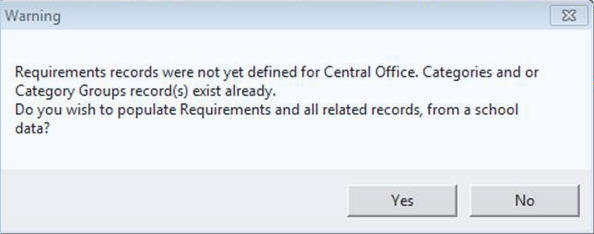
2. Answer YES to this prompt if you know the school whose tables you want to use as the starting point in Central Office.
3. Next select a school. This should be the school that you have verified has the “most correct” list of Categories, Category Groups and Requirements. Once the school is selected, the Central Office Requirements, Categories, and Category Group Tables will be populated with the information currently defined at the selected school, along with those other transcript related tables.
4. These tables need to be “synchronized” so that school values that don’t match the new Central tables can be cleaned up. To do this choose File, Maintenance, Synchronize Requirement Tables (for Ontario, the SHSM Categories/ SHSM Category Groups and SHSM Requirements are included with the Categories/ Category Groups and Requirements).
The following interface will appear (outside Ontario will not see anything that refers to SHSM which is Ontario’s Specialist High Skills Major certification program). Select the field to match on (depending on what key fields you have used in your table definitions). The following example matches on English Title.
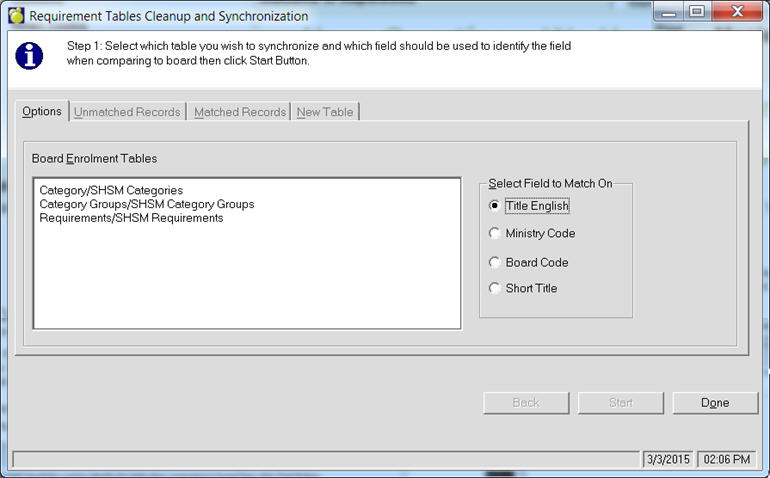
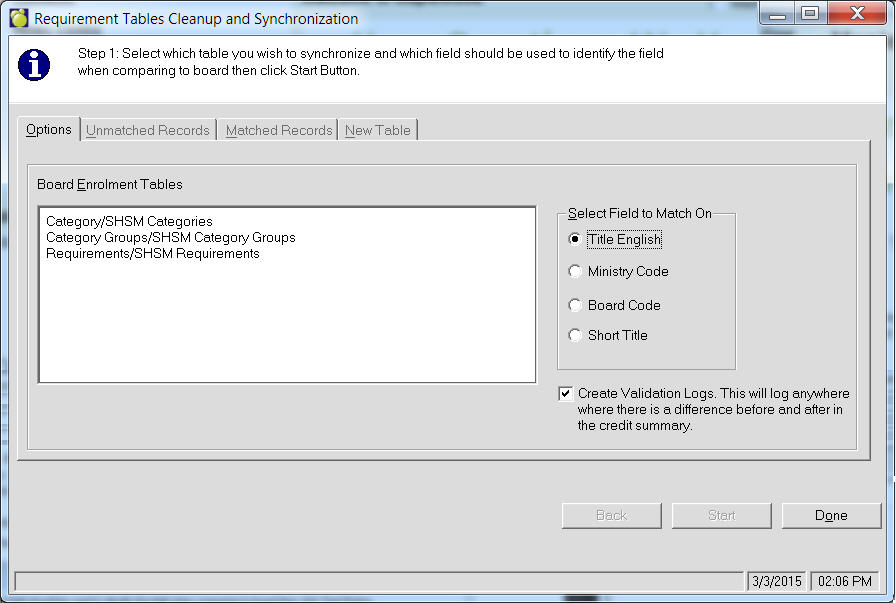
The process must be run in the order presented on the interface (categories, first, followed by Category Groups, and then Requirements). There is an option to “Create Validation Logs”. This option will create a log of any student whose Credit Summary (total credits and compulsory credits) is impacted by changes made to any of these tables. Maplewood highly recommends the use of this Validation Log.
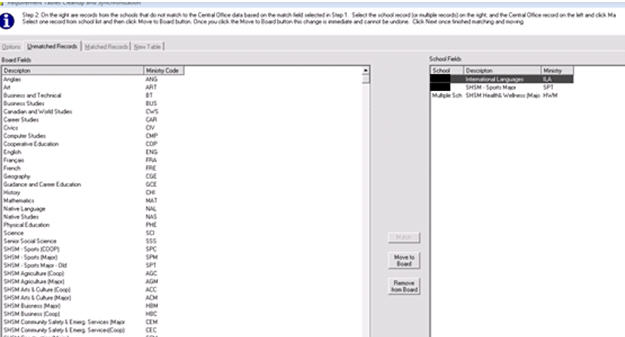
The user will be presented with the differences between what is currently defined at the board, and what exists at schools, that either does not exist at the board or is different than what exists at the board. There are three options in the Unmatched Records tab. The user can select to Match, Move to Board, or Remove from board.
When selecting to Match, the changes are not written to the Board table, until the user completes this Wizard process.
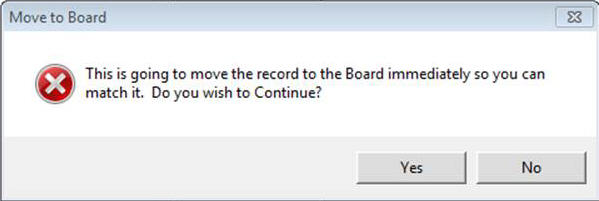
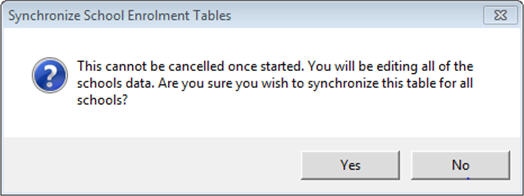
With the Move to Board/ Remove from board options, these actions are immediate. This allows a record that might have been missing from the source school to be added to the board, without leaving the wizard. The user is presented with a warning message when selecting to “Move to board”.
This wizard is not complete until the School Fields (on the right hand side) are cleared.
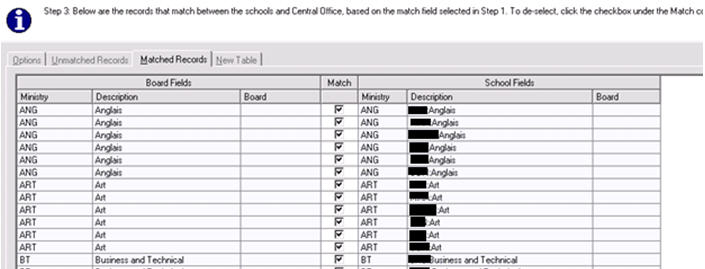
Once all of the records are matched, or moved to the board, review the matched records tab.
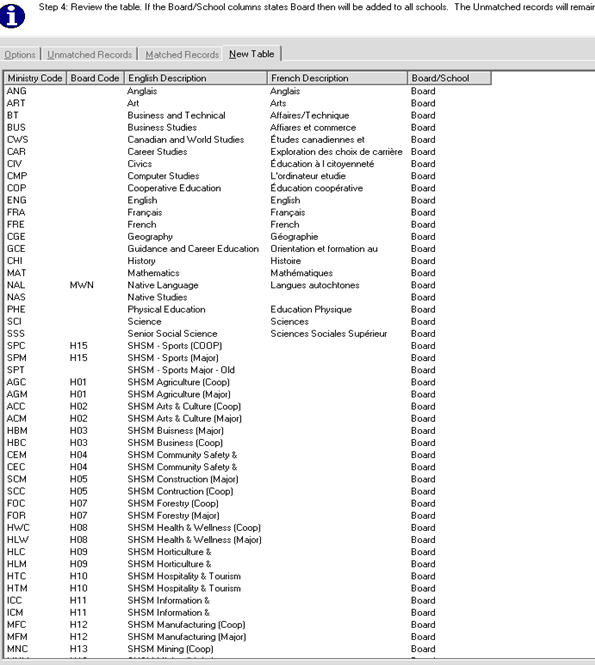
Review the newly created table.
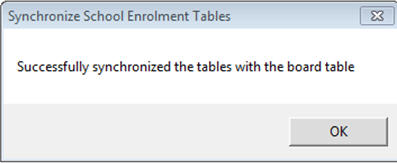
4. The synchronization process (step 3) needs to be repeated for Category Groups, and for Requirements as well.