To access the main Utilities screen, from the Administration System choose File, Maintenance, Topic-Based Marks, Correlate Database or Utilities.
Correlate Topic based Database
This feature is used to input current classes, teachers teaching the classes and it places students in those classes. Later, when you run Correlate Topic based Database again, the program will update the this information stored in the database.
Since these options are modifying data, you should do a backup before running. Also, make sure teacher disks are checked in before running these options (if changes are made to the database while disks are out, the return of those disks can negate the changes).
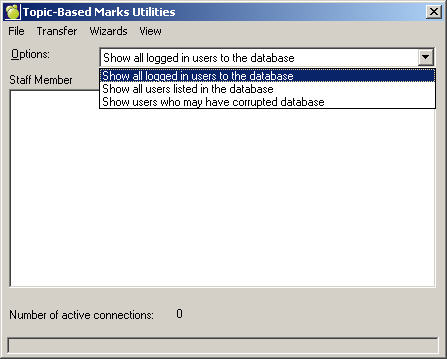
The main Topic-Based Utilities screen will show you a list of teachers - those connected to Classroom Manager, and the application each is using.
Suggested uses:
- At the start of a new school year after transferring to current.
- Whenever there are major changes to classes and students.
- Prior to printing report cards.
- Prior to mapping marks to the main administration system.
To access these Utility features, from the Maplewood Administration System choose File, Maintenance, Topics-Based Marks, Utilities. You will see this Utilities box. Use the File, Transfer, Wizard and View options to access the Utilities.
File Menu
Compact Database: compresses information to take up the smallest amount of space on the hard drive.
Repair Database: fixes any damaged information in the database if it becomes corrupted.
Verify Database Structure: Recreates/repairs the relationships if there is a problem with the referential integrity rules between Class Definitions and Markbook Item. However relationships cannot be repaired if referential integrity is rules are broken. For example, if there's a reference to a class in one of the related tables that does not exist in the classes file the relationship will not be repaired. This is used if Compact Database does not fix the issue and it removes all links between tables.
Note: This utility should not be ran as part of 'normal' maintenance. In fact, it can only be ran after the Access Recovery third party utility is used to fix the Classroom Manager database.
Reset Topic-Based Achievement: This process can be used to clean out the previous year's achievement if the transfer to new year process failed to do so. - copy term and topic assignments from full year classes to the courses
- create markbook bank based on current markbook setup (please note, this process may take several minutes)
- erase all classes, marks, and comments from the topic-based achievement database
- correlate the database (please note, this process will take longer than usual because it is basically repopulating the entire database)
Verify Literacy Test: The program will check for discrepancies in the literacy test flag for either Past or Present students.
Currently the literacy test flag is stored in two locations, the student information database (stuinfo.mcm) and in the enrolment record.
Initially the flag that indicates the Literacy Test status was save only in the stuinfo database. With the additions to the literacy test, the stuinfo database is not able to store all options (English , French, Not Applicable, Not Reported), but it does store whether the test was taken or not. The additional flags are now stored in the enrolment record.
Edit Student Details relies on the flag in the stuinfo database to determine if the additional flags should be checked in the enrolment file. If the stuinfo database indicates that the literacy test was not taken, it will not continue to check the enrolment file even if there is information in the enrolment record. This was put in place to ensure that previously entered Literacy information (defined before the ministry added the additional requirements) stills works.
With the design described above, this process can determine if the literacy test flag should be set based on the information in the enrolment record. If the enrolment record does not have the English, French, Not Applicable, Not Reported the literacy test flag in the stuinfo, then the database will be reset to Incomplete.
Notes:
This process will only verify students whose grade level is 11 or less this option is run during the 2004 school year, and will verify all students if the process is run after the 2004 school year.
This process was designed to correct the problem with Student Transcripts updating the literacy test to English when the student should not have been checked.
Verify Community Involvement: The program will examine each student's entry for Community Involvement. The End Period has to fall after student's Enrolment into Secondary date and prior to student's Retirement date. Any entries outside that parameter will be deleted, and a report will be generated showing each deleted entry for each student. This program will run for Current as well as for Past students. When the program runs for Past students, it will include a report showing that the students have been deleted from the Current student database and will also show that these students have been Deleted and 'Student no longer enrolled'.
Should the calculation of student hours fall below the 40 hours, the program will uncheck the 'completed community hours' checkbox.
Purge: Inactive Classes and Inactive Teachers removes any class lists and classes who's teacher or students' timetables have changed from the Classroom Manager database (clsmgr32.mcm). This utility is to be ran if the archiving process (which takes place during transfer to Current) fails. Archiving will fail if a user does not have permission to create files in both the clsmgr and AR directories.
Considerations when running this utility:
i) If a student has transferred classes and the Transfer Utility has not been ran first and purging takes place, all pointers, references and marks for the transfer class will be removed.
ii) Won't be able to print report cards for Deleted Students (as they will be purged because the student is removed from a class).
Purge Take-Home Program Information removes the records in the App Info table for all teachers and also removes information on Take-home programs from the school database.
Recalculate Marks: You can re-calculate marks in three ways:
1. Accumulated mark Only re-calculates the students' final mark based on the mark, denominator, and weighting definition of each term.
2. Run the program Based on Summary results and either Keeping or Resetting Overrides, to recalculate the accumulated mark.
3. Run the program Based on Markbook results and Resetting Overrides, to recalculate the accumulated mark.
Transfer Menu
Use the transfer options to move students and information in Classroom Manager: Students, Classes/Homerooms, Topics, Terms.
Choose File, Maintenance, Topics- Based Marks, Utilities.
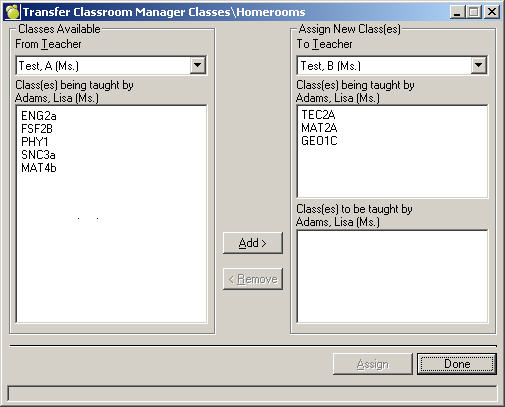
From the Topics-based Utilities box, click the Transfer menu and then select one of these transferring options: Students, Classes/Homerooms, Topics, Terms. Each transfer option will have a unique parameters box. Below is a sample Classes/Homerooms transfer box:
Select a teacher from the left column drop-down list and the class(es) taught by that teacher will appear in the box below.
Select a teacher from the right column for new class(es) assignment.
From the left column of classes being taught by the currently displayed teacher, double-click a class or single click a class and click Add to move a class to the currently displayed teacher in the right column.
Click Assign once you have moved the required class(es).
On the contrary, if a teacher for a class is changing, you must only transfer them through File, Maintenance, Topic Based Marks, Utilities. Then from the Utilities box, choose Transfer, Classes/Homerooms. This automatically changes the classes file.
Wizards Menu
There are two Wizards that will help you transfer information:
Transfer Marks: This Wizard will guide you through the steps required to transfer marks between courses from one semester to another: information to enter will include Semesters, Courses, Terms and Topics.
End of Reporting Period: This Wizard will guide you through the steps required to transfer markbook information from one reporting period to another, and the option of locking mark entry. Information to enter will include: Reporting Period Containing Markbook, Classes to be Included, Lock Reporting Period. Use the checkmark to keep overrides. This option keeps markbook overrides as well as overrides that are placed in topic totals.
View Menu
Use the Refresh command under the View menu to refresh the connection information.