The Web Update feature within the main Administration system (File, Web Update) accesses a secure Maplewood update site and compares the school's programs to updated Maplewood programs. If a discrepancy exists, a school has the option of installing the newer programs into their school's Maplewood directory. When complete, a readme file will list the changes made.
Programs on the updated Maplewood site included any and all changes made to tested programs. It is important to note that cosmetic and enhancement changes are included as well as functional changes. At a weekly interval determined by Maplewood, these programs are copied. This enhancement is a timesaving way for schools to remain current and abreast of changes to their Maplewood system.
To update programs, please be sure that all users have exited the Maplewood System.
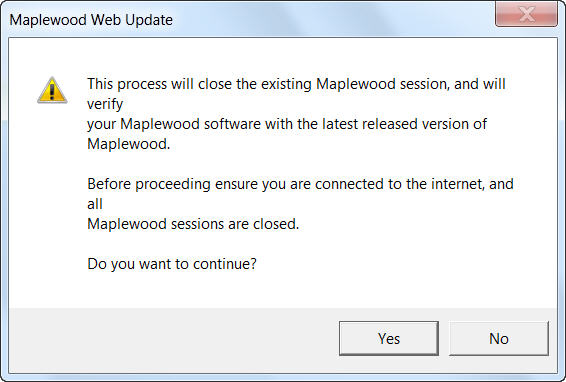
1. Choose File, Web Update to see a message box:
2. Click Yes to continue. You will see a Maplewood Web Update window like this:
Technical Notes: Once the Yes button is clicked, the web update executable creates a copy of itself called webtemp.exe This allows for even the Web Update application (webup32.exe) to be verified and updated in necessary.
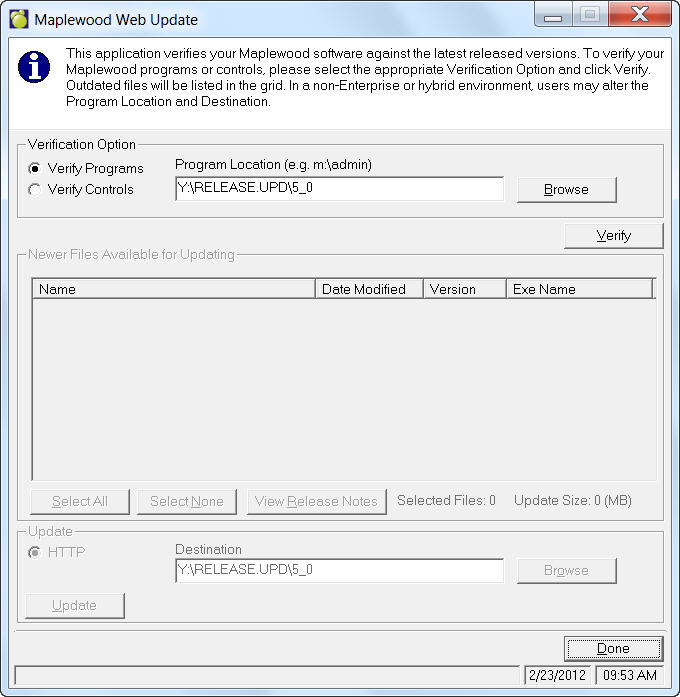
The application will automatically look to the program location from where the current Maplewood session is running. If there are multiple program locations or if the indicated path is incorrect, click the Browse button. If you are unsure of this information, close the Web Update, choose Help, Environment Information, and click the Paths tab. Then record the location of the Program files (third line down), and then run the Web Update.
3. In the Verification frame, select either Verify Programs or Verify Controls.
4. Click the Verify button to proceed. Please note, at this stage, nothing is being changed or updated. The program will connect to the internet and then the secure Maplewood Update site. Next, it compares the school’s programs against the Maplewood updated programs.
5. When this process is complete, a list of available updates will be displayed. The file Name, Date Modified, Version Number and Executable Name will also be listed. Check the box beside the file name to select files to be installed. To learn more about the changes to an application (executable), simply double click on the file and release notes will be returned. If you double-click on the program name you will be able to see the release notes/changes before downloading the file.
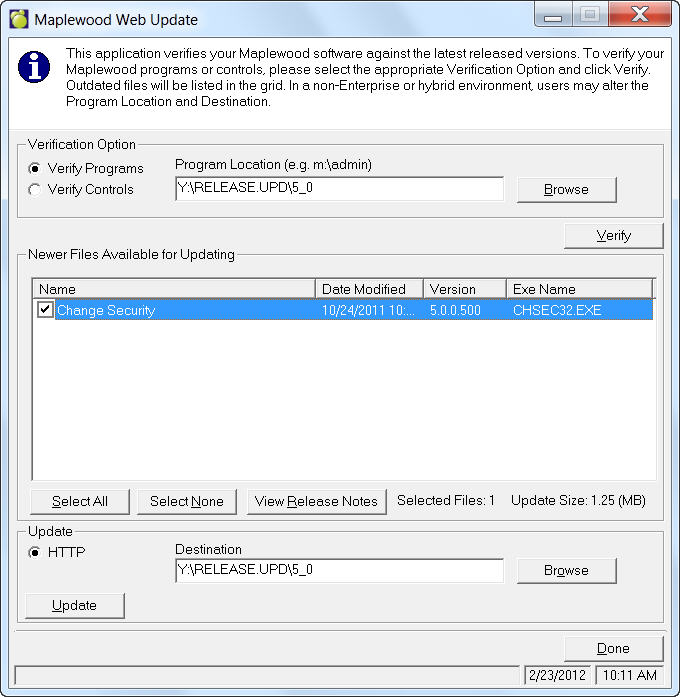
6. Select the update method of choice:
HTTP – Recommended method. This method uses the standard HTTP protocol used by websites which is Port 80 to download files. When downloading files, it is the same as browsing another page on the internet.
FTP - Uses the standard FTP Port 21 to download files. If you are having difficulty updating files using the above HTTP method, it may be due to the proxy server caching pages and the FTP method may allow for the files to be downloaded.
The process of updating the files and information is the same; the methods differ in how files are transferred to the server.
7. Enter a Destination or click Browse and navigate the update location. The Destination will automatically look to the program location from where the current Maplewood session is running and will match the above Program Location. If there are multiple program locations or if the indicated path is incorrect, click the Browse button.
8. Click Update to continue the update process:
Technical Notes: During the update process, the webservice packages files one at a time and zips them. The files are then sent to the client to the under the specified path. After received, the files are automatically extracted to the specified path and the temporary zip file is removed. While this process is in progress, a status report is displayed. If the process is unsuccessful, the zip file remains in the specified locations and the user can go to the program file and manually unzip the file. Add and delete permissions to the PR, WPR, Controls and WKSTN folders are required.
9. Check the directory that you specified earlier in the Destination box for a readme file of the program changes. The file is Readmedateofdownload.RTF