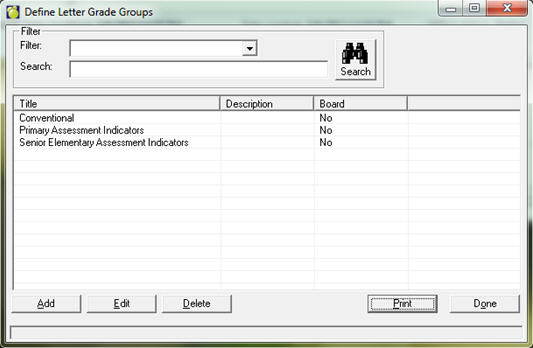
Letter grade groups can be used to set up any distinct list of values for teachers to enter into achievement or markbooks through Maplewood connectEd.
As an added convenience, teachers can use pop-up letters when entering achievement information. Pop-up letters for the Letter Box are pre-defined by the office to maintain a consistent marking scheme.
Choose Marks, Define Letter Grade Groups.
An unlimited number of letter grade groups can be defined, allowing a different set of letters or other characters for different topics/terms.
The default Letter Grade Group is called Conventional. This group can be left as-is or modified to suit your needs.
Letter grade groups can
be used to set up any distinct list of values for teachers to enter into
achievement or markbooks through Maplewood connectEd.
Examples:
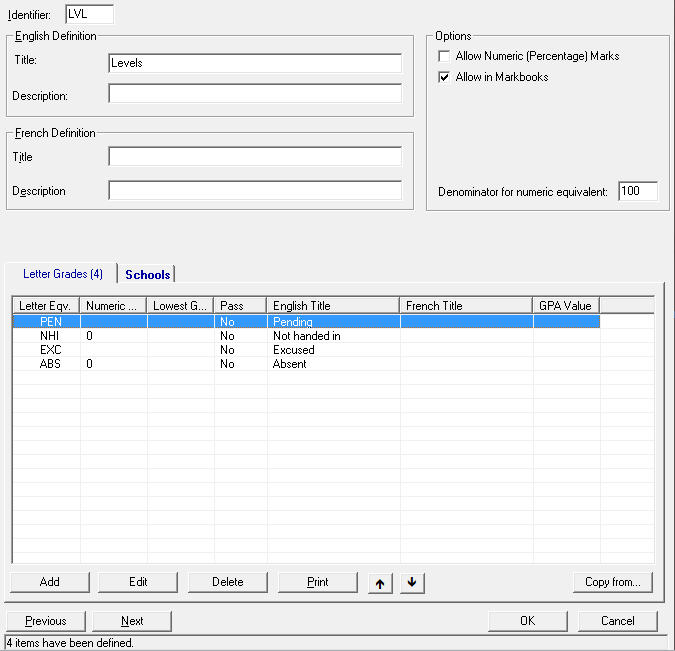
In this first example, the teacher will be presented with this list of acronyms, and will not be able to enter any numeric values.
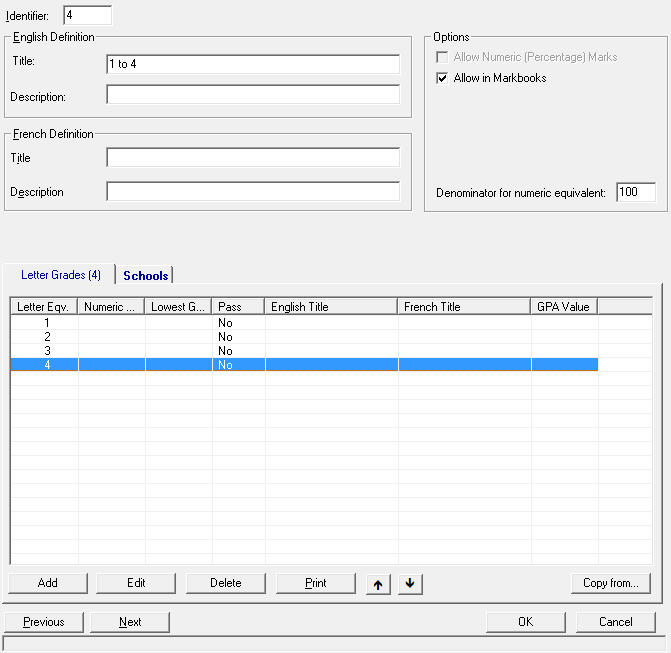
In this example the teachers will see only the
values 1, 2, 3 and 4, and will not be able to enter any other numeric
values or any decimal places other than the distinct numbers listed. The
“Allow Numeric (Percentage) Marks” box is unchecked and greyed out, to
define this as a distinct list of values, that just happen to be numbers,
rather than actual numeric values.
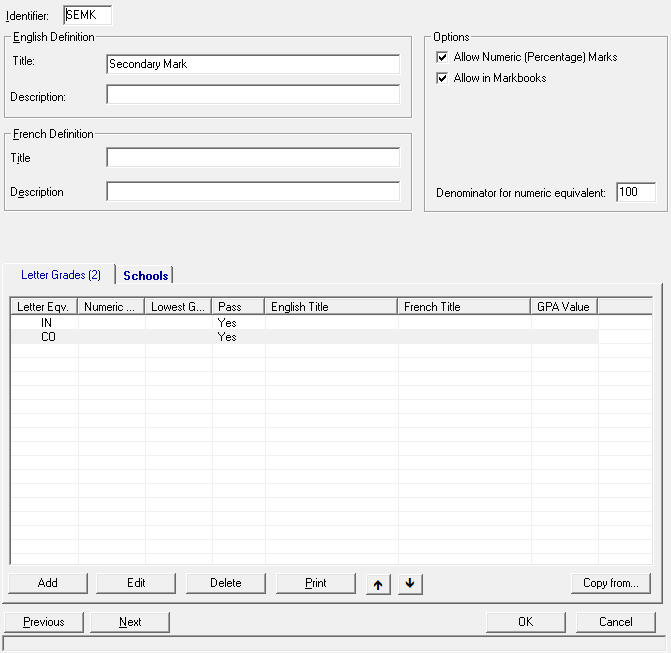
In this next example, the teachers will be able
to enter numeric (percentage) marks, but will also have IN and CO available
to them. This is helpful in the high school marking schemas where the
teachers may want to override a calculated percentage mark with a simple
Incomplete or Complete.
Please see the section on Define Mark Entry for
how to define which terms/topics can see which list of letter grades.
NOTE: any standard keyboard characters, or
combination of letters and characters, can be used as letter grades. Some
examples are:
| A+, A, A-, B+, B, B-, etc | -letter grades |
| 1, 1-2, 2, 2-3, 3, 3-4, 4 | -number grades |
| * | -an asterisk is used to indicate that the student has achieved a certain outcome/topic |
| -, --> | -a dash, or stylized arrow indicating that the topic was not taught this term |
| N/A | -this could mean not available or not applicable, or another definition |
NOTE: When the user edits a particular Letter Grade Group, the program looks at what marks have been entered for classes/homerooms using that group, and may check or un-check, and disable, the “Allow Numeric (Percentage) Marks” accordingly. Please contact Maplewood computing if this is the case. Workarounds are available if needed.
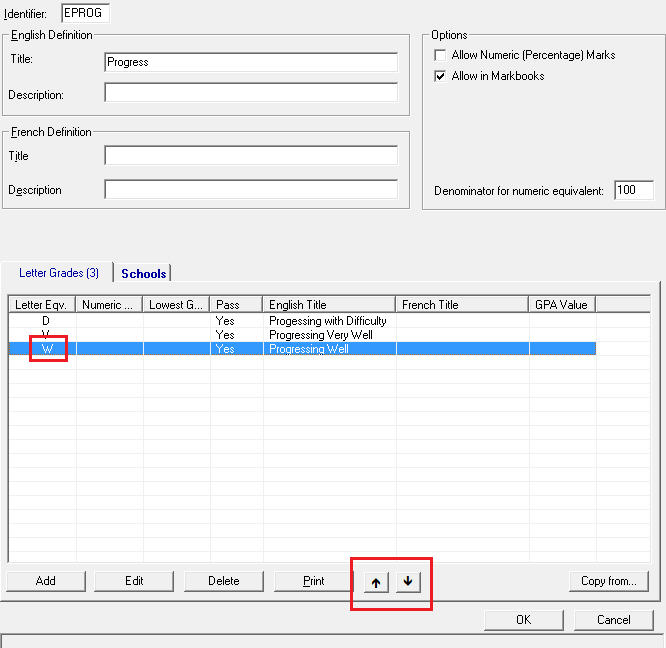
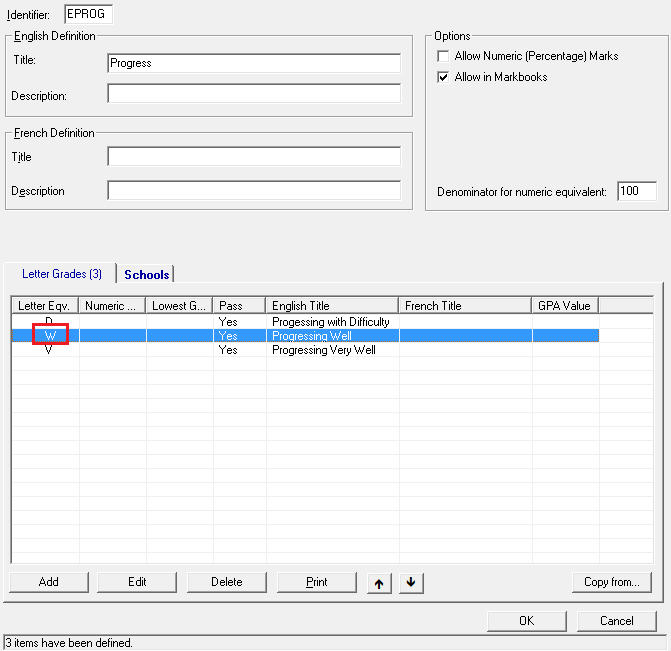
When editing a Letter Grade Group, select a letter and click the up and down arrows at the bottom to move that letter up and down in the list. The letters will display in this order for the teachers.
E.g., Before:
After:
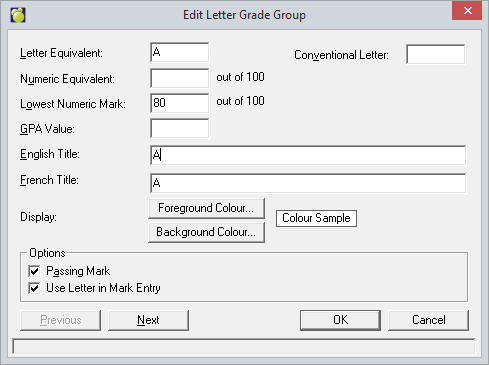
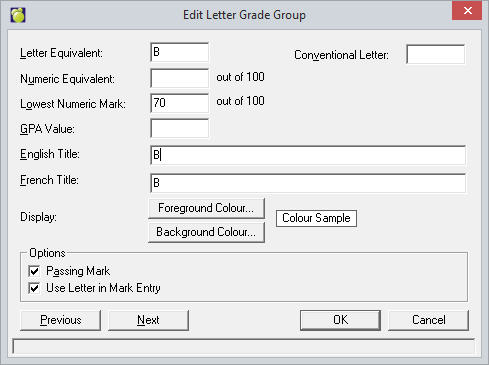
Lowest Numeric Mark: Enter a Lowest Numeric Mark value if a calculation is required from a numeric mark to a letter grade value.
Example:
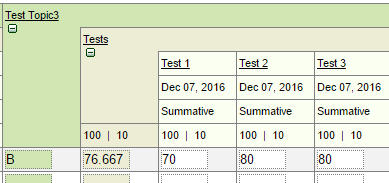
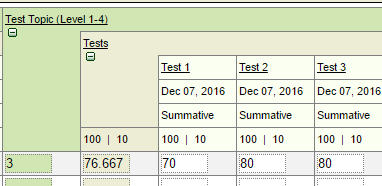
Teacher would enter numeric values to calculate to a letter grade: 70, 80, 80 calculates to a B.
(70, 80, 80 = 76.67 which displays as a B in the Topic)
Markbook:
Note: The above example also applies if the Letter Equivalent is equal to a Level (possibly 1-4).
Markbook:
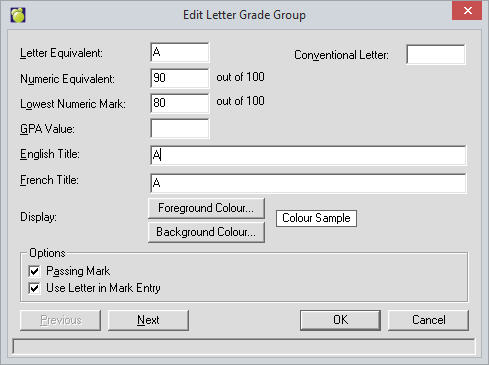
Numeric Equivalent: Enter a Numeric Equivalent median value if a calculation is required for a Letter Equivalent Value. The Lowest Numeric Mark must also be set for this calculation to display in the topic.
Example:
A range is 80 to 100. Equivalent median value is 90.
B range is 70 to 80. Equivalent median value is 75.
Teacher would enter Letter Equivalent Values to calculate: A, A, B calculates to an A.
(90, 90, 75 = A)
Markbook:
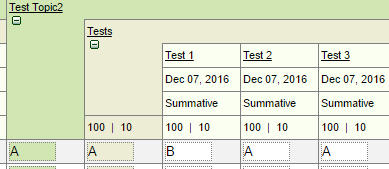
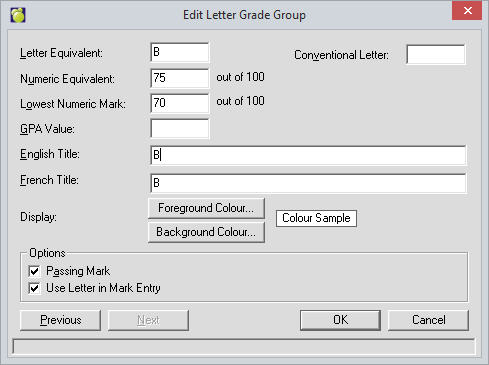
Note: The Numeric Equivalent is used for the calculation so A, A, B equals A even if the marks were really 80, 80, 70 because they were entered as A, A, B. Careful consideration should be used for final marks where an override may be useful.