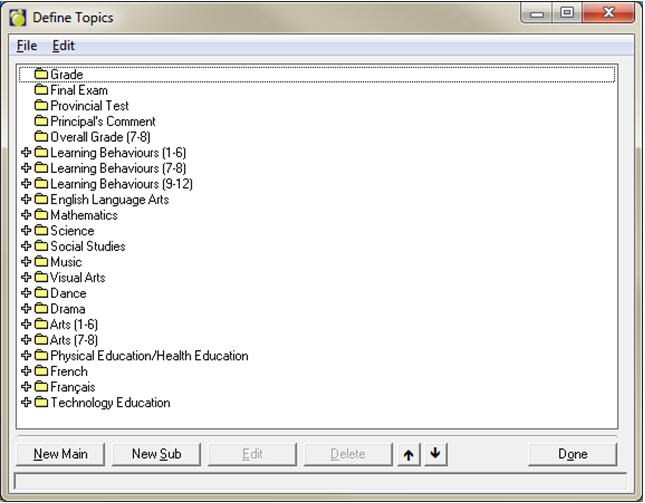
Topics can be described as the main subjects for which student achievement is recorded.1. Choose Marks, Topic-based Marks, Define Topics.2. Navigating around the Define Topics screen:
Click the plus sign beside a main topic to see its subtopics.Click on a topic and use the arrow buttons on the screen to move that topic (and its subtopics if applicable) up and down. This order affects all mark-entry screens in Maplewood connectEd and the Maplewood for Windows interface.
New Main: click this button to place a new topic below the selected main topic.
New Sub: click this button to create a new sub-topic for the selected topic.
Edit: click this button to see the details of the selected topic.
Delete: click this button to remove the selected topic. Please note, a topic must not be assigned to any classes or homerooms and must be marked as Not Reportable, to be available for deletion.
File – Print Preview: Use this option to print the whole topic list to PDF.
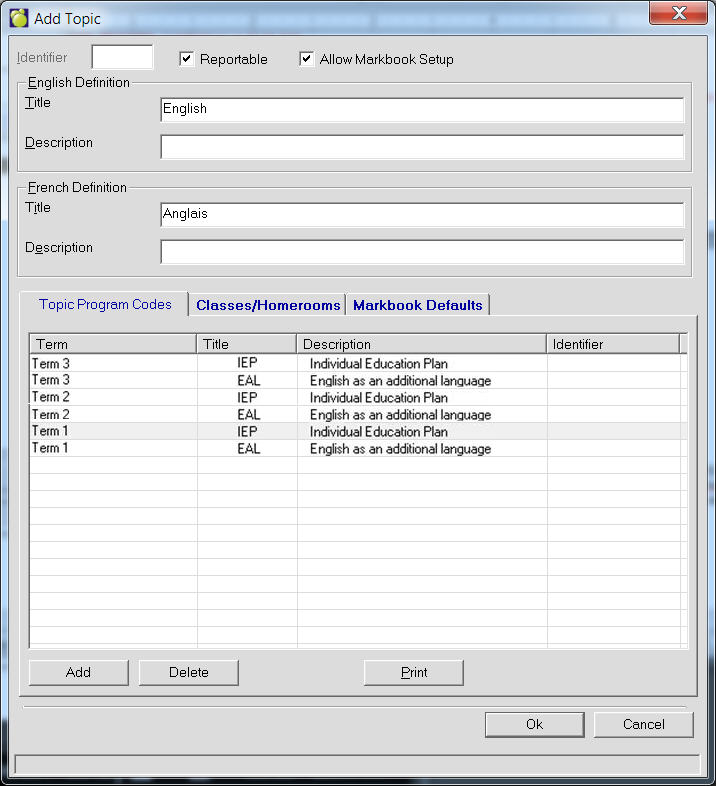
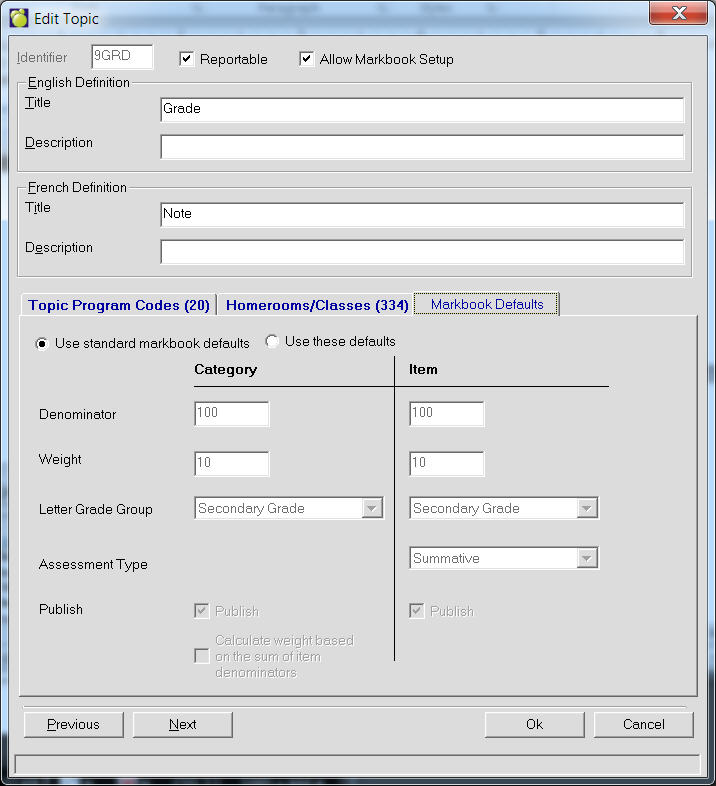
Identifier: A short description of the topic and can be up to five characters in length. The identifier must be unique.
Reportable: Governs whether a topic will be available for mark-entry and whether it will show up on reports.
Allow Markbook Setup: Uncheck this box to disallow teachers from creating a markbook under the selected topic.
Topic Program Codes tab: Lists the topic program codes that are assigned to this topic.
Homerooms/Classes tab: Lists the homerooms and classes that are assigned to this topic.
Markbook Defaults
When editing or adding a topic, you will see a new tab called Markbook Defaults. Check the box to use these defaults instead of the built-in markbook defaults, and define a new default denominator, weight, letter grade group, published status, etc for all newly-added markbook items and categories. These defaults will not affect existing markbook items or categories.