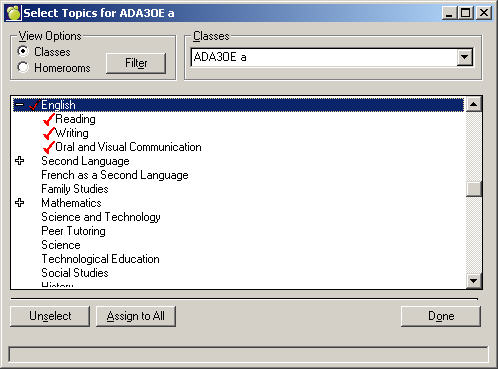
The Topic List contains every topic created by the office, available to teachers. Topics are assigned specifically to each class. This requirement prevents accidental removal or terms and topics, because clicking Apply all will change the terms and topic assignment of all classes in the list. Before you can select Topics you must have Classes and Homerooms selected. If they are not selected, you will receive a message when you try to access the Homeroom or Class drop-down list. To select a Class or Homeroom, click the Method button. Once selected, the Homerooms or Classes drop-down list will be available. To select a topic,
1. Choose Marks, Topic-based Marks, Select Topics.
2. Select the class or homeroom from the drop-down list.
3. Highlight the topic you wish to apply to the selected class. If the topic has a plus sign, click to expand and see sub-topics. Highlight the topics/sub-topics that you want and click Select. Using the Unselect button will remove the check mark.
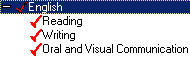
If all sub-topics apply, highlight the main topic and click Select. This will automatically select the main topic and all its sub-topics.
If only some sub-topics apply, click the "+" sign to expand and view the list. Then highlight the sub-topic that you want and click Select.
4. The 'Display Topics in Final Term' will show the the Accumulated Mark.
When this box is checked and you have selected (checked) the topic Grade for the Accumulated Mark, both white and blue columns appear where the white column has a calculated value while the blue column has the value* reflecting the weights' settings.
When the checkbox is unchecked only the blue column appears with the same value * as before, reflecting the weights' settings. Whether the Accumulated Mark checked or not, the blue Accumulated Mark column will appear.
5. When you have finished click OK.