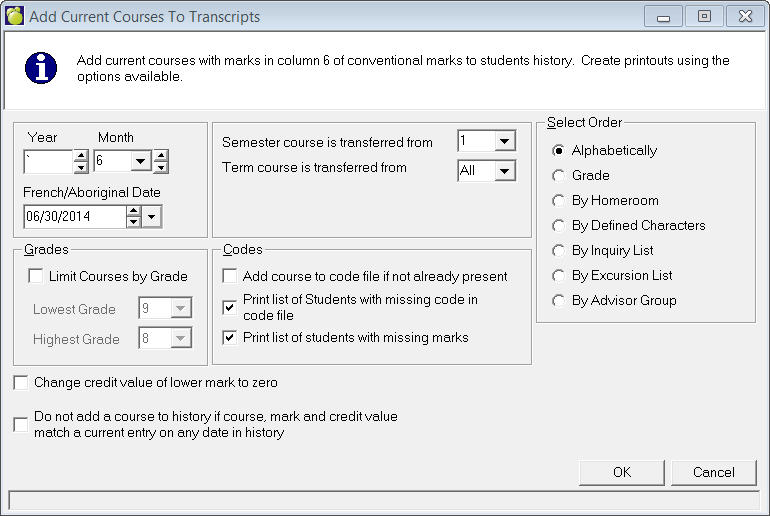
Once you have entered the students' final marks/grades into the sixth marking/grading column and printed the final report cards, choose Marks, Automatic Transcript Update, Add Current Courses To Transcripts to transfer those courses and marks/grades in marking/grading column six to the history records. The courses from semester 1, semester 2, or both semesters may be added to the history records.
N.B.: The final mark/grade for Both semester courses must be in marking/grading column six of 2nd semester in order for it to be transferred. If some Both semester courses have their final marks/grades stored in the 1st semester marking/grading column 6 Automatic Transcript Update will need to be run twice. Once for those courses that already have their final mark/grade in column 6 of 2nd semester, then a second time after the marks/grades in column 6 of 1st semester have been transferred to column 6 of 2nd semester. (Access: Marks/Grades » Enter Marks. Then select Transfer Marks/Grades Comments, Transfer Marks/Grades or Transfer Comments, Between Semesters (classes taught in Both Semesters Only).
A course will not be transferred to the history records if it has been previously recorded for the exact same date. This allows you to run Automatic Transcript Update more than once. Therefore, if a mark/grade needs to be changed for a course which has already been added to the history records, manually modify the mark/grade for that course either in the student's record using the History choice or through Modify/Print Transcripts in the Marks/Grades menu (see Modifying a Student's History Records (Transcripts) for more information).
As the compulsory credits are calculated, a list of those students who qualify for an Ontario diploma will be printed. This does not automatically grant the diploma. You have to enter the diplomas manually through the History choice in the students' records or through Modify/Print Transcripts.
If a course is already in a student's history records with a different date, it will be added again using Automatic Transcript Update. The names of those students who have the same course code repeated in their transcripts (e.g. those who are upgrading a mark) should be printed using Search For Duplicate Courses. Check the history records of the affected students. If the course should only be printed on the transcript once, enter a credit value of zero for the course which should not be printed. Zero credit courses may be optionally excluded from the printed transcripts.
Note: Searching for duplicates now has the ability to search for duplicates considering up to the first 7 characters.