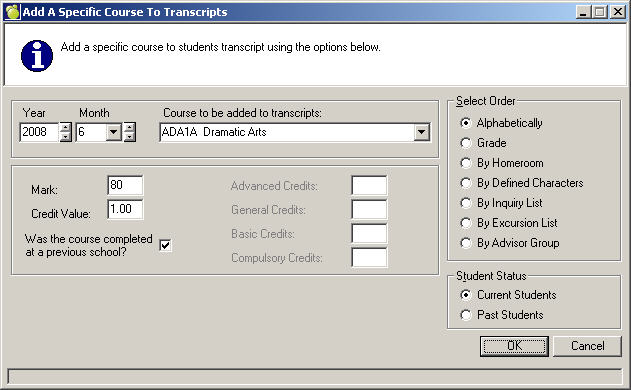
Choose Marks, Automatic Transcript Update, Add a Specific Course to Transcripts. Select a Year and Month, then a course from the drop-down list. If the course was completed at a previous school check the box; if a Mark and Credit Value are available enter the information as well. Select a Past or Present Students, Grade, Course Code Length and finally the Select By removal method.
Select one of the following methods: Alphabetical, Grade, Homeroom, Defined Character, Inquiry List.
You can print transcripts by choosing Marks, Print Transcripts. Then select Current students or Past students and Print Transcripts. The transcript must be printed using landscape format paper (11 inches wide x 8.5 inches long).
The computer will ask Do you wish to include previous school courses? (normally you would indicate yes). Then it will ask Do you wish to include failed courses and then Do you wish to include courses worth zero credits (normally you would indicate no to these questions). The date of issue must be entered in the form yy/mm/dd, and a name to be printed in the "Authorization" box on the form may be entered (up to 20 characters in length). The number of lines on the page should be entered (enter 51 for a dot matrix printer, 47 for a laser printer).
Using Modify/Print Transcripts, transcripts may be printed for students alphabetically, or for students with a specific grade/homeroom/ defined character. You can also print transcripts for students who started secondary school in a specific year.
Individual student's transcripts may be printed from the student's record by selecting History then Print Transcript and then answering the prompted questions.