There are three ways to set up comment parameters:
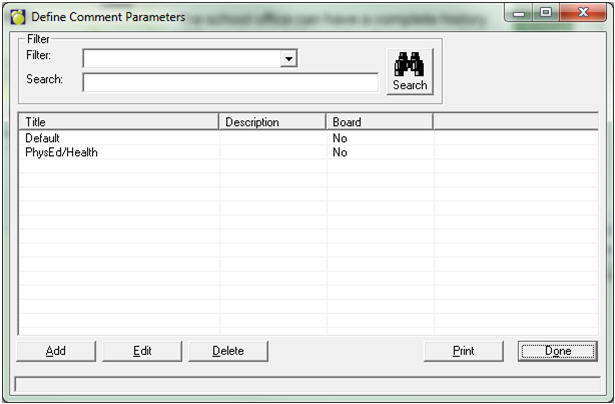
Choose Marks, Topic-based Marks, Define Comment Parameters.
Comment parameters can be defined for any combination of terms and topics that are in your school. Specific terms can be defined to have a larger space for the comment.
NOTE: The comment parameters govern data-entry only – not what prints on the report card. The report card printing is governed by the size of the box or cell that is built.
There are three ways to set up comment parameters:
1. Distinct Comment Entry - Space is reserved for one term/topic combination. Teachers will only see their own comments through Maplewood connectEd.
2. Collaborative Comment Entry: Separate Height - Space is reserved for multiple topics under a specific term, and the height of each topic is reserved separately. Teachers will see the comment from the other teachers with whom they are sharing a comment space.
3. Collaborative Comment Entry: Combined Height - Space is reserved for multiple topics under a specific term, and the combined size of all topics cannot exceed the size of the group. Teachers will see the comment from the other teachers with whom they are sharing a comment space.
1. Distinct Comment Entry
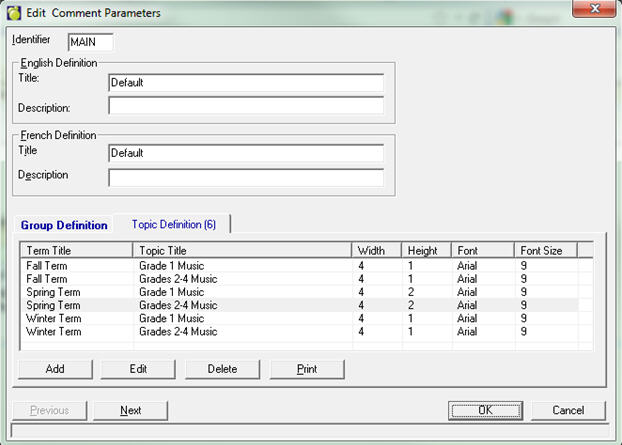
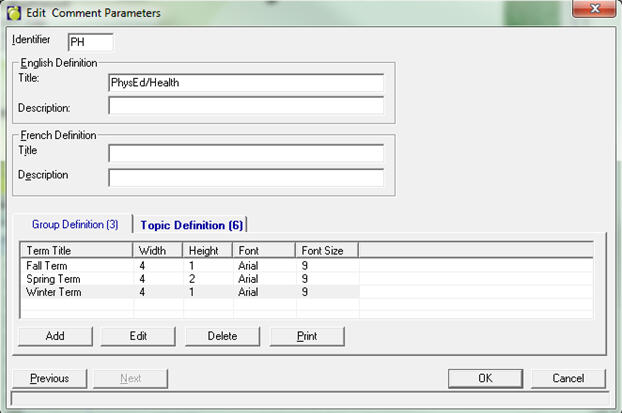
This is the most common way of defining comment parameters. Each term/topic intersection can have its own comment box, with a height and width. To set comment parameters up this way, leave the “Group Definition” tab empty and enter the desired comment size for specific term and topic combinations in the Topic Definition tab. Remember, comment boxes can be larger for different terms, if the teachers will be entering more information for the different terms. In the example below, the teachers will have twice as much space available to them for the “Spring Term” reporting period as they do for the previous terms.
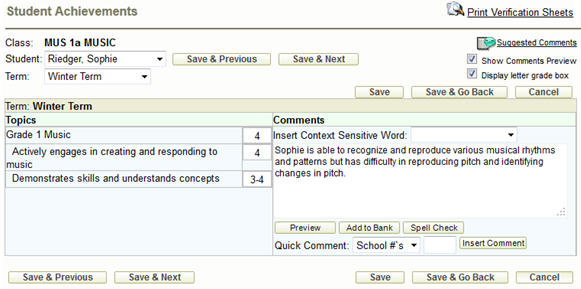
In the Maplewood connectEd (Individual Student Achievement) screen, the teacher will only see his or her own comment, even if the “Show Comments Preview” box is checked. The text will turn red when the comment has exceeded the size defined.
2. Collaborative Comment Entry – Separate Height
Collaborative comment entry with separate heights indicated, will work best when the teachers will be sharing a comment space but you still want to be able to reserve a specific amount of space for each comment. To set comment parameters up this way, enter the main size of the comment for a specific term into the “Group Definition” tab. Enter the comment sizes for the specific topics combinations in the Topic Definition tab for the specific term, making sure that the height of all the topics add up to the height of the main group definition.
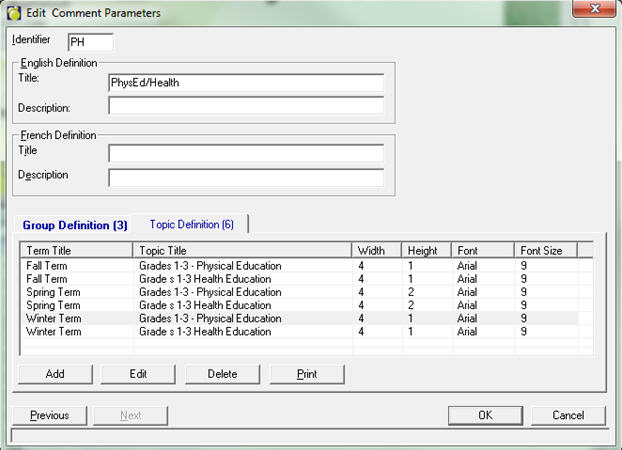
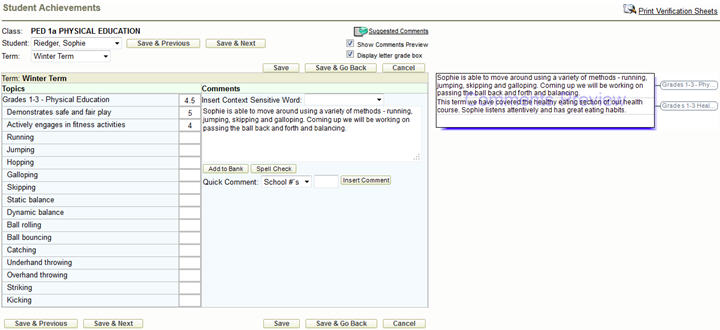
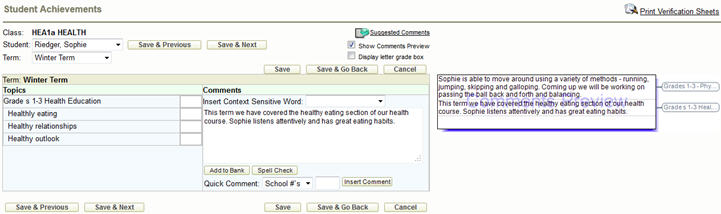
In the Maplewood connectEd Individual Student Achievement screen, both teachers can see each other’s comment, and see whether or not the other teacher has exceeded their allotted amount of space. However, they are not forced to actually share the space.
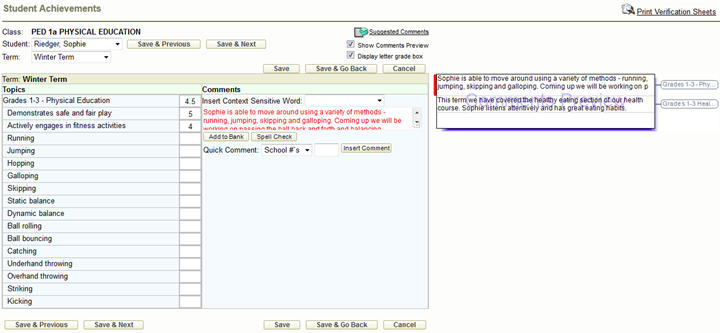
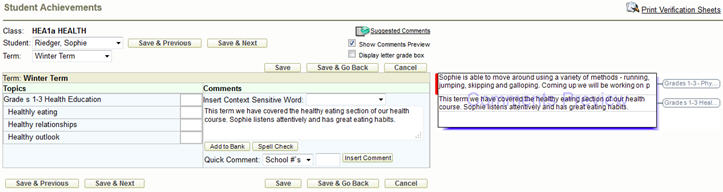
Note: The order of the topics within the comments preview box is dependent upon the order in which the topics were created (Marks – Topic Based Marks – Define Topics).
3. Collaborative Comment Entry – Combined Height
If two or more teachers will be sharing a comment space, collaborative comments are the way to go. Teachers will be able to see (but not edit) the comment of the teacher with whom they are sharing a space.
In this first type of collaborative comment, the teachers are actually sharing a ‘master’ (group) comment area. This method is sometimes referred to as the ‘first come, first served’ method, because if one teacher’s comment takes up a large amount of the group’s space, the teachers who attempt to enter comments afterwards will see the comment turning red even though they have only managed to enter a small amount of text. Teachers are encouraged to communicate with one another through the comment-entry period.
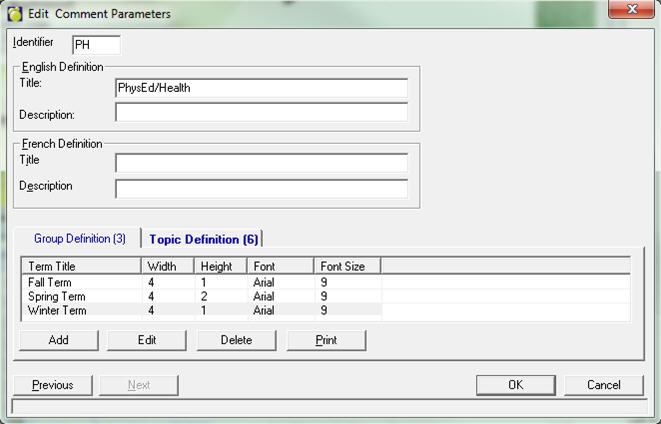
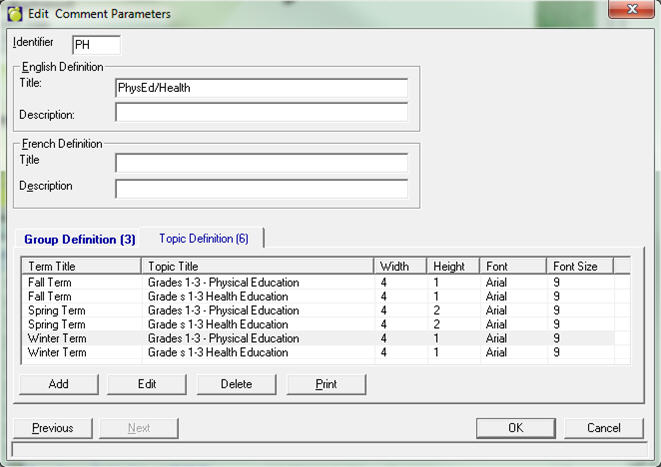
To set comment parameters up to use this method, enter the main size of the whole comment for a specific term into the “Group Definition” tab. Then, enter the exact same comment size for the different topics in the Topic Definition tab for the specific term. By setting the Topic Definitions up as the exact same size as the Group Definitions, the comment text for all topics involved will turn red when the total of all topics exceed the height of the group. In the example below, both the Physical Education and Health comment will turn red if the two comments together take up more than 4 inches by 1 inch (for the Winter term).
Please note: the width on the Topic Definition is actually ignored when a Group Definition exists.
When in Maplewood connectEd, teachers with a shared/collaborative comment will be able to see, but not edit, the comment of the teacher(s) with whom they are sharing the space by using the “Show Comments Preview” option at the top of the screen. This will give them an accurate idea of how much space they actually have.