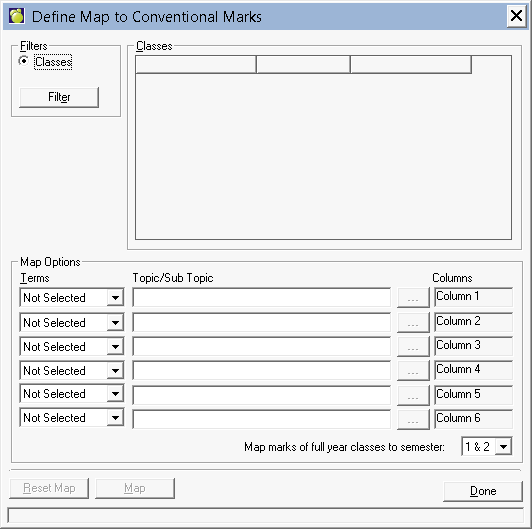
Maplewood has 2 types of marks that can be recorded for students. Conventional marks are basically 6 marks that can be stored for each class in the student's timetable in each semester (commonly referred to mark column 1 to 6). Topic Based Marks are a completely school defined method of storing marks, where the school can record any number of marks for each class (each term and topic assigned to the class can have a mark).
There are some areas of Maplewood that require the students' marks to be recorded in one of the conventional mark columns. The Define Map to Conventional Marks option is the tool that copies the marks from topic-based marks into any of the 6 conventional mark column.
1. Choose Marks, Topic based Grades/Marks, Define Map to Conventional Marks to see this box:
Note: Schools not using a cumulative markbook will have an check box at the bottom called "Copy final mark to column 6". If this is checked, the last row (Column 6) is disabled, and the mark in the student's Accumulated cell will transfer to column 6.
2. Click the Filter button. At the resulting screen, use the options to narrow the list of classes that the mapping applies to, or, leave the default of All Classes and Homerooms. Typically, a secondary school will use the Schedule Filter to narrow the classes to only those in the current semester.
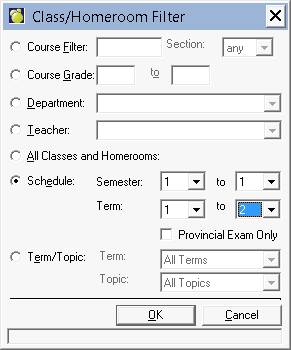
Click OK to the filter. The list of classes will appear. These are the classes that will get marks copied into the conventional mark column(s) when the Map button is selected. Note: Ignore the "At home" column.
3. In the Map Options frame, for each of the 6 conventional mark columns to be mapped, in the term column, select the topic-based term where the mark may be found. Then use the button to the right of the Topic/Sub Topic column (button has 3 dots) to select the topic where the mark may be found. In the example below, the mark entered in the S1 First/Grade cell in topic-based marks will be copied to the conventional mark column 1. The mark entered in the S1 Final/Grade cell in topic-based marks will be copied to the conventional mark column 6. These marks will be copied over for the students in the HZT4Ua, MFM2Pc, and YHV4Tc classes only.
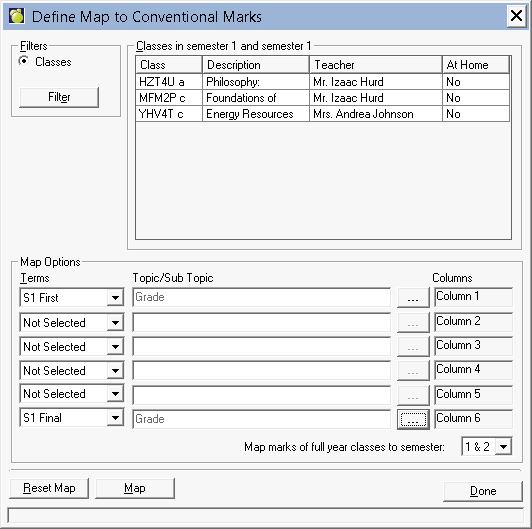
The Reset Map button can be used to reset the Terms column to Not Selected for all 6 rows.
4. Click Map to activate the Mapping process. This will copy the topic-based marks into the selected conventional marks.
5. Click Done to exit.