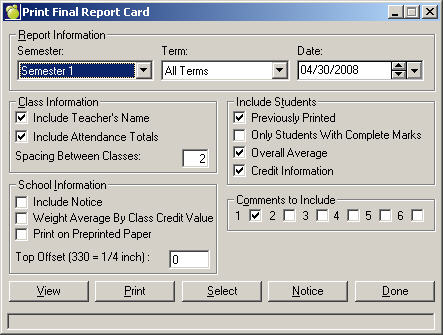
These are the "Report Cards" of the students' achievements. It is expected they will be printed at the end of each semester in semestered schools and at the end of the school year in schools with a traditional timetable. They include a description of the courses taken, a statement of the mark/grade or letter grade received, and a statement of the credits allotted.
To format a Final Report,
* If you are including a Notice, be sure to click the Notice button and enter your message.
After specifying all of the printing options, now you need to select one of these printing orders from the Print Reports screen: Print Alphabetically, Print By Homeroom, Print By Grade, Print By Defined Character, Print A Specific Student. Click Select or View to call up a selection box.
If you clicked the View button, your preview will be displayed. If you clicked the Select button, you will return to the Print Final Report Card box where you can now click View.
When you are satisfied with the format results, click Print.