Reports and Report Groups can be distributed to other divisions, can be sent to Maplewood’s Support department, or can be sent from Maplewood to a customer when a custom report has been built.
This is done through the export and import functions.
Please note: If a report is being imported that ALREADY EXISTS in the destination database, that report will be updated (overwritten).
Exporting a report package
File – Export Report(s)
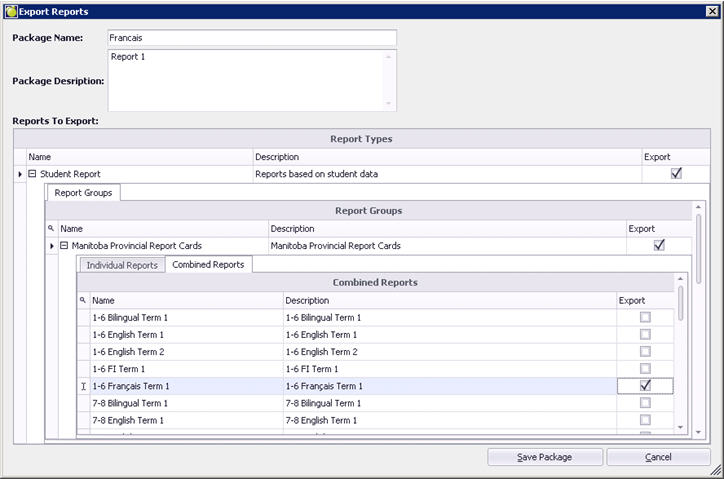
To export one report or many, including the report group, select the checkbox in the Export column, beside the desired reports from the Export Reports screen. The Report Group will automatically be selected. Select the Combined Reports tab to find the Combined Reports. If a Combined Report is selected, the Individual Reports inside of it will be automatically included in the export.
Give the report package a Name and Description.
To finish the export, click Save Package.
A file will be created with the designated name, and an extension of MWRP. Send this file to another division or to Maplewood Support.
Importing Reports
Choose File, Import Report(s)
To import a report package that has been created by another division or by Maplewood Support, go to File – Import Report(s) and navigate to the MWRP file that has been provided.
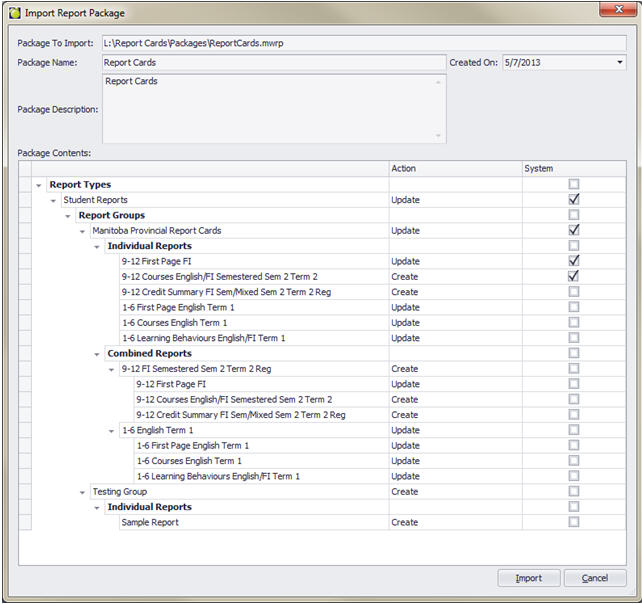
The checkbox in the far right-hand column indicates whether the report (or group) is a system report.
The Action column will indicate Update or Create, based on whether the report already exists.
Click Import to complete the import.