There are two main report types: fixed-layout and variable-layout.
A fixed-layout report prints exactly the same elements for every student – only the personal data and marks/comments change. The detail band’s height setting determines how many pages the report will be. For example, in a 4-page report on 8.5 x 11 inch paper, with half-inch margins all around, the detail band height will be 4000 hundredths of an inch (40 inches) and the margins on the report will be “50,50,50,50”. Tables, images and text boxes are added to the report design in the exact spot where they will print on the physical page.
In a variable-layout report, each student’s report will print differently. Depending on the number of classes the student is taking, or the number of topics assigned to the classes, one student’s report card may be one page while another’s may be much longer. Building this kind of report requires some planning. The parts that will print the same for every student (for example, the top few inches of the page may include some biographical data about the student, the school name, logo, etc) could go in the Detail Band, Page Header or Report Header. If there is a part at the end of the report that is also the same for every student (for example a Principal Signature line), this will go either in the Page Footer or Report Footer. The part of the report that is different for each student will go into a Class Detail Band (which will print once for each class in the student’s timetable) or possibly a Topic Detail Band (which prints once for each topic within a class). A Topic Detail Band can only exist under a Class Detail Band. If required, please contact Maplewood Computing support for assistance in getting started building a variable-layout report.
Report Builder for Report Cards - Outlines
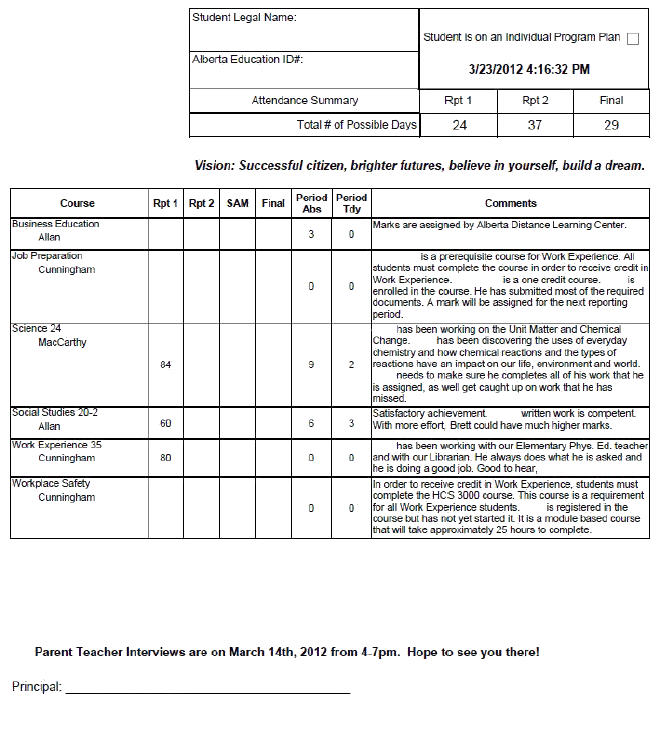
Report Type: Secondary Dynamic
Definition: Each student's report card will contain the classes in his/her timetable with the same fields (columns) for each class.
Administration system requirements:
One set of topics defined (mark/grade topic plus any learning skills or work habits topics)
Topics selected for all classes that will appear on the report card
Course titles, numbers or codes entered as they should appear on the report card.
Teacher names entered correctly (including title (Mr., Mrs., etc) if these are going to be part of the format of the name
Terms defined
Report design elements:
Detail band containing basic information about the student, logos, dates, legend, etc.
Classes band containing fields from the Classes branch (Classes - Topics Specific Field for marks/comments; Classes - Title, etc for class fields; Classes - Attendance for absents or lates)
Set Filter String property of Classes band to include Semester = 1 or Semester = b (this will print all semester 1 plus full year courses in the student's timetable)
Set Sort Fields property of the Detail band below Classes (the band actually containing the fields) if needed (by course code, title, etc)
Group Footer indented with the Classes band with elements such as Principal Signature or Parent Comment box (right-click inside the Classes band and select Insert - Group Footer)
Set Page Break property of Group Footer to After the Band
Report Type: Elementary - Dynamic Outcomes
Definition: Each student's report card will contain different topics (a.k.a. outcomes) based on the marks given (i.e., it will only print the topic if there is a mark in that topic) with a comment after each subject. Comments can either be flexible or fixed in size on the report card.
Administration system requirements:
Course titles entered as they should appear on the report card (as the subject - for example, English Language Arts or Mathematics)
Students in the appropriate classes
Teacher names and titles (Mr., Mrs., etc) entered correctly if they are to appear on the report card)
Terms defined
Select terms for all classes and homerooms
Topics defined with the Title entered how the topic/outcome should appear on the report card (arrange into Subject & Grade for easier selecting - see example)
If there are common topics among classes/subjects, only create one (e.g., "Programming Code", "Comment", "Overall Grade") and assign that topic to all classes
Comments can also be set up to be entered into a subject-specific comment topic (e.g., "Language Arts Comment") if that is the preference of the school/school division.
Topics selected for the appropriate classes
Topics defined for work habits, learning skills, etc
Work habits, learning skills topics selected for all homerooms
Report design elements:
Detail band containing basic information about the student, logos, dates, legend, etc.
Classes band containing just the class title and teacher name if applicable
Under the Classes band, a Topics band with a one-record table containing the title of the topic (Classes - Topics - Title) and the mark from a selected term (Classes - Topics - Mark Specific Field).
Sort the Topics band by setting the Sort Fields property of the Topics detail band. Select the field "Topic Code" and Ascending (this makes the blank-title topic last, and the comment that prints in the Group Footer (next), belongs to that topic)
Set the Can Shrink property of the the records in the topic table to Yes
Group Footer indented with the Topics band, containing the comment from the appropriate term (Classes - Topics - Comment Specific Term)
BeforePrint script of the Topics band must be modified to only print the topics that have a mark - please see Maplewood support for details.
Group Footer indented with the Classes band with elements such as Principal Signature or Parent Comment box (right-click inside the Classes band and select Insert - Group Footer)
Report Type: Elementary - Dynamic Classes
Definition: Each student's report card will contain a different set of subjects depending on classes in their timetable. Each subject has its own set of outcomes/topics. Comments can either be flexible or fixed in size on the report card.
Administration system requirements:
Course titles entered as the subjects should appear on the report card (e.g., English Language Arts or Mathematics)
Students in the appropriate classes
Teacher names and titles (Mr., Mrs., etc) entered correctly (if they are to appear on the report card)
Terms defined
Subject-specific topics defined with the Title entered how the topic/outcome should appear on the report card (arrange into Subject for easier selecting - see example)
If there are common topics among classes/subjects, only create one (e.g., "Programming Code", "Comment", "Overall Grade", or Learning Skills, if these are to appear within each subject and not on the first page) and assign that topic to all classes
Letter Grade Groups built, and Mark Entry definitions selected for each term/topic intersection
If there is anything not subject-specific on the report card (e.g., Learning Skills on the first page), those topics, as well as the common terms, will need to be assigned to the homerooms. (Or, assigned to one class and one class only)
Comments can also be set up to be entered into a subject-specific comment topic (e.g., "Language Arts Comment") if that is the preference of the school/school division.
Subject-specific topics selected for the appropriate classes
Comment parameters defined for all terms/topics that will require a comment. Even if the comment is to be unlimited in length, a definition still needs to be created, so the teachers get any box at all in which to enter their comments.
Report design elements
All elements that are going to look the same for all students (i.e., the first page) will go into the Detail band
Classes band with a table containing all of the information that will print for each class.
Teacher name and course title will come from the Classes branch.
All achievement fields will come from the Classes - Topics Specific Field branch.
Filter the class band by course code
If there is a comment at the bottom of the class band, set the Can Grow and Can Shrink properties accordingly. If the comment box should disappear if no comment is entered, Can Shrink should be Yes. If the box should expand when the comment gets longer, Can Grow should be Yes.
Portions at the end of the report that print the same for every student (parent comment area, principal's comment/signature) go in a Group Footer that is linked to the last class band.
Report Type: Elementary Static
Definition: Each student's report card (in a specific grade) will have the exact same layout - No teacher names or class attendance appearing beside subject. Comments are a set size on the report card.
Administration system requirements:
Homerooms defined
Students added to homerooms
Topics defined with the Title entered how the topic/outcome should appear on the report card
Appropriate topics selected for all homerooms
Report design elements
All elements that are going to look the same for all students will go into the Detail band
All achievement fields come from Achievement - Topic Specific Field