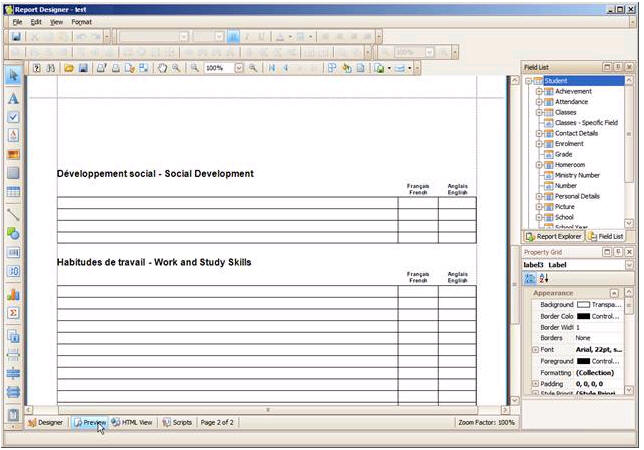
Click the Preview button to see the report as it will print without any student data behind it.
Since there is no student data behind the preview, if there are class bands on the report only one will appear. If there are class bands with filters, then no class bands will appear in the preview.
|
|
To show the Parameters window, click the Parameters button on the main toolbar. A window allowing you to change parameter values will be invoked. Enter the required values and click Submit. To reset settings, click Reset. |
|
|
To save a document to the file, click the Save button on the toolbar, or press CTRL+S. On the Save As dialog, locate a folder where you want to store your file, enter the document's name and click Save. |
|
|
Scaling - Scale Print Preview by Entering a Zoom Factor To scale a document, click the Scale button on the toolbar. Set the required percentage value in the editor. Click OK to save changes and close the dialog. Note If you're working with a document loaded from file, you cannot use scaling. |
|
|
To add a watermark to a document, click the Watermark button on the toolbar, or click Watermark... on the Background menu. To add text open the Text Watermark tab and input the required text, or choose one from the provided options. To add an image Watermark, open the Picture Watermark tab. |
|
|
Export Document to a File on Disk To export a document and save the resulting file on your hard drive, do one of the following. Send Exported File via E-Mail To send the resulting PDF file via e-mail, do one of the following. · On the toolbar, click the arrow near the Send via E-Mail... button . · On the File menu, choose the Send via E-Mail... item. Choose the required format in the invoked list. |
 Parameters
 Save
Save Scale
Scale Watermark
 Export Document